Customizing a Report Style
To customize a report style, you must display the report edit pane
To customize a report style:
1. In the report page, click More  > Edit the report
  .
.
> Edit the report .The edit pane appears to the right of the report.
If your report includes several chapters, all the open chapters will fold up so that you select the one you want to customize.
2. (If the report includes several chapters) Unfold the chapter you want to edit.
3. Customize the report.
4. In the report page, click Exit Report Edit Mode  .
.
.The edit pane to the right of the report disappears. You are no longer in report edit mode.
Your customization is saved.
Adding a Comment to a Report
You can add a comment at:
• report level
• report chapter level
 To hide the report chapter comments, see Managing Report Options.
To add a comment to a report or to a report chapter:
1. In the report page, click More > Edit the report .
> Edit the report .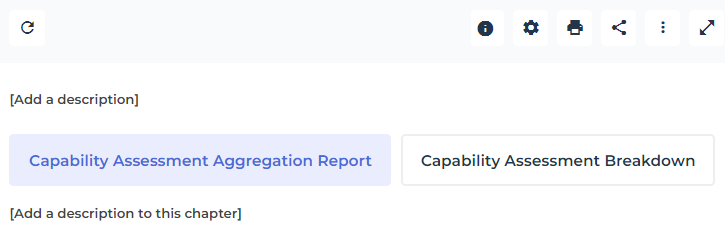
2. (Under the chapter title) Click Add a comment / Add a comment to this chapter.
An edit window opens.
3. Enter your text.
4. (To format your text) Click Maximize  to enlarge the text edit window and display all formatting menus.
to enlarge the text edit window and display all formatting menus.Alternative: click  to access the text formatting menus.
5. Click outside the edit window.
The comment appears under the title of the report / report chapter.
If the Do not display chapter comments option is selected after the addition of the comment, the comment is hidden. The content of the comment reappears if the option is cleared. See Managing Report Options.