Importing New Technologies from IT-Pedia
Data import is carried out by the enterprise architect or the functional administrator.
To import data with the IT-Pedia connector:
1. Click the Tools > IT-Pedia navigation menu.
2. In the edit area, click the Import button.
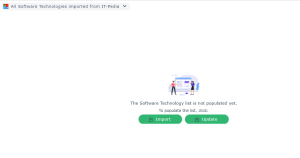
The import wizard appears.
3. Select:
• A vendor
• A product
• The version
• The platform (Mac or Windows)
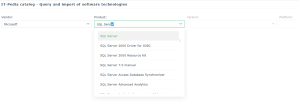
4. Check the product of the selection that appears.
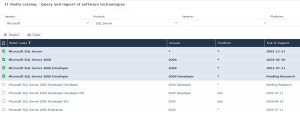
5. Click Import.
6. Select the import option:
• Now
• As soon as possible: execute the import after saving updates
• Scheduled: execute the import at the date and time specified
7. Click OK.
A message indicates the progress then the success of the import.
Filtering the display of technologies
You have the possibility to filter the display of technologies according to:
• Software technologies found in IT-Pedia My Products
• Software technologies not found in IT-Pedia My Products
• All Software technologies imported from IT-Pedia
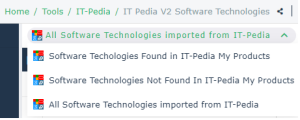
When you import technologies from IT-Pedia, these technologies are automatically added to the "My Products" list of the IT-Pedia catalog. When updating a technology in HOPEX, if the technology no longer exists in IT-Pedia, it is displayed in the list "Software technologies not found in IT-Pedia My Products".
Note that additional commands appear when selecting technologies.
 Click
Click  to access the hidden commands..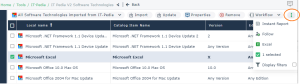
Updating IT-Pedia Technologies Imported into HOPEX
You can update information from IT-Pedia at any time. Updates are made to all normalized objects in your repository that have an IT-Pedia identifier.
To update information available on software technologies:
1. Click the Tools > IT-Pedia navigation menu.
2. Click the Refresh All button.
At the end of processing, a message indicates the number of technologies updated.
Synchronization of deletions in HOPEX and IT-Pedia
In the latest versions of the IT-Pedia connector HOPEX v5 and HOPEX Aquila published in the HOPEX Store, when you delete a technology imported from IT-Pedia from the HOPEX repository, the technology is also deleted from your product list in IT-Pedia.
Normalizing Technologies
Normalizing the technologies of your repository means adding them to the list of My Products Procurement list in IT-Pedia for standardization.
Normalization is applied to all technologies that have a defined vendor but no IT-Pedia identifier.
To normalize the technologies:
1. Click the Tools > IT-Pedia navigation menu.
2. Click the Normalize All button.
If necessary, click  to display the hidden commands.
Reporting Missing Technologies in IT-Pedia
From the IT-Pedia connector you can declare missing technologies and request that they be added to the IT-Pedia catalog. This request for addition in IT-Pedia implies automatic creation of the technology in HOPEX.
For compatibility with versions of the connector prior to 3.1, you can request an addition to IT-Pedia via an excel file.
Requesting new product from the connector (V3.0 or higher)
To request the addition of a technology:
1. Click the then Tools > IT-Pedia navigation menu.
2. In the edit area, click the Import button.
The IT-Pedia query and import tool appears.
3. Click Request New Product.
The product request wizard appears.
4. Indicate:
• the vendor
• the product
• the version
• the platform
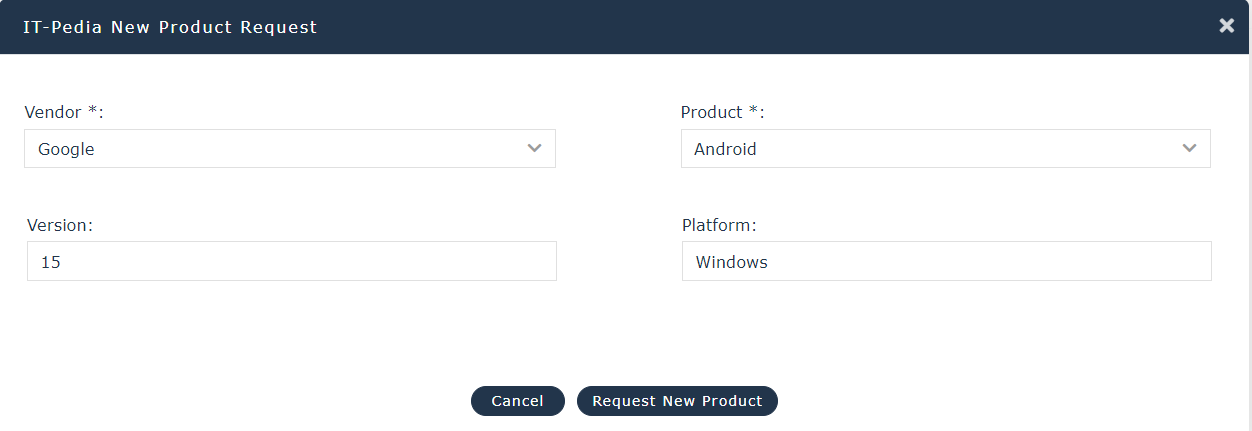
5. Click the Request New Product button.
The request is sent and a message confirms the creation of the product in HOPEX.
A standardization process is running in IT-Pedia. You can check the status of the request. See below Following the request.
A standardization process is running in IT-Pedia. You can check the status of the request. See below Following the request.
Following the request
To track the status of a new product request:
1. Click the Tools > IT-Pedia navigation menu.
2. In the edit area, click Import.
3. Click the Follow My Request button.
The list of requests appears, with their status.
Requesting new product via an Excel file (versions prior to v3.0)
For versions of the I-Pedia Connector prior to V3.0, you can import technologies into the IT-Pedia portal using an Excel file:
1. With your customer login, connect to the following address:
https://itpedia.eracent.com.
https://itpedia.eracent.com.
2. Click My Products > Procurement.
3. Click the Import Wizard button.
4. Download the Excel file template and fill in the following fields:
• Manufacturer: indicate the name of the manufacturer
• Product Name: indicate the name of the technology
• Version: technology version
• Manufacturer Part Number : enter "N/A"
5. From the same display, import the file.
Technologies are added to the MyProducts list and a standardization process is carried out in IT-Pedia:
• Known products are matched
• Unknown products are added
• Life cycle data is updated
To benefit from the additions and updates, use the Update function in HOPEX. See Updating IT-Pedia Technologies Imported into HOPEX.
See also: