Projects - Structure
The Structure aspect of the Projects view helps UAF Architects to classify the Entreprise projects using Projets Domains and to get a vision of the deliverables over the time.
Project Domains

Creating a Project Domain
To create a Project Domain:
1. From the Projects navigation menu, select Structure.
2. Select the Project Domains Tab.
The list of Project Domains appears.
3. Click New.
A creation dialog box opens.
4. Enter the name of the domain.
5. Click OK.
When you create a project domain, the two types of project portfolios that correspond to the different project statuses (project demands, candidate projects and projects in progress), are also created. They are visible in the Projects > Structure navigation menu, selecting the Project Portfolios tab.
 For more details on Project Portfolios, see Using Projects Portolios.
Assigning a Domain to Persons
It is possible to define particular roles for users on a domain; these roles are then valid for all the projects in the domain.
To assign a person to a domain:
1. Display the domain properties.
2. Click the Assignment page.
3. Click New.
4. In the window that opens, select the person or person group.
5. Select their role. You can define the following roles:
• Demand Approver
• Project Portfolio Approver
• Project Portfolio Manager
6. Click OK.
Project Structure
The Projects Structure tab helps UAF Architects to get a vision of a project deliverables over the time using Project Milestones.
For more details on Project Milestones, see Describing a Project Milestones.For more details on Project Deliverables, see Project deliverables.To specify the list of projects deliverables associated to Project Milestones:
1. From the Projects navigation menu, select Structure.
2. Select the Project Structure tab.
3. In the Project field, select the Project that interests you.
The list of Project Deliverables appears in the left side of the edition area and le list of project Milestones appears on the right side.
You can create a deliverable or a milestone from this wizard.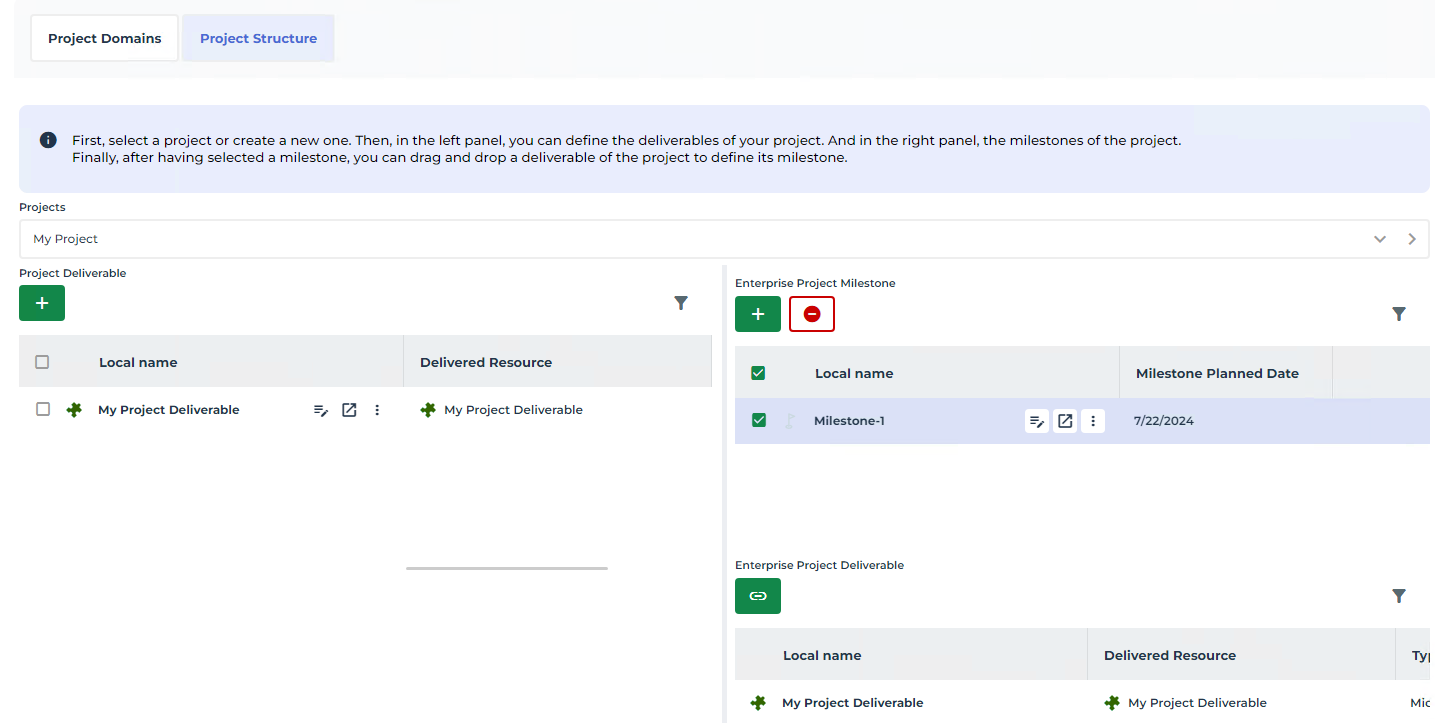
4. Select a Project Milestone.
The list of Deliverables associated to the Milestone is displayed in the Enterprise Project Deliverable section.
5. Select a Project Deliverables in the left side of the edition area, and drop it in the Enterprise Project Deliverable section corresponding to the selected Milestone.