Managing Languages
Supported Data Languages
HOPEX supports more than 30 data languages: Arabic, Bosnian, Bulgarian, Chinese (Simplified), Chinese (Traditional), Croatian, Czech, Danish, Dutch, English, Spanish, Finnish, French, Greek, Hebrew, Hungarian, Icelandic, Indonesian, Italian, Japanese, Korean, Malay, Norwegian, Polish, Portuguese, Romanian, Russian, Serbian, Slovak, Slovenian, Swedish, Thai, Turkish, Vietnamese.
At installation, HOPEX includes the following data languages: English, French, German, Italian, Spanish, and Portuguese. If needed, you can install additional languages (from the supported language list).
Installing Additional Languages
At installation, HOPEX includes the following data languages: English, French, German, Italian, Spanish, and Portuguese.
If needed, you can install additional languages (from the supported language list).
To install additional data languages in HOPEX:
1. Connect to HOPEX Administration and select the environment concerned.
2. Right-click the environment and select Metamodel > Install Additional Languages.
The dialog box Install Additional Languages opens.
3. Select the languages you want to be available in HOPEX.
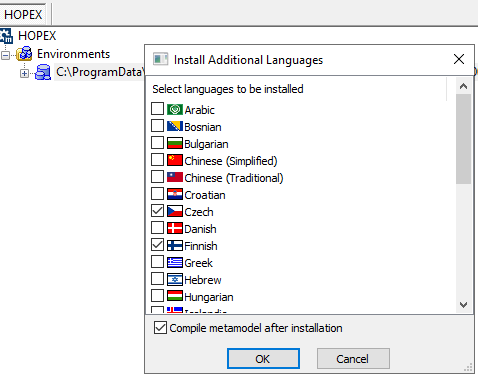
4. Click OK.
A window indicates progress of import of the corresponding libraries.
The selected languages are added to the list of available languages (in the options: Installation > Languages).
For these languages to be available in HOPEX, you must select them in the options, see Defining Available Data Languages.
Defining Available Data Languages
Among the data languages available in HOPEX, you must select those that can be used to translate or show data:
• at environnement level, for all of the users
• at user level
 For more information on the use of languages, see Using HOPEX in a Multilingual Context.
To define the data languages available for all users:
1. Connect to HOPEX Administration
2. Access the environment option management window.
3. In the Options tree, select Installation > Languages.
4. In the right pane, select the languages in which you want the users to be able to work the data.
5. Click OK.
Defining the Language of e-mails in Workflows
To define the language of e-mails in workflows:
1. Access the options management window.
2. In the options tree, select Tools > Collaboration > Workflows.
3. In the right pane, for the Language for sending mail option, select the language to be defined in e-mails.
4. Click OK.
Managing Languages in Web Applications
You can modify:
• the interface language in Web applications
• the data language in Web applications.
To manage languages in Web applications, see Managing Languages in Web Applications.