Configuring the Trigger Scheduling
To configure the Trigger scheduling, you must define:
• its execution time zone for all its scheduling time definitions
• the date and time of its first execution
 In a recurrence case, the first execution date is not mandatory.
• its frequency
The execution can be unique or recurrent.
If the execution is recurrent:
• its execution time.
• if needed, you can define a recurrence on the execution time, i.e. execute the Trigger several times the scheduled day.
• the date of its last execution (defined or with no end)
Defining the Execution Time Zone
To facilitate scheduling time definition, you can modify the time zone in which you define the scheduling times:
• UTC (default), to define times in UTC format
• User time zone to define times in the user time zone
• Server time zone (STZ), to define times in the time zone of the server executing the Trigger
Attention: if you change the time zone a posteriori, times are not automatically adapted.
To define the execution time zone:
1. Access the Triggers.
See Accessing Triggers.2. Right-click the Trigger concerned and select Update Scheduling.
3. In the Time zone for all the scheduling time definitions, select the time zone.
4. If you select User time zone, you must define your time zone.
Defining the First Execution Date of the Trigger
You must define the first execution date of the Trigger. It can be:
• absolute
E.g.: on the 04/18/2020 at 18:30:15.
• relative (relative to a reference date)
In a recurrence case, the first execution date is not mandatory.In a non recurrence case, the first execution date is the unique execution date.Defining the first execution date (or unique execution)
To define the first execution date of a Trigger:
1. Access the Triggers.
See Accessing Triggers.2. Right-click the Trigger concerned and select Update Scheduling.
3. In the Start section:
• Use the calendar of the Start date (absolute) field to select the first execution date of the Trigger.
Select Today, if you want to define the current day.
• In the Start time field, set the triggering time of the Trigger.
By default the time is set to 00:00:00 (hh:mm:ss format) in the time zone defined (see Defining the Execution Time Zone).
If you are in the UTC time zone, to facilitate the check of your settings, see Defining your Local Time (Time Zone).Defining a relative date for the first execution
You can define a relative date for the first execution, i.e. define the first execution date as:
• (by default) immediately after the Trigger creation, or
• at a later date:
• a specific number of days after the reference date
• a specific day of the week after the reference date
• a specific day of the moth after the reference date
To define the first execution date of a Trigger:
1. Access the Triggers.
See Accessing Triggers.2. Right-click the Trigger concerned and select Update Scheduling.
3. In the Start section, select Relative Date.
By default Reference date/time as soon as possible is selected: the execution is triggered right after the Trigger creation.
4. To configure a later relative date, clear Reference date/time as soon as possible, then in the Start date (relative) click  and define:
and define:The Day of relative date:
• In the Days from reference, enter the number of days after the reference date, or
• Select the Day of week and use the drop-down list to select the chosen day, or
E.g.: Tuesday, the Trigger is executed on the first Tuesday following the reference date.
• Select the Day of month and use the drop-down list to select the day.
E.g.: 15th, the Trigger is executed on the 15th of the month following the reference date.
The Month of relative date:
• In the Months from reference, enter the number of months after the reference date, or
E.g.: 2, the Trigger is executed a couple of months after the reference date.
• Select the Month of year and use the drop-down list to select the chosen month, or
E.g.: June, the Trigger is executed in June following the reference date.
Defining the Trigger Frequency
A Trigger can be executed uniquely or on a regular basis.
Whatever the frequency chosen, you can perform a first execution as defined in the Start section.
Frequency:
• daily
By default, the Trigger is executed every day at the time set for the first execution.
You can execute the Trigger every N days (N to be defined)
• weekly, you must define:
• the day of the week
E.g.: Monday, Tuesday,..., Sunday
You can select several days.
• the frequency
E.g.: every two weeks (N=2)
• monthly, you must define:
• the day of the month, or the day of the week (day of the week and week of the month to be defined)
E.g.: 1,2,...,31, last day of the month
You can select several days.
E.g.: every Sunday of the last week of the month, i.e. the last Saturday of the month.
You can select several days and several weeks.
• the frequency: every N months (N to be defined) or a specific month every year
E.g.: every 2 months (N=2) or in April every year.
You can select several months.
To define the Trigger execution frequency:
1. Access the Triggers.
See Accessing Triggers.2. Right-click the Trigger concerned and select Update Scheduling.
3. In the Date Recurrence section, use the drop-down menu of the Recurrence Type field to select the frequency.
Example: Daily, Monthly, Once, Weekly.
4. Configure the frequency.
5. (If you want to first execute the Trigger as defined in the Start section) Select Execute at Start date time.
Defining the Last Execution Date
By default, the Trigger scheduling is endless.
You can define the Trigger last execution date, via:
• an end date, or
• a defined repeat number
To define the Trigger last execution date:
1. Access the Triggers.
See Accessing Triggers.2. Right-click the Trigger concerned and select Update Scheduling.
3. In the Recurrence End section, use the drop-down menu of the Recurrence End Type to select the end type.
Example: End Date or Repeat Number.
4. (If you selected End Date) Define the last execution day and time.
• Use the calendar of the End date (absolute) field to select the last execution date of the Trigger.
• In the End time field, set the triggering time of the Trigger.
By default the time is set to 00:00:00 (hh:mm:ss format) in the time zone define (see Defining the Execution Time Zone).
If you are in the UTC time zone, to facilitate the check of your settings, see Defining your Local Time (Time Zone).Defining the Execution Time
In case the Recurrence Type is “Daily", "Weekly", or "Monthly", you must define the Trigger execution time:
• once: you need to define the execution time only
• several times a day, you must define:
• the scheduling period (in hours):
• the start time
• the end time
Times are defined in the defined time zone (see Defining the Execution Time Zone) in hh:mm:ss format.
If you are in the UTC time zone, to facilitate the check of your settings, see Defining your Local Time (Time Zone).Defining the Trigger execution time
You can define a unique execution time each scheduled execution day.
To set the Trigger execution time:
1. Access the Triggers.
See Accessing Triggers.2. Right-click the Trigger concerned and select Update Scheduling.
3. In the Time scheduling (for date recurrence) section:
• in the Scheduling type, keep "Once".
• in the Single trigger time set the time at which you want to execute the Trigger.
E.g.: 22:00:00, by default 04:00:00 (in the time zone defined).
4. Click OK.
5. Check the scheduling of your execution time.
• Close and re-open the Trigger Management window.
• Right-click the Trigger and select Properties.
• In the Scheduling tab, select the Next Executions sub-tab.
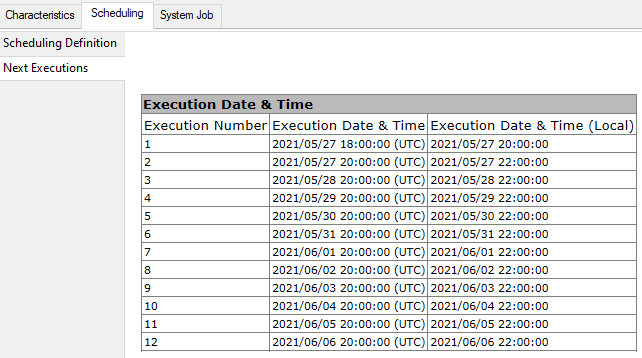
The Execution Date & Time table indicates the first execution date and time and the following ones with their corresponding local time.
To define your local time, see Defining your Local Time (Time Zone).E.g.: in this daily scheduling, after the first execution date (here 20:00:00 Paris local time i.e. 18:00:00 UTC), the Trigger is executed once a day at 22:00:00 Paris local time i.e. 18:00:00:00 (UTC).
Defining a time-based recurrence on the Trigger execution
You can schedule the Trigger execution several times each scheduled execution day. You then must define:
• the scheduling period (in hours):
Default period: every 4 hours (04:00:00) each scheduled day.
• the start time of the time-based scheduling
• the end time of the time-based scheduling
To define a time-based recurrence on the Trigger execution:
1. Access the Triggers.
See Accessing Triggers.2. Right-click the Trigger concerned and select Update Scheduling.
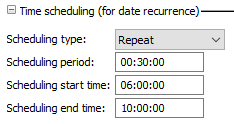
3. In the Time scheduling (for date recurrence) section, use the drop-down menu of Scheduling type field to select “recurrent”.
4. Define the recurrence (period, start time and end time of the time-based scheduling):
• Scheduling period (hh:mm:ss format)
• Scheduling start time (hh:mm:ss format)
• Scheduling end time (hh:mm:ss format)
E.g.: schedule the Trigger every 30 minutes from 6am to 10am in the defined time zone.
5. Click OK.
6. Check your scheduling configuration regarding the execution time recurrence:
• Close and re-open the Trigger Management window.
• Right-click the Trigger and select Properties.
• In the Scheduling tab, select the Next Executions sub-tab.
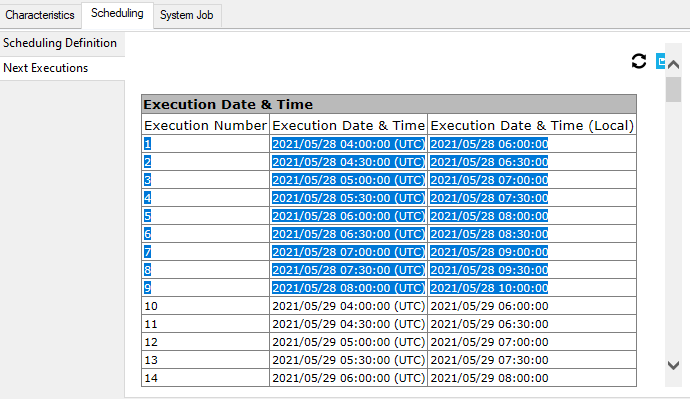
The Execution Date & Time table indicates the first execution date and time and the following ones with their corresponding local time.
To set your local time, see Defining your Local Time (Time Zone).This example shows a daily scheduling, the Trigger is executed every day from 06:00:00 to 10:00:00 (Paris local time) i.e. from 04:00:00 to 08:00:00 (UTC).