Importing a Module into HOPEX
To import a module into HOPEX:
1. Access the HAS console:
• Enter its http address in your web browser and click Open.
• Enter the login and password of the HAS administrator and click Sign in.
2. In the console navigation menus, select Modules > Module List.
3. In the right pane, click the Add new tab.
4. Click the module you want to upload.
 If needed, use the Search (Search here) and filtering (Type, Tag) tools to help you find the module.
 If you work off-line, but you have access to the module in a local file (e.g.: via a USB key): click
  to upload it.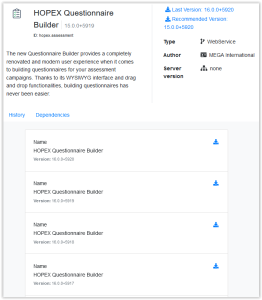
5. (Optional) In the module page, click Dependencies to check that all the required modules are installed.
When uploading the module, these dependent modules are automatically added to the upload.
6. Upload the required version of the module: click  .
.
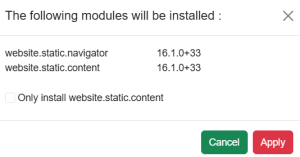
.7. Click Apply to confirm the installation of the module and its dependent modules, if necessary.
Click Cancel to cancel the installation.Example: the installation of the "website.static.content” module requires to install "website.static.navigator".
8. A message indicates when the environment automatic update will be launched (in 10 minutes).
 Make sure to perform this operation when users are not connected or inform them, see Notifying Connected Users.If you launch the installation of another module within 10 minutes, the environment automatic update is launched 10 minutes after having requested to install the second module.
 If needed, you can:
• launch the update immediately: click Start now.
A delegated administrator does not have the Cancel feature.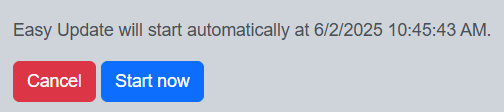
A message informs you that the module is installed and ready to use.
The module has been added to the list of installed modules in the Installed tab.
See Module description.Updating an environment manually
While importing a module, if you have canceled the environment automatic update, you must perform the update manually to be able to use the module.
To manually update the environment:
1. Access the HAS console:
• Enter its https address in your web browser and click Open.
• Enter the login and password of the HAS administrator and click Sign in.
2. Select the Cluster navigation menu.
In the Modules tab: hover the mouse over the HOPEX Core Back-End module then click More  > Start Easy Update.
> Start Easy Update.
The environment has been updated.
Authentication via an API key
Some modules require to authenticate via an API key to launch an HOPEX session.
See Managing API Keys.