Accessing the Report Templates and their Constituents
You can display the Report Templates and their constituents either:
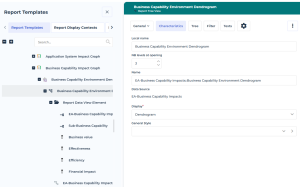
• in the Browse area
That way you can display the properties of the Report Template and of its constituents in the Edit area, so as to view the Report Template structure and its properties at the same time.
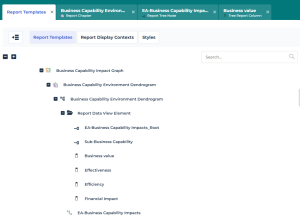
• in the Edit area
That way you can display the properties of the Report Template and its constituents in other tabs of the Edit area.
Accessing Report Templates and their constituents
To access the Report Templates:
1. Connect to HOPEX Report Studio desktop.
2. In the navigation bar, click Report Definitions > Report Templates  .
.
.The Report Templates page displays in the Browse area.
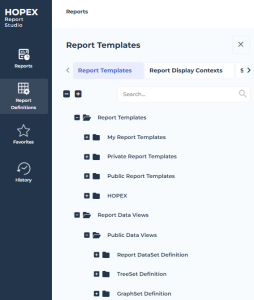
 Alternative: select Report Definitions > Report Templates to display the Report Templates page in the Edit area.
 At any time you can click Browse  to display the same tree view in the Browse area.
to display the same tree view in the Browse area.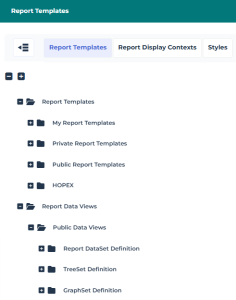
In both Browse and Edit areas, the Report Templates tab gives access to:
• the Report Templates classified by their sharing characteristics (Private or Public). The HOPEX folder includes standard Report Templates.
 You can add sub-folders for a more precise Report Template classification.
 • the Public Report Data Views classified by their source Definition (Report DataSet Definition, TreeSet Definition, GraphSet Definition). These Public Report Data Views can be reused in Report Templates
A Private Report Data View cannot be reused in another Report Templates, so that it is relevant to its Report Template only.You can add sub-folders for a more precise Report Data View classification.Displaying properties of a Report Template and its contituents
To display the Report Template properties:
1. Access the Report Template in the Browse area.
2. Click the Report Template to display its properties.
If you displayed the Report Template in the Edit area, hover the cursor over the Report Template name and click Open in a new tab  to open its properties in a new tab.
3. Expand the Report Template  to access its Report Chapters
  .
.
to access its Report Chapters .4. (Report Data View-based Report Chapter) Expand a Report Chapter to access its Report Data View(s):
For example:
Report Table View 
Report Matrix View 
Report Graph View 
Report Value View 
Hover the cursor over the Report Data View and click Open in a new tab to display its Properties in a new tab.
to display its Properties in a new tab.5. Expand each Report Data View to access its constituents.
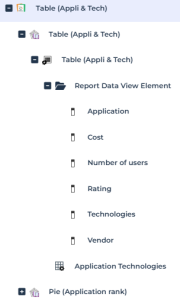
Click the Report Data View element to display its properties in the Edit area.
(If you displayed the tree in the Edit area) Hover the cursor over the Report Data View element row and click Open in a new tab to display its Properties in a new tab.Directly accessing custom Report Templates and their properties
You can directly access the custom Report Template lists:
• your Report Templates only
• all custom Report Templates
To directly access the Report Template properties:
1. Connect to HOPEX Report Studio desktop.
2. In your Home page, in My Scope, click:
• My Report Templates indicator to access your Report Templates only
• Custom Report Templates to access all the custom Report Templates
3. Click a Report Template to display its properties.
Hover the cursor over the Report Template and click Open in new tab to keep the list of Report Templates displayed.Accessing Report Display Contexts
A Report Display Context enables to configure the Reporting page of an object for a specific profile. The Report Display Context is dedicated to a "MetaClass - Profile" duo.
To access the Report Display Contexts:
1. Connect to HOPEX Report Studio desktop.
2. In the navigation bar, select Report Definitions > Report Templates.
3. Click Report Display Contexts.
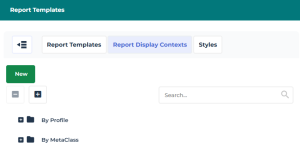
You can access the Report Display Contexts sorted either by:
• by profile
• by MetaClass
Accessing Report Styles
Report styles are used to add styles to Report Templates.
See How to Apply a General Style, How to Define the Filters Displayed in a Report and How to apply a Conditional Style to a Graph.A MetaTest can be used in Report Style condition properties.
To access the Report Styles:
1. Connect to HOPEX Report Studio desktop.
2. In the navigation bar, select Report Definitions > Report Templates.
3. Click Styles.
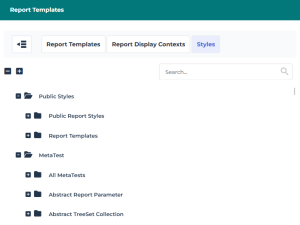
The Styles page displays:
• all the Public Report styles and those used in Report Templates
Report styles are used to add styles to Report Templates, see How to Apply a General Style, How to Define the Filters Displayed in a Report and How to apply a Conditional Style to a Graph sections.• all the MetaTests and those classified by MetaClass tested.
A MetaTest can be used in Report Style condition properties (see Report Style Condition Properties) or added to a Report Template (see Adding a condition to report availabity (MetaTest on Report Template).