Managing object titles in navigation trees
Objects in navigation trees are presented by their name. This name generally corresponds to the "Short Name" attribute of the object.
If you wish project titles always to comprise the name of the project followed by the name of its library, you can modify this behavior via the MetaField concept.
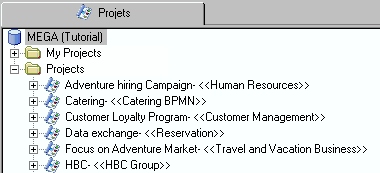
Result of change of project titles in a navigation tree
The MetaField MetaClass enables redefinition of titles of objects of a MetaClass:
• from the value of an object attribute, for example its name.
• from the name of the object referenced by a MetaAssociationEnd, for example the owner library.
All components of the new title, attribute or MetaAssociationEnd, are associated with a MetaField. They are referenced by the main MetaField which is attached to the MetaTreeNode of the MetaClass.
Modifying title of a MetaClass
To modify titles of objects of a MetaClass, you must start by creating the main MetaField.
To modify title of a MetaClass:
1. In the MetaStudio navigation window, expand the MetaTree folder, then the MetaClass Navigation folder..
2. Expand the folder of the MetaClass that interests you (for example: Project).
3. Right-click the MetaTreeNode of the MetaClass (for example: NAV Project) and select Explore.
The explorer window opens.
4. Display empty collections.
5. Right-click the "MetaTreeNodeName" folder and select New.
The MetaField creation dialog box opens.
 You must be authorized to modify MEGA data.
6. Specify the name of the MetaField and click OK.
The convention adopted for naming the main MetaField is: <MetaTree Name >) <MetaClass Name > Name.
Example: NAV Project - Project Name
If your new title is built from a unique attribute or a single MetaAssociationEnd, you need only reference it in the MetaField you have just created. For more details, see Defining content of a title.
Creating a composite title
If the new title is composed of several attributes or references, you must create a MetaField per component and add a reference to its content. Each component MetaField is created from the main MetaField.
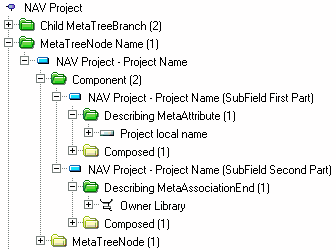
Result of exploring a standard MetaTreeNode with modification of its title
To create a component MetaField:
1. Right-click the main MetaField (for example: "NAV Project - Project Name" ) and select Explore.
An explorer window opens.
2. Display empty collections.
3. Right-click the "Components" folder and select New.
The MetaField creation dialog box opens.
4. Specify the name of the sub-MetaField and click OK.
The convention adopted for naming a MetaField component is: <MetaTree Name >) <MetaClass Name > Name (SubField <order> Part).
Example: NAV Project - Project Name (SubField First Part).
5. Similarly create a MetaField per component of the new title.
Defining content of a title
The new title can be built:
• from the value of an attribute.
• from the name of an object referenced by a MetaAssociationEnd.
To specify that a MetaField is associated with an attribute:
1. Right-click the MetaField that interests you (for example: "NAV Project - Project Name (SubField First Part)"), and select Explore.
An explorer window opens.
2. Open the Properties window of the MetaClass associated with the MetaTreeNode and select the MetaAttribute tab.
3. Select the attribute you wish to use for the title of objects of the MetaClass, and drag it to the Describing MetaAttribute folder of the MetaField explorer window.
To specify that a MetaField is associated with a MetaAssociationEnd, proceed in the same way, dragging the MetaAssociationEnd to the Describing MetaAttribute folder of the MetaField explorer window.Adding text within a MetaField
To add text within a MetaField:
1. Open the Properties window of the MetaField.
2. Complete boxes MetaField Prefix and MetaField Suffix with character strings that you wish to add before or after referenced content.
