7 Defining the Cards
HOPEX desktops include the following concepts:
• Card
A card shows the main information that identifies an object.
Cards can be displayed in:
o the Edit area, as the Overview page of object properties
o the Browse area, as a card list in the navigation submenus
You can configure the card content. If no specific card is defined for the MetaClass, the default card is applied (Name and Description only).
A card is defined on the Display Context associated with the MetaClass.
• Display Context
The Display Context enables to customize a single MetaClass. A profile has a Display Context for each MetaClass. The same Display Context can be used for several profiles.
The card is defined on the Display Context of the profile. You can define one card by profile.
7.1 Modifying a Card Display
You can define:
• where the card is displayed: in both the Edit and Browse areas or in only one of them
• the card items: a MetaAttribute, a MetaAssociationEnd, or a query
• each information display location: Attributes (Main/General information), Indicators (Main/General information), Name, Status, or Tags
Edit area: Overview property page

Card Item Name is not available in the Overview page. The page name is the object one.
Browse area: card list

As smaller in the Browse area, the card shows restricted amount of information.
Tags are not available in the card list.
To modify a card display:
1. In the profile properties, display its Display Contexts tab.
E.g.: the Enterprise Architect profile.

2. Access the Display Context properties of the MetaClass concerned.
E.g.: “EA V6 – Application” Display Context of the Application MetaClass.
3. Display its Card property.
It lists the object information (Card Item) available in the card. For each information, it shows its availability (Card Availability) and Display zone.
4. Access the properties of the information concerned.
5. Modify its values as required:
Display zone field (Attributes, Indicators, Name, Status, Tags)
Card Item field (card name in the Browse area)
_GUIName field to overload the name
Card Availability field (CardList, Overview, Both)
7.2 Using the Control Card
To overload the Overview (or Characteristics) page, the MetaPropertyPage must be configured ad follows:
• in Characteristics:
Type: “Overview” (or “Characteristics”)
For example, the EA – Application – Overview
• in Setup
_Parameterization: Control(Card)

7.3 Adding Lists/Trees to Cards (Browse Area)
In the Browse area, for specific objects, you can configure a maximum of two buttons displayed when hovering the cursor over the card. These buttons give access to objects that can be drag & drop into the Edit area (e.g.: a diagram, or another object property pages).

|
Inside view
to access a functional synthesis of the object
|
Context
to access the object context
|
 |
 |
Example: for the *AirportMega.com Application, the end-user can display its Application Structure Diagram in the Edit area, and then drag & drop IT services from the tree into the diagram.
You can define:
• each button name (e.g.: Inside View and Context)
• the tree/list displayed:
o use a Metatree to display objects in a tree format
o use a query to display an object list (the query must be performant)
To configure the buttons on card (Browse area):
1. In the profile properties, display its Display Contexts tab.
E.g.: the Enterprise Architect profile.
2. Access the Display Context properties of the MetaClass concerned.
E.g.: “EA V6 – Application” Display Context of the Application MetaClass.
3. Display its Tools property.
4. Add/modify the buttons: _GUIname and MetaTree/query.
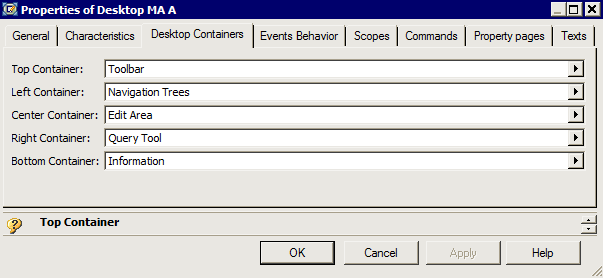
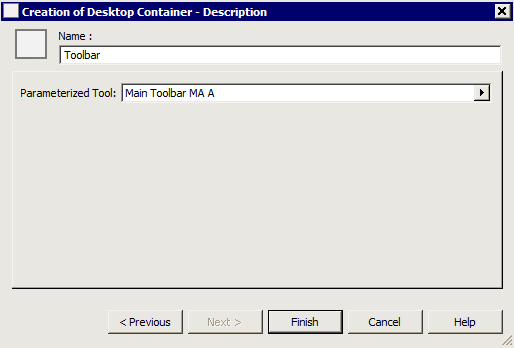
To modify or add a tree (using a MetaTree) or a list (using a query), you might need to perform the action by Exploring the corresponding Display Context.

If you add more than two tools, only the first two ones are taken into account.
7.4 Adding the Search Tool to a Tree (Browse Area)
You can add the search tool in a tree of a small View (Browse area). This is performed on the corresponding MetaTree.
E.g.: you can add the search tool in the Technologies by Vendors tree.

To add the search tool to a tree (Browse area):
1. Access the MetaTree properties corresponding to the tree.
E.g.: Hopex V6 - EA Baseline - Technologies By Vendor.
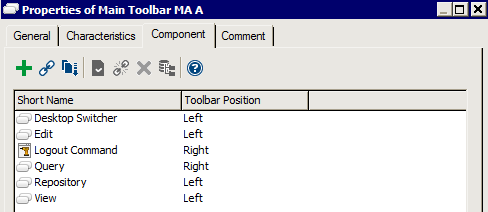
2. In its Texts > _Settings page add:
[General]
AllowSearch=1
7.5 Adding List Filters in the Card List (Browse Area)
In the card list (Browse area), you can add a button to filter the list. This is performed with a Parameterized Alternate List.
E.g.: in GRC Solution, cards on Risk MetaClass can be filtered according to specific criteria: risks to review, materialized risks, orphan risks, or all of the risks.
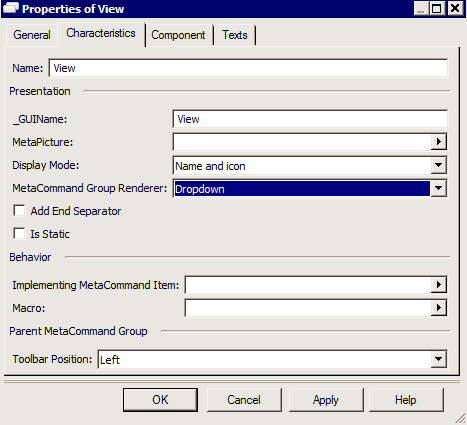
To configure the buttons on card (Browse area):
1. In the profile properties, display its Display Contexts tab.
E.g.: the GRC Manager profile.

2. Access the Display Context properties of the MetaClass concerned.
E.g.: “GRC – Risk” Display Context of the Risk MetaClass.
3. Display its List property.
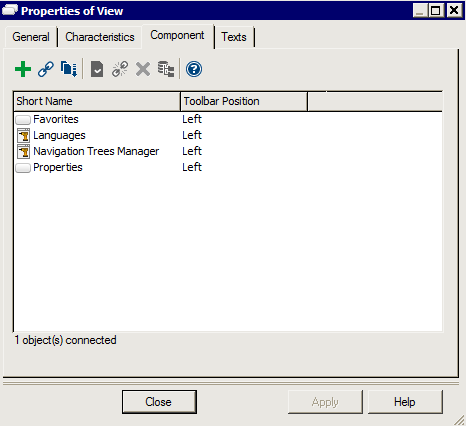
4. Connect your object collection.
E.g.: here the Risk MetaClass collection and three queries retrieving the objects (Risks to Review, Materialized Risks, and Orphan Risks).
