11 Action following event
The desktop can present tools distributed in a given space. Setup of this distribution is not however sufficient for desktop operation: if tools cannot communicate with each other, if there is no interaction between tools, the desktop is unusable.
Tools must be able to communicate between themselves.
To do this, the desktop introduces two types of events in the application:
• Current Change: following an action (click by a user that will change the current) in HOPEX, the communication between two tools generates display update of the tool subscriber to the event.
By default, the current object selected in HOPEX is notified to all desktop Containers and Tools. These Containers and Tools update themselves or not depending on this new current.
Example: When a dialog box is opened, clicking an object generates properties dialog box update as a function of the selected object (unless the action is overridden by the click manager).
• Interaction: following an action (click by a user) in HOPEX, communication between two tools generates an action of the tool subscriber to the event.
Example: In the Query tool, clicking  generates an interaction that requests opening of a dialog box to display search results.
generates an interaction that requests opening of a dialog box to display search results.When a (MEGA Parameterized Tool) produces an item of information (example: change of state), it can dispatch this event in a Scope (this Scope is saved in the Desktop Container). Only the Desktop Containers or MEGA Parameterized Tools subscribers to this Scope will take account of this information to update their display as a function of the event (Scope), or execute another action.
11.1 Managing tool update as a function of current
By default the desktop manages global current. This current is automatically sent to all tools, whether they process it or not.
To manage tool update as a function of another current, you must create an event (Scope) of Current Change type. This event (Scope) will be dispatched by a particular tool. Tools sensitive to this current will subscribe to this event (Scope). When the current changes in the source tool, the desktop immediately notifies the target tools, which react if they choose.
Defining an event (Scope) of current is to restrict current change to only two or three tools in the application.
To do this:
1. Open the Desktop Container Properties (e.g.: "Desktop MA A").
2. Select the Scopes tab.
3. Click New  .
.
.4. In the Local Name field, enter the event name (Scope) (e.g.: "Keyword").
5. In the Scope Type field, select the Current Change event type.
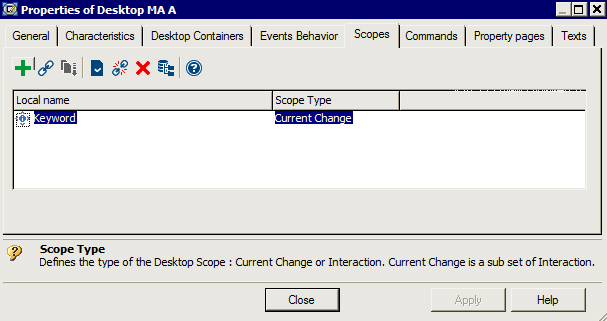
6. Open the new Scope Properties and select the Characteristics tab.
7. In the Publishing Parameterized Tool field, click the arrow and select the MEGA Parameterized Tool (example: "Keywords MetaTree Component") which will dispatch its modifications.
8. Click OK.
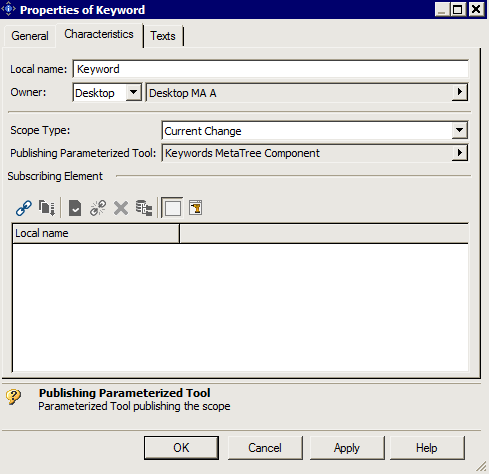
9. In the Subscribing Element frame, click Connect  and select the Containers and/or Parameterized Tools that should be updated as a function of the event (example: modifications of MEGA Parameterized Tool "Keywords MetaTree Component").
and select the Containers and/or Parameterized Tools that should be updated as a function of the event (example: modifications of MEGA Parameterized Tool "Keywords MetaTree Component").10. Click OK.
11.2 Managing an action following an interaction
Generating an action following an interaction consists of managing any other event type different from the current. For example so that the action of clicking on a tool generates an action, such as opening a dialog box, you must create an event.
Example: Clicking Query generates opening of the query results dialog box and displays the result.
To do this:
1. Open the Desktop Container Properties (example: "Desktop MA A").
2. Select the Scopes tab.
3. Click New  .
.
.4. In the Local Name field, enter the event name (Scope) (e.g.: "Query").
5. In the Scope Type field, select the Interaction event type.
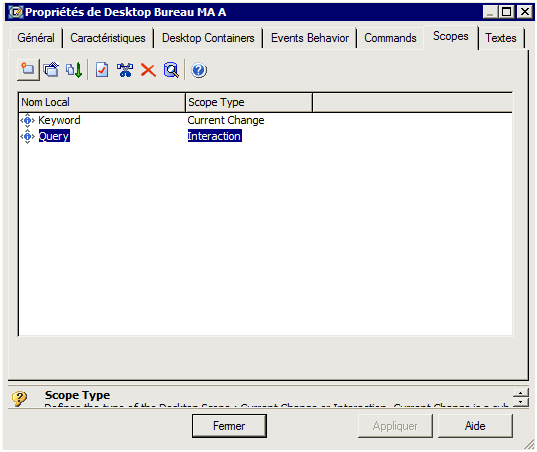
6. Open the new Scope Properties and select the Characteristics tab.
7. In the Publishing Parameterized Tool field, click the arrow and select the MEGA Parameterized Tool source of the action (example: query tool "Query Component").
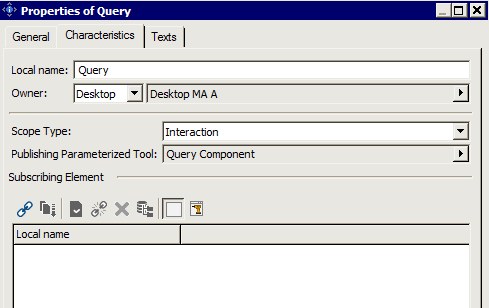
8. In the Subscribing Element frame, click Subscribing MEGA Parameterized Tool  then Connect
  and select the tool that will present result of the action (example: query result tool "Query Result Component").
then Connect and select the tool that will present result of the action (example: query result tool "Query Result Component").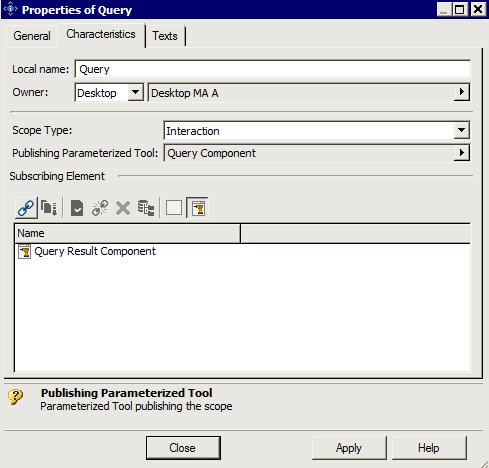
9. Click Apply.