Opening the Shapes Editor
To open the Shapes Editor:
 In HOPEX menu bar, select Tools > Shape Editor.
The Shapes Editor opens.
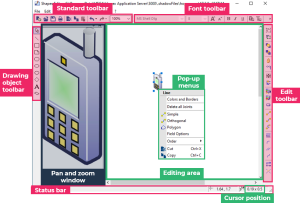
The Shapes Editor includes:
• an editing area, to edit shapes
 To edit shapes, see Editing Shapes.
• a pan and zoom window, which can be docked, fixed, enlarged, or hidden
• toolbars, which can be displayed or hidden
To display/hide a toolbar or status bar, see Managing Shapes Editor toolbars.• a status bar, which displays the horizontal and vertical position of the cursor in the editing area.
Managing Shapes Editor toolbars
Toolbars include buttons that enable to directly execute the menu commands.
You can:
• display/hide each toolbar
• move a toolbar to another side
• hide tooltips
To display/hide toolbars and tooltips:
1. In the Shapes Editor menu bar, select View > Toolbar.
Alternatively, you can right-click a toolbar.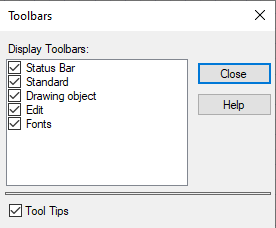
2. Clear/Select the toolbars you want to hide/display.
To hide/display tooltips:
1. In the Shapes Editor menu bar, select View > Toolbar.
2. Clear/Select Tool Tips to hide/display the button name when you hover the cursor over the button.
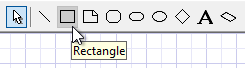
To move a toolbar:
1. Click the toolbar start 
2. You can:
• drag and drop the toolbar to another toolbar area
• move the toolbar in the same toolbar area