Generating Reports on Permissions
The following Report Templates enable to generate permissions related reports:
• Profile Permissions comparison Report enables to compare permissions of several profiles.
• Profile Permission report enables to generate the detail of permissions for a given profile.
• Workflow Permissions enables to generate the detail of permissions for a given workflow.
Generating a report comparing profile permissions
Report content
All MetaClasses of the selected metamodel appear in the report.
For each MetaClass, the report displays:
• (in rows) all MetaAttributes, Tools, MetaAssociations (and MetaAttributes of MetaAssociations) of the MetaClass.
• (in columns) permissions for all selected profiles.
To generate a report comparing permissions of profiles:
1. Access the Profiles management page.
2. In the Profiles list select the profiles you want to compare.
 Use the list filtering tool to find the profiles.
 Select at least two profiles. If needed you can add more profiles step 5.
3. In the list menu bar, click Instant Report  .
.
.To generate the instant report in a new tab click  .
.4. Select Profile Permission comparison Report and click OK.
5. Configure the Parameters:
• in the MetaModel list, click Connect  and select the metamodel concerned
and select the metamodel concerned• (if needed) in the Profile list, click Connect to add profiles
to add profiles For a faster result, do not select a large number of profiles.If you have already generated the report with other profiles, these profiles might still be connected, click Remove  to remove them if needed.
6. Click Apply Parameters.
The report is generated as a table.
Generation may take some time depending on the parameters selected.Display in full page for more readability.E.g. the permission comparison report of Application Viewer and EA Functional Administrator.
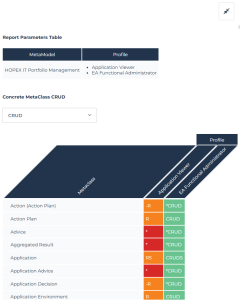
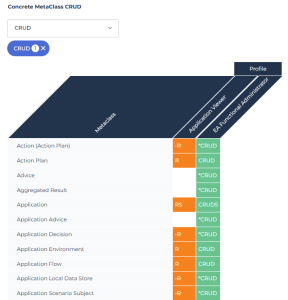
7. (If needed) In Concrete MetaClass CRUD or MetaAttributes CRUD, filter the report according to permission values.
E.g.: filter on "R" permissions.
8. To save the report, in the report tool bar, click More  > Save as Report
  .
.
> Save as Report .Generating a report on a profile permissions
Report content
All MetaClasses of the selected metamodel appear in the report.
For each MetaClass, the report displays:
• (in rows) all MetaAttributes, Tools, MetaAssociations (and MetaAttributes of MetaAssociations) of the MetaClass.
• (in columns) permissions for the selected profile
To generate a report on profile permissions:
1. Access the reports.
2. Click  .
.
.3. In the Search by name filter, enter "permission"
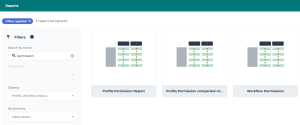
4. Select the report template concerned.
E.g.: Profile Permissions Report.
5. Click Next.
6. Select the report parameters:
• in the MetaModel list, click Connect and select the metamodel concerned.
and select the metamodel concerned.For the Workflow Permissions report template, in the Workflow list, click Connect and connect the Worflow Definition.• in the Profile list, click Connect and select the profile concerned.
and select the profile concerned.7. Click Preview.
The report is generated as a table.
E.g. the permission report of Control and Risk Architect.
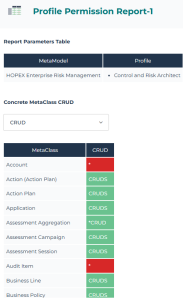
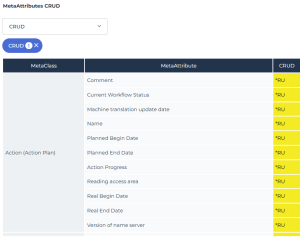
8. (If needed) In Concrete MetaClass CRUD or MetaAttributes CRUD, filter the report according to permission values.
E.g.: filter on "RU" permissions on MetaAttributes CRUD.
9. Click Continue to configure and save the report.
See Creating a Report.