Creating a Scenario
Using an arbitration portfolio or an analysis portfolio, the project portfolio manager can create a number of scenarios.
A scenario defines, in a portfolio, a set of projects that can be implemented. It is used to generate analysis reports to assess the impact of this set of projects.
To create a scenario:
1. Open the project portfolio properties.
2. Click the Transformation Scenarios page.
3. In the Transformation Scenarios section, click New.
The dialog box for creating a scenario opens.
4. Enter the name of the scenario and click OK.
Defining the properties of the scenario
To define the properties of the scenario:
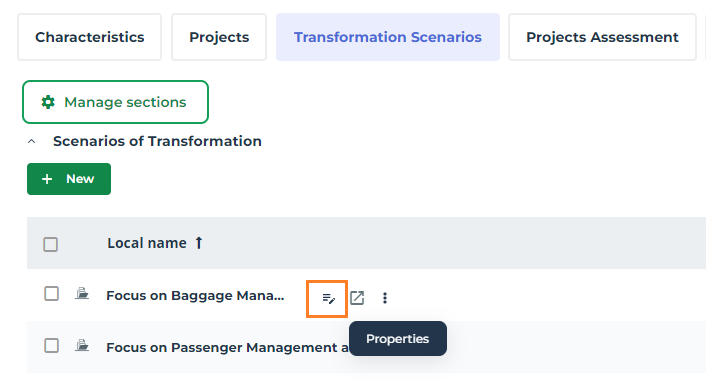
1. In the portfolio properties, in the Transformation Scenario page, move the mouse over the scenario in question and click the associated Properties button.
2. In the scenario properties, select the Characteristics page.
Note that for each project held in the portfolio, a scenario line is created.
Scenario lines
For each project held in the portfolio, a scenario line is created.
A scenario line corresponds to a project line in the source portfolio. It uses the values of the criteria and lifecycle defined on the project line of the portfolio. It is used to record the potential decision with respect to the project (validated, rejected) within the framework of the scenario analysis.
In a scenario, the project portfolio manager can decide to select or not select a given portfolio line in a simulated scenario (which is different from validation of the project).
Accepting or Rejecting the Project Lines of a Scenario
A project line must be accepted in order to be taken into account in a given scenario. Conversely, a project line must be rejected if you want the scenario to ignore it.
To accept or reject a project lines in a scenario:
1. Open the properties pages of the scenario.
2. Select the Characteristics page.
3. In the Scenario Lines section, select the project line you want.
4. In the Decision column, select one of the following values:
• Accepted: the project line is integrated in the scenario.
• In progress: the project line is under review; it is integrated in the scenario
• Rejected: the project line is not taken into account in the scenario
Analyzing and Comparing Scenarios
With embedded reports, you can analyze and compare the scenarios created in a project portfolio.
To view these reports:
1. Display the portfolio properties.
2. Select the Reports page.
3. Select the report concerned.
Comparing scenario costs
This report compares the costs of the selected scenarios.
It relates to the project costs, it does not take into account the impact of the scenario on the operating cost of the applications.
Project deliverables by scenario
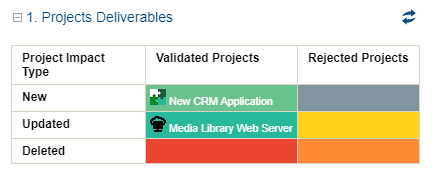
This report details the deliverables included in a scenario; they are classified by status and whether the projects within the scenario are validated or rejected.

In the example below, two deliverables are part of the projects that were accepted in the scenario; a new CRM application and a server update.
The solution building blocks will thus be created/updated in the scenario.