Using ArchiMate Diagrams in an Enterprise Architecture solution
To simplify use of ArchiMate® formalism in an HOPEX Enterprise Architecture solution, the following facilities are offered to you when creating an ArchiMate diagram from an EA Buiding Block:
• Modeling an object in the ArchiMate® formalism, see Creating an ArchiMate Diagram from an EA Building Block.
• Management of the ArchiMate® model associated with the described object, see Management of the ArchiMate model in an Enterprise Architecture solution.
• Management of the ArchiMate® view associated with the described object, see Managing of the ArchiMate views in an Enterprise Architecture solution.
• For more details on the relationship setting of an ArchiMate diagram items with the repository building blocks, see Synchronizing an ArchiMate Diagram Elements.
The Architecture Building Blocks (EA building blocks) from which you can create an ArchiMate diagram are:
• Enterprise,
• Processes
• Application System
• Application
• Microservice,
• Software Installation,
• IT infrastructure,
• Facility,
• Project.
Creating an ArchiMate Diagram from an EA Building Block
With ArchiMate® framework, a diagram is created in the context of a Model and a View. When an ArchiMate diagram is created from an EA building block, the following actions are done:
• If no model has been defined for the user, an ArchiMate Model is automatically created. For more details, see Management of the ArchiMate model in an Enterprise Architecture solution,
• An ArchiMate® View is automatically created and connected to the described object. For more details, see Managing of the ArchiMate views in an Enterprise Architecture solution.
• If the type of the described object correspond to an ArchiMate type, an ArchiMate® element is automatically created with the same type. The new ArchiMate® element is associated to the described object. For more details, see Synchronizing an ArchiMate Diagram Elements.
For example, to create an ArchiMate Diagram from an application:
1. From the Applications navigation menu, select the application of interest to you and click Create a diagram.
2. In the selection window, click ArchiMate Diagram.
The diagram opens in the edit area. The ArchiMate component associated to the application is created and inserted in the diagram.
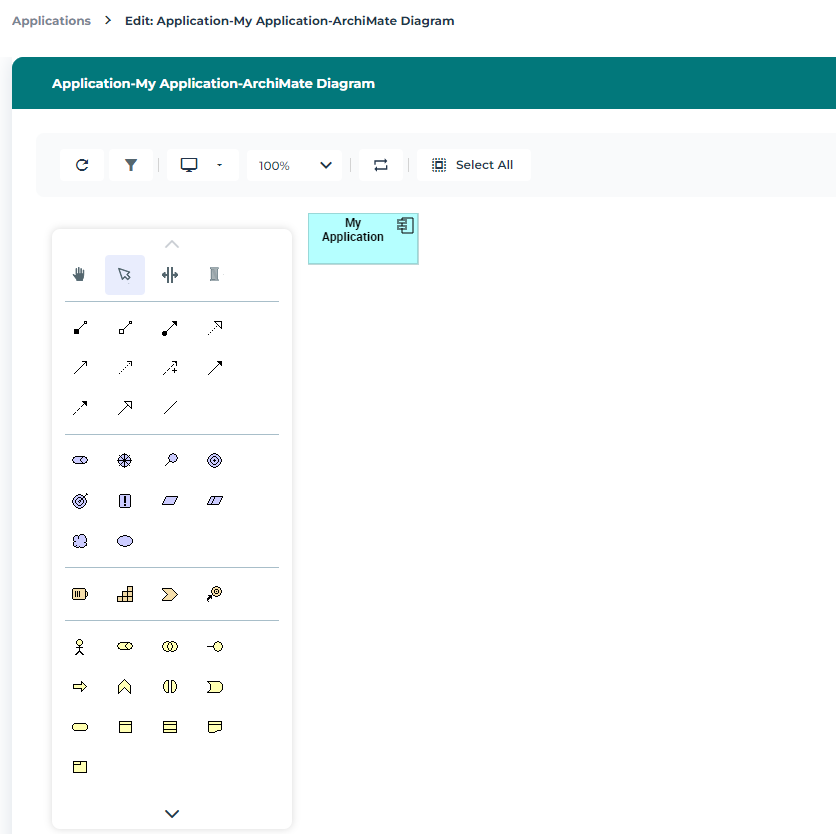
 The created ArchiMate component is connected to the ArchiMate Model, see Management of the ArchiMate model in an Enterprise Architecture solution.The created ArchiMate diagram is connected to the ArchiMate View, see Managing of the ArchiMate views in an Enterprise Architecture solution.
Creating an Object in the ArchiMate diagram of an EA Building Block
To create an Application component, for example:
1. In the diagram insert toolbar, click the Application component button.
2. Click in the diagram.
The adding window opens.
3. Enter the name of the new element.
A message confirms that no objects match this name.
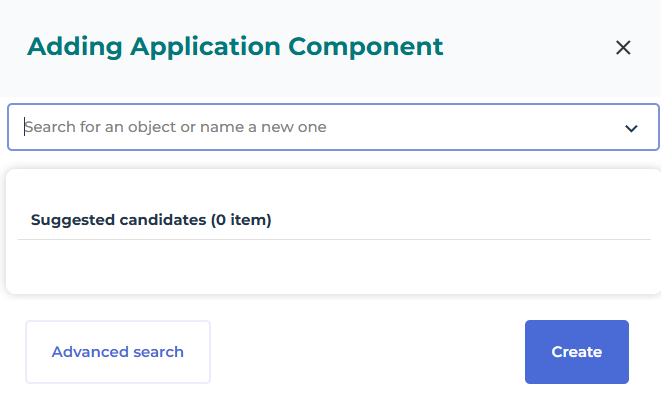
4. Click Create.
The Application component appears in the diagram with the specified name.
Adding an existing object in the ArchiMate diagram of an EA Building Block
To add an existing object to an ArchiMate diagram, you can drag and drop the object from a hierarchical view or from the insert toolbar of the diagram.
To add an Application component, for example, using the insert toolbar of an ArchiMate diagram:
1. In the diagram insert toolbar, click the Application component button.
2. Click in the diagram.
The adding window opens.
3. In the object name box, click the down arrow.
The list of the model Application components is displayed.
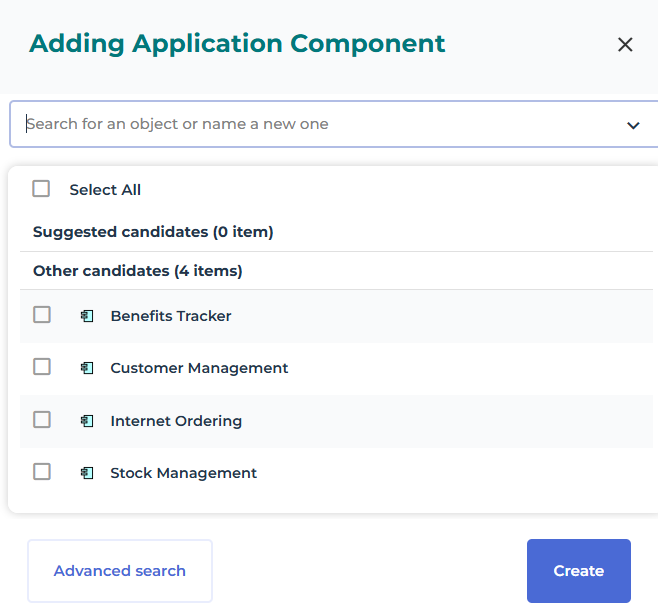
4. Enter the name of the element you wish to create.
The application component appears in the diagram with the specified name.
You can select several components. Each one will be added to the diagram.Creating a relationship in an ArchiMate Diagram
In an ArchiMate diagram a link corresponds to an ArchiMate@ Relationship.
A Relationship can be created with the Link button of the the diagram insert toolbar. When you select the link button, a dialog box opens to display the available relationship types.
For more information on ArchiMate@ Relationship types, see ArchiMate Relationships.ArchiMate element properties in an EA solution
The Characteristics properties of an ArchiMate element provides access to several sections.
• The Identification section provides access to the following information:
• the Name
• its Owner, by default, the Model associated to the current diagram.
• The EA building block is the repository building block connected to the ArchiMate element.
• the text of its Description.
For more details on links between the repository building blocks and the ArchiMate elements, see Synchronizing an ArchiMate Diagram Elements.• The ArchiMate Views section provides the list of views describing the object.
The Diagram properties of an ArchiMate element provides access to the diagrams containing the element and can be used to create a new one.
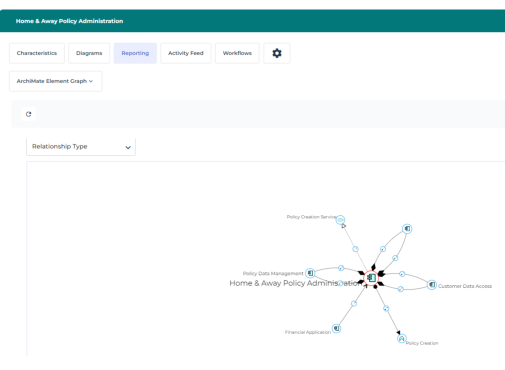
The Reporting properties of an ArchiMate element provides access to the ArchiMate Element Graph representing the relationships between the current element and the model elements.