Synchronizing an ArchiMate Diagram Elements
ArchiMate® concepts are mapped with HOPEX EA building blocks enabling compatibility and continuity with other models. Thus, an ArchiMate Business Process can reference a Process which can be described in a BPMN diagram, so that the user can navigate from an overview ArchiMate diagram putting a process into its EA context, to a more detailed BPMN description.
 For more details on HOPEX for the ArchiMate® Framework implementation, see The HOPEX MetaModel for ArchiMate.
The synchronization consists in mapping an ArchiMate element created in the context of an ArchiMate diagram with an EA building block.
Two possibilities are provided to synchronize an ArchiMate element:
• In a unitary manner by opening the Characteristics properties of an ArchiMate Element, see Synchronizing an ArchiMate model Elements.
• Generally using the Synchronize button of an ArchiMate diagram, see Synchronizing Elements from an ArchiMate diagram using the synchronization wizard.
Synchronizing an ArchiMate model Elements
For more details on ArchiMate® elements mapping with HOPEX MetaClasses, see Concepts mapping.The HOPEX for the ArchiMate® Framework solution provides two types of element:
• The ArchiMate® EA Elements which can be associated to a repository object.
For more details, see Synchronizing an ArchiMate Diagram Elements.• The Flow type Relationships whose sender and receiver are synchronized with the ITPM “flows” between applications.
For more details, see ArchiMate Relationships.Mapping an ArchiMate® EA Element to an HOPEX object in properties
For more details on HOPEX for the ArchiMate® Framework EA Elements, see Synchronizing an ArchiMate Diagram Elements.To synchronize an Application component, for example:
1. Open the Characteristic property page the Application Component you are interested in.
2. In the Identification section, from the EA building block field, click the right arrow and click the Connect button.
The name of the field depends on the type of the selected ArchiMate Element.A connection window opens.
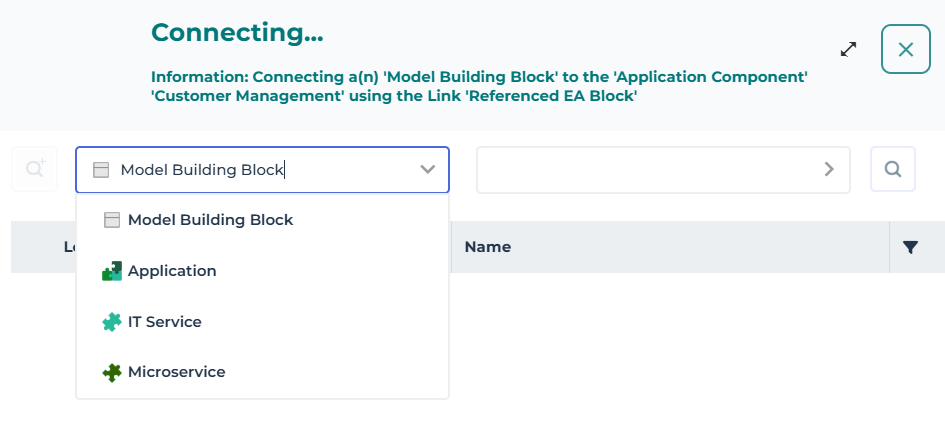
3. Select the type of the EA building bock you want to connect to the Application component.
4. Select the repository instance you want to connect to the Application component.
Synchronizing Elements from an ArchiMate diagram using the synchronization wizard
From an ArchiMate diagram, you can synchronize all the elements of the diagram which have a possible mapping to HOPEX objects, or create new corresponding HOPEX objects of the relevant type.
This enables to reference existing Building Blocks in HOPEX inventories used by other solutions (e.g., Processes from HOPEX Business Process Analysis or Applications form HOPEX IT Business Management).
To synchronize a Device, for example:
1. Open the diagram in edit mode.
2. Click the Synchronize button.
A window opens and shows a table of all the elements of the diagrame. The Building Block column allows the synchronization of the diagram elements.
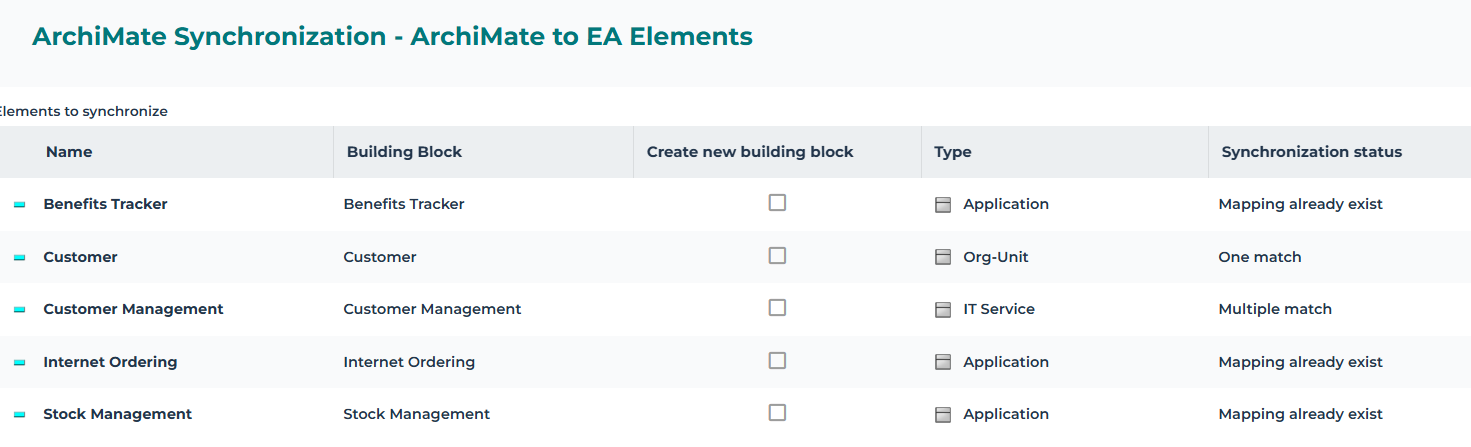
3. Click the Building Block box of the element that interests you.
In a case of a “multiple” mapping, you may choose the type of the associated repository object. For more details, see Mapping an ArchiMate® EA Element to an HOPEX object in properties.• If the item is already mapped or synchronized, "Mapping already exists" or "Element synchronized" message appears in the Synchronization status cell.
• If no item of the default type with the element name is found, then "No match" is displayed in the Synchronization status cell.
• If one item of the default type with the element name is found, then then "one match" is displayed in the Synchronization status cell.
• If many items are found, click on the Building Block cell to select the appropriate one (the context is given by the owner / long name).
• When you want to create a new building block of a different type than the default one, check the Create new building block box and select the desired type in the Type cell.
4. Click Next.
5. The list of Flow type Relationships with synchronized sender and receiver is displayed.
6. An EA flow is created between the repository EA objects if the box in the ArchiMate Relationships Synchronization column is checked.
7. Click OK.
Once ArchiMate® EA Elements are mapped to HOPEX Building Blocks, the navigation to these objects is possible via the ArchiMate® EA Elements properties.
Reaching these objects describing diagrams can be achieved:
• through the Diagrams properties of the referenced objects,
• Using Diagrams containing objects feature from:
• the ArchiMate® EA Element Diagrams properties
• using the object pie menu in a diagram preview.