Managing an Excel Template
The Excel template builder proposes several edition modes:
• the From scratch mode to create an Excel template specific to your needs. The wizard guides you through the steps necessary to the creation of the worksheets of your Excel template.
• the From an uploaded template mode to carry out changes on the not standard Excel template of your choice.
• the From a HOPEX template mode to carry out changes on the standard HOPEX Excel template of your choice.
Modifying a template involves changing the worksheets and/or creating new ones.
At the end of the editing process, you can whether replace the exising template or create another one.
Selecting the Excel template to edit
To edit the template of your choice in the Excel template builder:
1. In the template builder wizard, select the template that interests you:
• if you have selected the From an uploaded template mode, select the template from the File to upload area.
• if you have selected the From a HOPEX template mode , select the template from the HOPEX template area.
2. Click Start.
A new window opens guides you through the steps necessary to the modification/creation of the worksheets of the selected template.
Finishing the Template Edition
When you are done with your editing job, you have several options to save your Excel template:
• download the template
• save as template
• export from this template
It is also possible to Resume editing to come back to the modification of worksheets step.
Download template
If you choose the Download template option, the latter will be directly downloaded and saved in the Downloads folder of your computer. You can then use the template as you want.
For example: fill it in with local data to subsequently import them into HOPEX
Save as template
After editing the template, you can choose to save it as a template in HOPEX.
To save the template as new:
1. In the wizard, you must select one of the following options:
• Save as new template, you have to specify the New template name,
 An error message is displayed if the name you have chosen has already been used.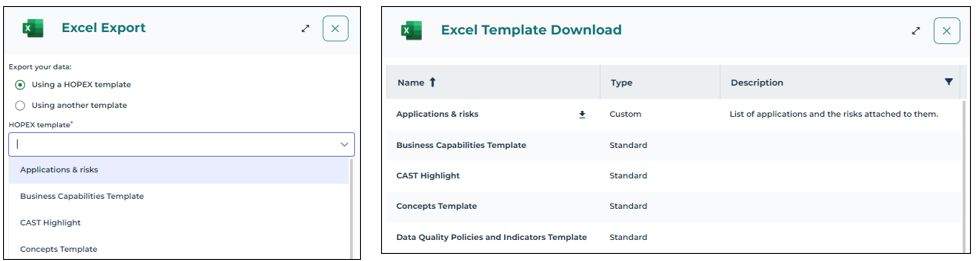
Your new template is now available in the download and export wizards.
• Overwrite an existing template, you have to specify the Template to overwrite.
The old template will be overwritten and replaced by the new one.2. Click Save.
Export from this template
The Export from this template option directs you to the Excel export wizard in order to proceed to the export of HOPEX data towards an Excel file.