Using the Search Tool to Connect Objects
The search tool can be used:
• to list all of the objects of a given type
• to search for an object whose name contains or begins/ends with a given character string
Connecting an object
HOPEX offers a wizard to connect an object.
Use this wizard to:
• list all the objects concerned by the source object
• refine the list with a search for the character string related to the object name:
• name containing a given character string (by default)
• name starting with a given character string
• name ending by a given character string
To connect an object:
1. In the object properties, expand a section or select a page in which you can connect objects.
2. Click Connect  .
.
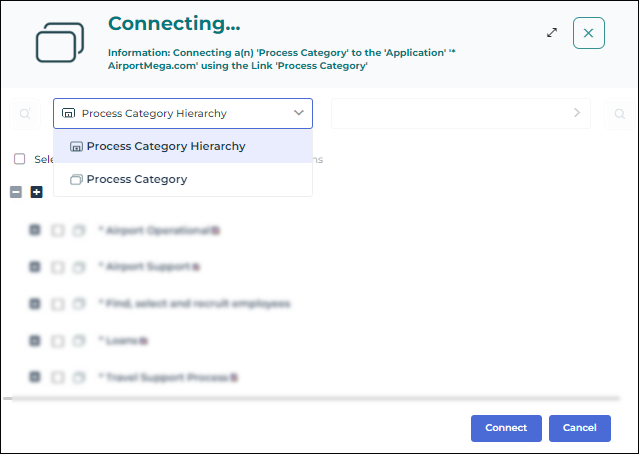
.3. (Optional) In the first field, use the drop-down menu to modify the object type to which your search relates.
 At times, HOPEX may offer different selection modes for the search. See Choosing the object selection mode.
4. (Optional, to refine your search) In the second field, enter the character string you want to search for.
By default the search relates to the name Containing the character string you entered.
5. (If necessary) Click the arrow of the second field and select another criterion to refine your search:
• Beginning with: to list the objects beginning with the character string entered.
• Ending with: to list the objects ending with the character string entered.
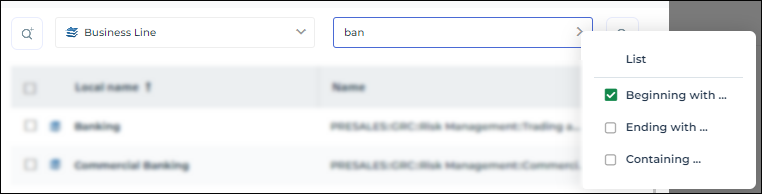 The last option selected becomes the default option.
6. Click Find  to run the search.
to run the search.7. Select the object concerned.
You can select several objects. You can use the list filtering tool, see Filtering a list data.
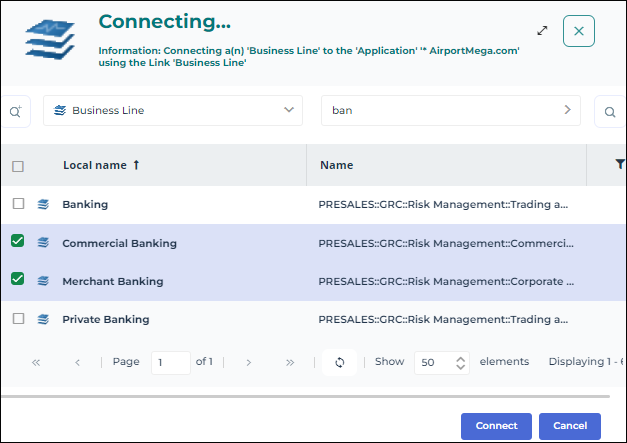 Whenever the result contains many objects, you can use the vertical scrollbar and/or the page arrow.
8. Click Connect.
The selected objects appear in the properties window.
Choosing the object selection mode
The search interface may offer you several modes to select objects.
Example: you want to define the functional scope of an application and connect processes to it. You can, for example, select the processes from a list or a tree.