Creating Questionnaire Templates
To create a questionnaire template:
2. Click New.
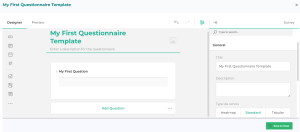
The workspace designed to create questionnaire templates opens.
Interface for Questionnaire Creation
The workspace consists of three parts, which can be collapsed.
• a left toolbox offers the different types of questions you can use in your questionnaire template.
• The central pane contains the inserted questions.
• The right pane enables you to access the properties:
• of the whole questionnaire
• of each question that has been dropped in the central pane.
Inserting Questions in a Questionnaire Template
To insert questions into your questionnaire template:
1. In the left pane of the editor, select the a question type.
For example: Click Comment to insert free text.
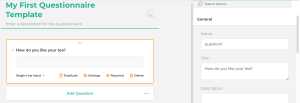
2. Click the question you have just created (“Question 1” by default) and enter text.
 This is the title of your question. This is what appears to the users in the questionnaires received. The Name found in the properties of the question is a technical name that appears in the event no title has been entered.
 For more information about question properties, see Configuring Questions.See also Question Types.
Previewing the Questionnaire Template
Once the questions have been inserted and/or configured, you may preview the questionnaire template.
To preview the questionnaire template:
 Click Preview.