Using communication systems
A communication system is used to describe an integration process using Enterprise Integration Pattern standard (http://www.enterpriseintegrationpatterns.com).
 A communication system helps to identify and describe the main integration processes using several Software Communication Chains as well as communication services.
This representation allows the modeling of application flows integration process represented in scenario of flows in HOPEX.
 For more details on scenario of flows, see Using a Scenario of Application Flows Diagram.For more details on how to associate a communication system with a scenario of flow, see Connecting a software communication chain from a scenario of flow.
This report provides the distribution of multi-software communication chains.
For more details, see Flow Process Rationalization.Accessing the list of communication systems
To access the list of communication systems from the Inventories navigation menu:
 SelectSoftware > Communication systems.
The list of communication systems appears.
Communication System Properties
The complete description of a communication system is accessed in its property pages.
The Characteristics properties page for a communicate system provides access to:
• its Name,
• Its Owner, by default the application specified when it was created.
• the text of its description.
• the Software Communication Chain section which provides access to the list of components of the described communication system.
A software communication chain describes the routing mechanisms of a content between the sender and receiver systems. This description includes the routing, the channeling and the messages translation.• the Communication Service section which provides access to the list of objects of the software communication chain.
Three services types can be proposed:
• Message Channel,
A Message Channel is the place where a message can be read/written by other communication components. It can be a queue, a folder, a database, …• Message Router,
A Message Router is a communication step that identifies which route should be used for next message step.• Message Translater,
A Message Translator is a communication step that translate a message from a format to another. It can be used, for example, for trans-codification or data type conversion.For more details on components of a communication system, see Creating a Software Communication Chain diagramCreating a Software Communication Chain diagram
A Software Communication Chain Diagram describes the mechanism by which a content is transfered from a sender system to a receiver system. This description includes the routing, the channeling and the messages translation.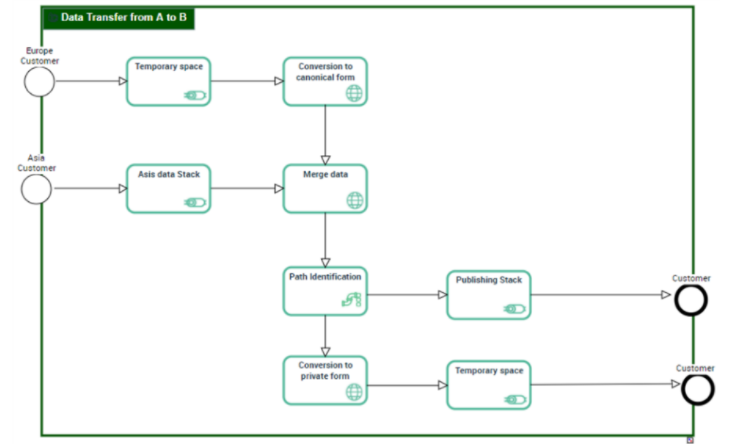
A software communication chain diagram includes:
• A Communication Start Event and a Communication End Event that designate the starting and the ending points of the described integration process.
• The Communication Sequences to describe the steps sequence. Message Channel that designate the place where an application can read or write informations.
A Message Channel is the place where a message can be read/written by other communication components. It can be a queue, a folder, a database, …• Message Router to identify the destination channel to use for the next transport step.
A Message Router is a communication step that identifies which route should be used for next message step.• Message Translater to translate a message from a format to another
A Message Translator is a communication step that translate a message from a format to another. It can be used, for example, for trans-codification or data type conversion.Creating a software communication chain from the Deployment navigation menu
To create a software communication chain from the Inventories navigation menu:
1. SelectSoftware > Communication systems.
The tree of communication systems appears.
2. Right-click the communication system that interests you and select New > Software Communication Chain.
3. In the creation dialog box, enter the Name of the software communication chain and select the Tranferred Content.
4. Click OK.
The software application chain appears in the list.
Several software communication chains can be connected to the same message.Creating a software communication chain diagram from the Deployment navigation menu
To create a software communication chain diagram from the Inventories navigation menu:
1. SelectSoftware > Communication systems.
The tree of communication systems appears.
2. Expand the Software Communication Chain folder.
3. Select the software application chain that interests you and click Create Diagram.
4. In the diagram type selection window, select Software Communication Chain diagram.
5. Click OK.
The diagram opens in the edit area.
Connecting a software communication chain from a scenario of flow
You can connect a new software communication chain to a content using a scenario of flow.
For more details on scenario of flows, see Using a Scenario of Application Flows Diagram.To connect a software communication chain from a scenario of flow:
1. Open the flow scenario diagram that contains the content that interests you.
2. Open Integration property page of the content that interests you.
3. Click New.
The creation window for the software application chain opens.
4. Specify the Name for the new software application chain.
5. In the Owner field, select the communication system to which the new software application chain belongs.
6. Click OK.
The diagram opens in the edit area.