Describing System Processes
In detailed specification phase, the progress of tasks implemented in an IT service can also be modeled by a system process. More generally, operation of an architecture element can be described by a system process modeling, for example, sequence flow of screens presented to the user.
System process diagram example
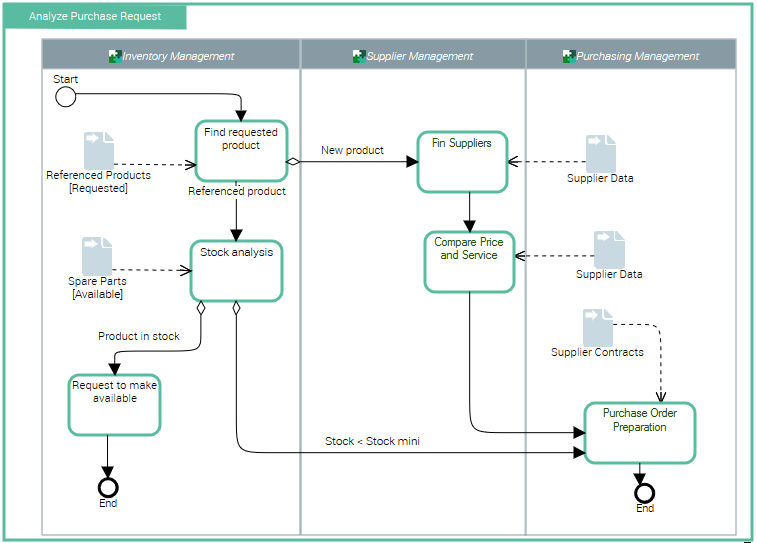
The diagram below represents purchase request processing.
• A product search is carried out from the referenced products repository.
• If the product is new, search for a supplier and comparative study of prices is carried out. An order is then sent and the process ends.
• If the product is referenced, stock is analyzed.
• If stock is sufficient, a "Make available" request is activated and the process ends.
• If stock is less than minimum stock, an order is sent to the supplier and the process ends.
Managing System Processes with HOPEX IT Architecture
 A system process is the executable representation of a process. the events of the workflow, the tasks to be carried out during the processing, the algorithmic elements used to specify the way in which the tasks follow each other, the information flows exchanged with the participants.
 For more details on creation system process diagrams, see Managing a System Process.
Accessing system processes
To access the list of system processes from the Inventories navigation menu:
 Select Software > System processes.
The list of system processes appears.
Creating a system process diagram
The system process diagram uses notation proposed by BPMN standard. The system process algorithm can be expressed by sequencing of tasks and decisions.
A system process diagram can be created and updated in tabular input mode.
For more details on the use of tabular input, see Diagrams in Tabular Entry Mode. To create a system process diagram:
1. Select the system process that interests you and click Create Diagram.
The Diagram type selection dialog box opens.
2. Click System process diagram.
The diagram opens in the edit area. The frame of the system process described appears in the diagram.
Creating a task
Tasks correspond to process steps.
A task is an elementary step that is included within a system process. A task is used when the work in the system process is not broken down to a finer level of the process. Generally, an end-user and/or an IT service are used to perform the task when it is executed.To create a task:
1. In the diagram insert toolbar, click the Task button then click in the diagram.
2. Enter the task name and click OK.
The task appears in the diagram.
Message flows
Message flows represent exchanges between the system process and the exterior.
An application flow represents the use of a flow between two agents (e.g., applications) in a usage context (represented by a scenario of flows). An application flow is based on a flow, which represents the reference flow in context. A message flow can be linked to an event of message type.
Sequence flows
Organization of tasks in the system process is represented by sequence flows between tasks.
A sequence flow is used to show the order in which steps of an service contract will be performed. A sequence flow has only one source and only one target.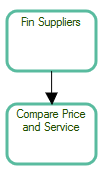 For more information on managing sequence flows, see Describing Sequence Flows.
Events
Events represent facts occurring during process execution.
An event represents a fact or an action occurring in the system, such as updating client information. It is managed by a broker. An application indicates that it can produce the event by declaring that it publishes it. If an application is interested in an event, it declares that it subscribes to the event.An example is the start or end of the system process.

Start

Final
The event can also be sending or receiving a message flow.

Gateways
Gateways are modeling elements that are used to control how sequence flows interact as they converge and diverge within a process.For more information on managing gateways, see Using Gateways.Creating a participant in a System Process Diagram
In a system process diagram, a participant enables grouping of tasks assigned to an application or service.
To create a participant:
1. In the diagram insert toolbar, click the arrow at the right of the Participant (Application) button.
2. In the list, select for example Application Participant and click in the diagram.
The participant creation dialog box appears.
3. Click the down arrow of the Application field and select the applications that interest you.
4. Click OK.
The participant created appears in the diagram with a header containing the name of an assigned application.
To place a participant with assignment as yet unknown, select the Participant icon.To assign a task to a participant:
place the task within the frame of the participant.