Synchronizing Objects
Cleaning Previous Synchronization Data
It is recommended that you clean previous synchronization data, especially after modifying mapping settings.
 Otherwise, your changes will only take effect when the corresponding elements in the source application are updated.
To clean previous synchronization data:
1. From the Synchronize menu, click Clear.
2. Select a cleaning option for the relevant mapping.
• Remove invalid is the safest option to clean the database. It removes any mapping data referencing an object that no longer exists.
• Reset is advised when you have added or modified fields in a mapping and you want to bring new data. Objects will be resynchronized at the next synchronisation, even if they have not been modified.
• Delete is to be used carefully. It removes all correspondences between HOPEX and ServiceNow. It is advised if you need to initialize a new mapping (e.g. if you have changed the source or the target object of a mapping).
 Clean Everything is to be used carefully: it removes all correspondences between HOPEX and ServiceNow for all the mappings (e.g. you need to restart from zero using a different database).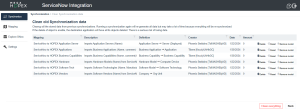
Running a Manual Synchronization
To run a manual synchronization:
1. From the Synchronize menu, click Run immediately.
2. Select the mapping(s) to synchronize.
3. Click Start a new synchronization.
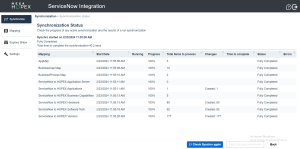
 You can see the status of the synchronization by clicking Check progress.
 Scheduling a Synchronization
Scope
Only mappings included in scheduled synchronizations are synced.
Procedure
To schedule a synchronization:
1. From the Synchronize menu, click Scheduling.
The Setup scheduling of Synchronization page appears.
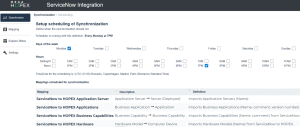
2. Select the day(s) of the week and the hour(s) to run the synchronization.
Do not set up synchronizations more than every 6 hours. Both ServiceNow and HOPEX could get overloaded, hence less efficient.3. Click Set scheduling.
The scheduled synchronization can only start if the server hosting HOPEX is running. If not, it will be postponed until the server is available again.Checking Synchronization Status
To check the synchronization status:
 From the Synchronize menu, click Check current.