ServiceNow Module Migration Procedure
Presentation
Purpose
This procedure outlines the steps required to transfer ServiceNow Integration Module configurations from one HOPEX instance to another. It applies when the module has already been deployed in the source version but has not yet been installed in the target version.
By following this procedure, you ensure that all existing configurations are fully retrieved and successfully transferred to the new instance.
Common use cases
This procedure is necessary in the following situations:
• Migrating HOPEX from version N to version N+1 with an infrastructure change.
• Deploying ServiceNow Integration module in Development, Staging, or Production environments.
 For Development and Staging deployments, make sure to specify the corresponding ServiceNow instances when Setting Up the HOPEX-ServiceNow Connection (ServiceNow URL field).
Scope of the transfer
The following configurations are transferred:
• ServiceNow connection definition
• Mapping settings
• Mapping table for synchronized objects between ServiceNow and HOPEX
• Synchronization schedule (scheduler)
Procedure Overview
This is a manual procedure that involves copying ServiceNow tables and their contents from HAS in the source version (source database) to HAS in the new version (destination database).
ServiceNow tables in HAS follow the naming convention: [dbo].[SNowInt_xxxxx].
Procedure
To transfer ServiceNow configurations from one HOPEX Instance to another:
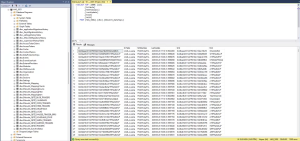
1. Open SQL Server Management as a Database Owner (DBO).
 Connecting with a user who has limited permissions may prevent the exported table contents from being imported successfully, resulting in error messages.
2. Expand Databases.
3. Right-click the source database > Tasks > Export data.

An SQL Server Import and Export Wizard appears.
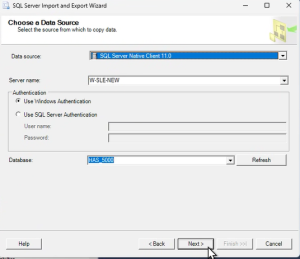
4. Select the source database and click Next.
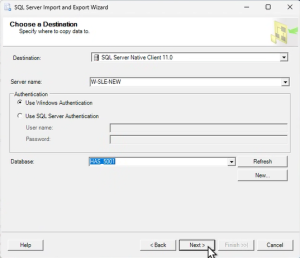
5. Select a target database.
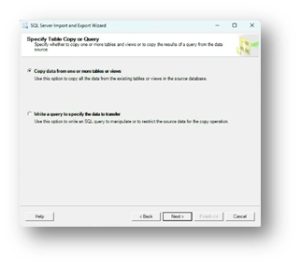
6. Keep the default configuration.
7. Select the ServiceNow tables labeled [dbo].[SNowIntxxxx]
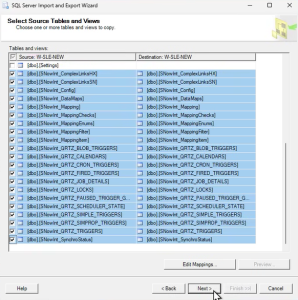
8. Click Edit Mappings and keep the default configuration.
9. Select Run immediatly to launch the transfer.
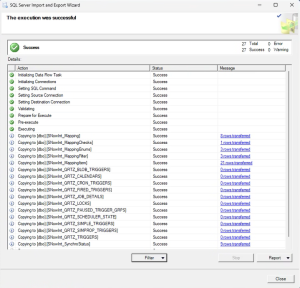
10. Once the transfer is over, you can check whether the execution was successful.
11. Right-click the target database and click Refresh.
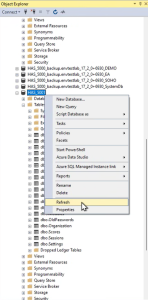
ServiceNow tables are now displayed in the target database.