Mapping Examples
Standard Mappings to Import
You can find below standard mappings between HOPEX and ServiceNow that you can easily import. You will be able to edit or delete them if need be.
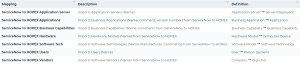
 See the description of each mapping for further detail (field-level mapping, data transfer direction, deletion option).
Importing standard mappings
To import the above standard mappings:
1. Click ServiceNowMappings.gzip.
2. Import the mappings.
See Importing mappings.Mapping ServiceNow Users with HOPEX Application Owners
Here is an example of a complex link configuration in order to map the Users in ServiceNow with the Application Owners in HOPEX.
Please note the following first:
• In HOPEX, there is an intermediary object between the MetaClasses "Application" and "Person (System)". Hence, you need to define this complex link.
• In ServiceNow, there is no intermediary object between the tables "Application" and "System User". Hence, no further configuration is needed.
• Once the complex link is created, you eventually need to map HOPEX's complex link with ServiceNow's simple link.
Defining the complex link in HOPEX
To define the complex link in HOPEX:
1. From the Mapping menu, select Define complex links.
2. Click the Add new HX button.
3. Select "Application" in the Source MetaClass and "Person (System)" in the Destination MetaClass.
4. Click Search Links.
A list of links appears.
5. Use the filters to display "Person Assignment" in the "Link1" column.
6. Use the filters to display "Assigned Person" in the "Link2" column.
7. Click  to select the complex link.
to select the complex link.8. Enter a name for this complex link.
9. Select "Application Owner" in the Business Role.
10. Click Save.
The complex link has been successfully created. It appears in the list of complex links.
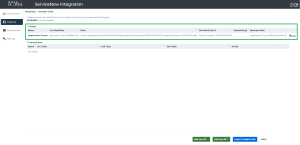
Mapping HOPEX's complex link with ServiceNow's simple link
To map these links:
1. From the Mapping menu, select the mapping you created for Applications.
2. Click Add mapping items.
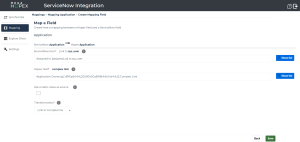
The Map a Field page appears.
3. Select "Assigned to" in the ServiceNow item.
4. Select the newly created complex link in the Hopex field.
5. Click Save.