Handling Object Property Pages
An object property window gives access to:
• the object property pages
• the object review notes
• the object version management
• the object pop-up menu
• (environment development) the object property page customization, see Customizing an Object Property Page
You can manage the properties of an object inside its property pages. You can also customize the display of these pages.
Handling pages
To handle object property pages:
1. Access the object properties.
2. In the property page scroll bar, select the page you want to display.
 When the number of pages to show is important, you can scroll through the pages using the arrows on the edges.
Certain property pages are made up of sections.
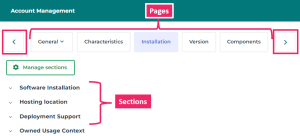
3. To fold/expand a section: click  /
/ next to the name of the section.
/ next to the name of the section.4. To modify the display, see:
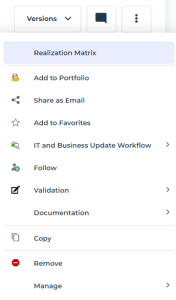
5. To access the pop-up menu of the object, in the object property page toolbar, click  .
.
.
Showing/Hiding pages
To facilitate the reading, you can display or hide certain property pages of an object. The modification applies to all of the objects of the same type.
To customize the display of the property pages:
1. Access an object properties.
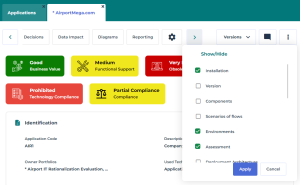
2. In the property page scroll bar, click Show/Hide  .
.
.3. Select or clear the pages that you want to show or hide.
 Certain pages are mandatory and cannot be hidden.
 4. Click Apply to validate your modifications.
The modifications apply to all of the objects of the same type.
Showing/Hiding sections
To facilitate the reading, you can display or hide certain sections of a property page of an object. The modification applies to all of the objects of the same type.
To customize the display of a property page section:
1. Display the relevant property page.
E.g.: the Characteristics page.
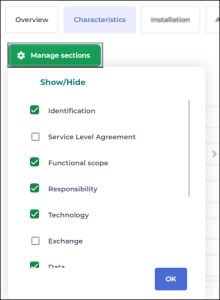
2. Click Manage sections.
3. Select or clear the section titles that you want to show or hide.
4. Click OK to validate your choice.