Full-text Search
HOPEX Solutions enable you to perform full-text searches over all the repository objects that are indexed.
 Your repository must be indexed. If not, you can use the advanced search, see Advanced Search.
The full-text search is always available in your HOPEX desktop and gives access to two types of results, based on:
• the name (short name only) of objects, results of the simple full-text search
• the name of objects as well as their attributes, results of the extended full-text search
If the repository is indexed, indexation runs automatically every 10 minutes (which is an adaptable default value) thanks to the indexing scheduler. This indexing is incremental and about created and modified objects, see "Managing Repository Indexing".The Simple Full-Text Search
You can access the full-text search from your HOPEX desktop toolbar.
Prerequisite: the repository is indexed. Repository indexing is performed by your administrator.
For more details, see "Enabling/Disabling repository indexing for full-text search".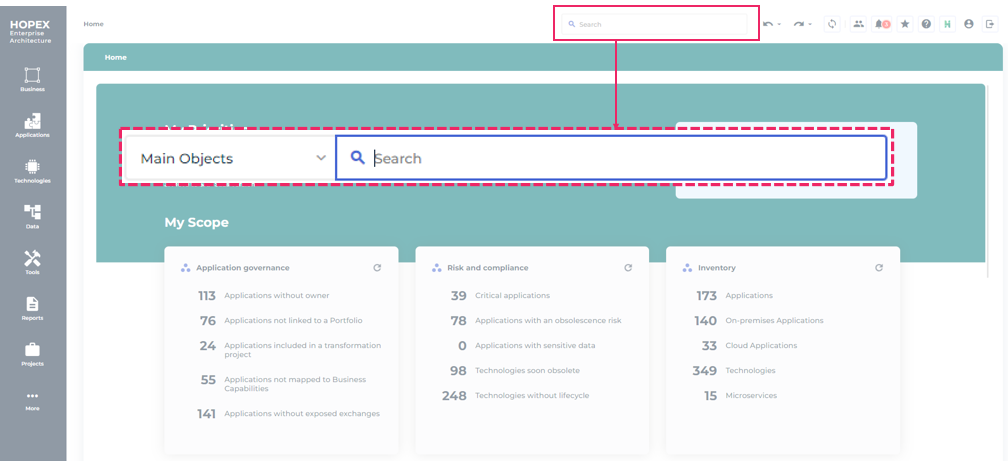
Performing a full-text search
To perform a full-text search:
1. [Optional] Select the object types over which you want to perform your search.
2. In your HOPEX desktop toolbar, click in the Search  field.
field.If possible, select the objects you are interested in amongst the suggested ones:
• your recent searches
• your recently viewed objects
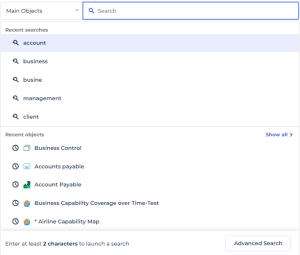
3. In the Search field, enter at least the first two characters of the terms your want to search for.
field, enter at least the first two characters of the terms your want to search for.The search results are displayed below the tool search and are dynamically updated as you type.
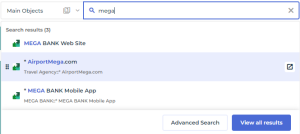
4. In the result list, you can:
• display the properties of the object in the edit area: click the object
• open the object properties, in another tab: hover the cursor over the object and click Open in new tab 
• add the object to a diagram or a list: hover the cursor over the object and drag & drop  it in the list or diagram
it in the list or diagram5. To get a deeper view on your search results, click View all results.
6. To access the advanced search tool, click Advanced search.
See Advanced Search.Selecting the object types included in your search
Before initiating your full-text search or to modify the current search, you can choose to perform the search on one of the following lists:
• Main Objects (by default, then the last selected list becomes the default one)
The search is restricted to the business object types related to your current profile.
• All Objects
The search expands to all object types related to your current profile.
• Business Glossary and Data Catalog available with specific Solutions only
By default, all of the object types included in a list are taken into account in your search. You can narrow down the list to certain object types.
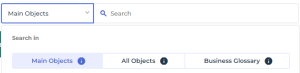
To select the object types included in the search:
1. In your HOPEX desktop toolbar, click in the Search field.
field.2. Click the drop-down menu arrow of the list
E.g.: the Main Object list.
3. (If needed) Select another search extent.
E.g.: All Objects.
4. In the object list, select the object types to include in your search.
By default, all of the object types are taken into account.
 To ease the selection, enter the first characters of the object type of interest in the Search for an object type field.
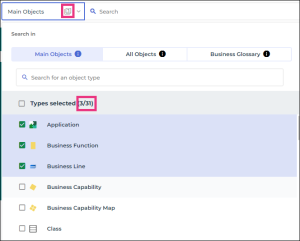 The drop-down menu reminds you of the filtering and if so indicates the number of object types on which is based the search.
5. Click the Search field.
field.