The Extended Full-Text Search
You may need to access a detailed view of your results after initiating a full-text search. These results are based on the Name as well as all the attributes of the objects concerned by the search.
To access more details about your search and its results:
1. Launch a full-text search.
2. Click View all results to display in details the results and access additional filters and features.
 Alternative: press [Enter].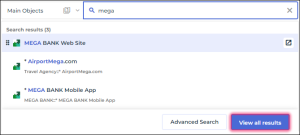
Results display in details in the edit zone.
3. [If needed] Apply the necessary filters to refine the list of your search results.
See Filters.4. [If needed] Click Navigate to display the search results as a list and access the actions available on objects in a list.
E.g.: detailed results for the term “mega”
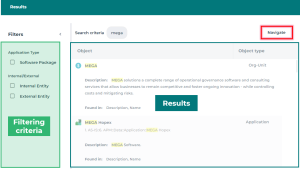
Each full-text search detailed result shows:
• below the name of the object:
• the long name of the object
• the object Description [when applicable]
• where the text entered was found (Found in)
E.g.: name, description.
• in columns:
• the Object type
• the Relevance (not displayed by default, see Defining the columns to display), taking into account how many times the text was found and the importance granted to the attribute concerned.
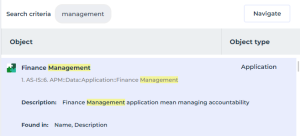
For example, the search for “management” string was found in the “Finance Management” object of type Application, in its Name, and Description.