11. Frequently Asked Questions
11.1.1. The Work Item dropdown is not available when dispatching
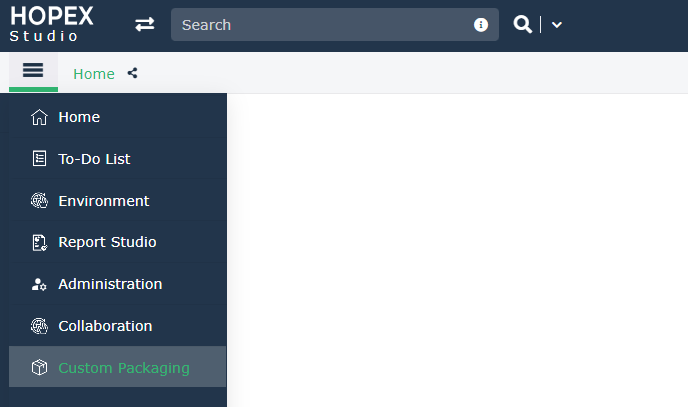
Your HAS instance is not in DEV mode. Customization cannot be performed in STAGE or PROD.
11.1.2. The Custom Packaging menu content is not available to extract my customization
Either:
• your HAS instance is not in DEV mode.
• your HAS instance is in DEV mode, but you forgot to launch the automatic update after adding the has.custom module.
11.1.3. I forgot to attach my dispatches to a Work Item, what can I do?
You can connect to HOPEX.exe and manually connect the required dispatch to the Work Item you want.
1. In the Repository Activity tab, search for your dispatch.

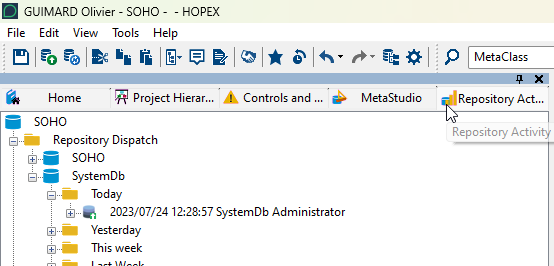
2. Right-click the dispatch and select Explore.
3. In the yellow folders, right-click the Work Item folder and select Connect.

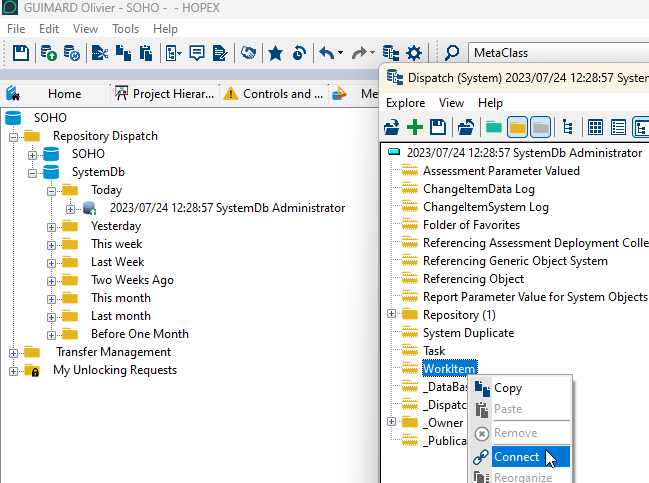
4. Select the work item you want to attached it to.
Select only active work item.
11.1.4. I have embedded demo data in my dispatch, how can I remove them?
You can remove this unwanted data either:
• Case 1: by removing the dispatch from the Work Item.
• Case 2: by removing the dispatch at extraction phase.
See “Extracting Customization in MGR/XMG format” chapter.
• Case 3: by removing the files generated in the .shadowfiles folder.
Note: this removal action can only be done prior to import in STAGE or PROD.
Case 1: Removing the dispatch from the work item
1. Search for your Work Item in the repository.
2. Right-click your Work Item and select Explore.
3. Search for Dispatch (Data) folder (Green folder).
4. Right-click the Dispatch that contains the data you want to remove and select Remove.
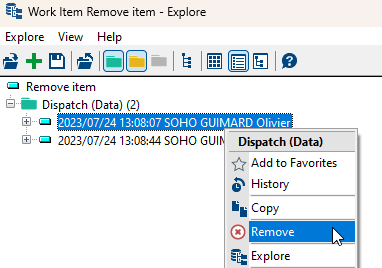
You can only remove the full dispatch with all its content. If you want to delete only one item of the dispatch, you must delete the object and dispatch this deletion on a new dispatch.
Case 2: Removing the dispatch at extraction.
1. From HOPEX Administration desktop, in the Customization extraction wizard.
2. In the Dispatches section, select the dispatch you do not want.
3. Click Remove.
4. Click Generate.
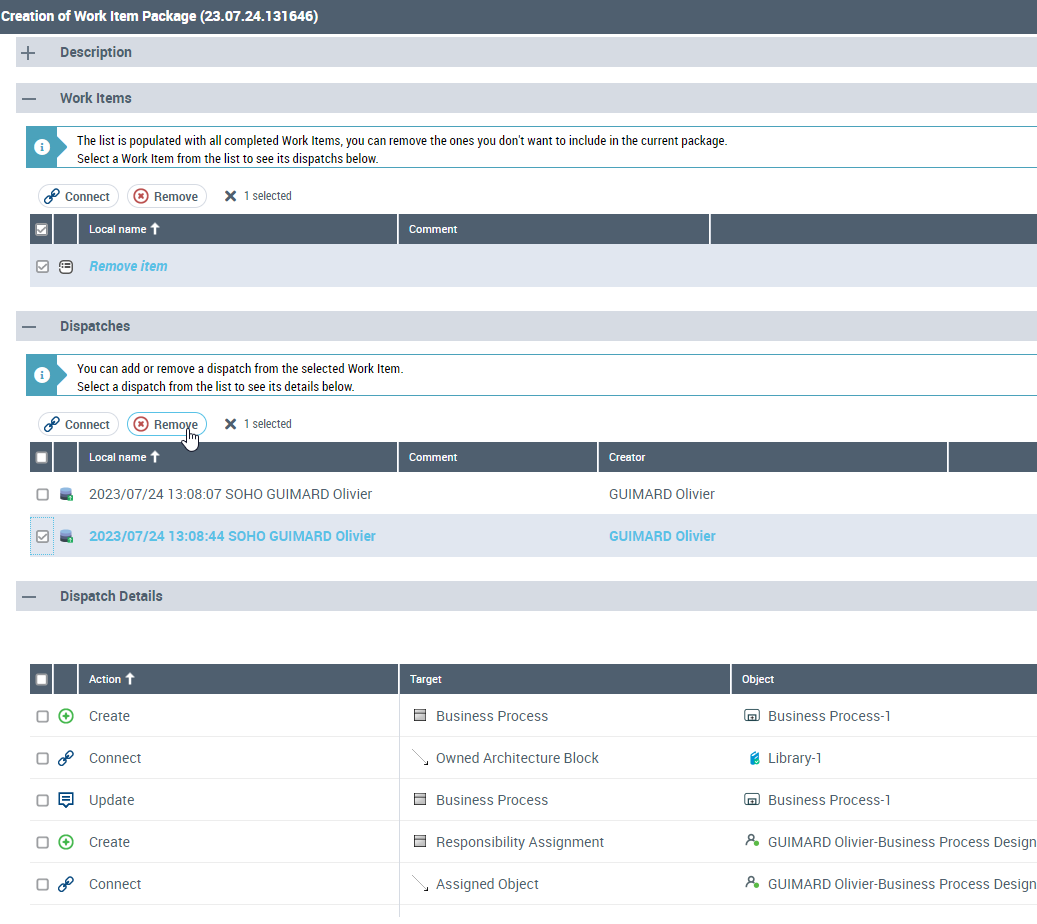
Case 3: Removing the dispatch at extraction.
1. In Windows file explorer go to the folder:
C:\...\HOPEX Application Server\5000\.shadowFiles\has.custom\<module version>\hopex.core\Install\DataUpdate
2. Select the file that contains the data you do not need and Delete it.
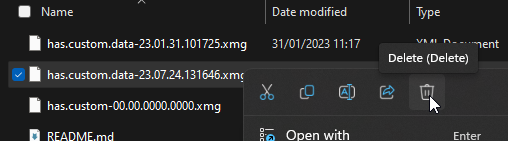
11.1.5. How can I remove imported XMG/MGR in stage or prod?
Once the automatic update has run and imported element in the SystemDb or repository you cannot delete them with an automated process.
You can either:
• Do a new custom module that contains the delete instructions è preferred choice.
• Do a manually removal of the item directly in the repository
11.1.6. How to force re-import of MGR/XMG files?
Once a file has been imported, the automatic update wizard cannot re-import it again. This is due to a marker contained in the file and within the repository that says the file has been already imported.
The recommended solution is to manually re-import the file you want, by following the proper order from Administration.exe.
11.1.7. My custom files got imported with errors, What should I do?
You should create a newer version of the custom module with all the missing items (creation, connection…).
11.1.8. I did customization but I don't have the initial custom module, what should I do?
The HAS Custom module should contains all the customization from “Day-0”. Before performing any additional customization you must start from the last published custom module.
11.1.9. Can I launch the automatic update without service interruption?
No, for the moment the automatic update must be performed with the HOPEX Core Back-End module stopped.
11.1.10. Is delta custom module package possible ?
No, the custom module must contain all files and XMG/MGR from all time (since Day-0 of customization).