Customizing a Tree Report Template
How to Replace Node Names by Property Values in a Dendrogram
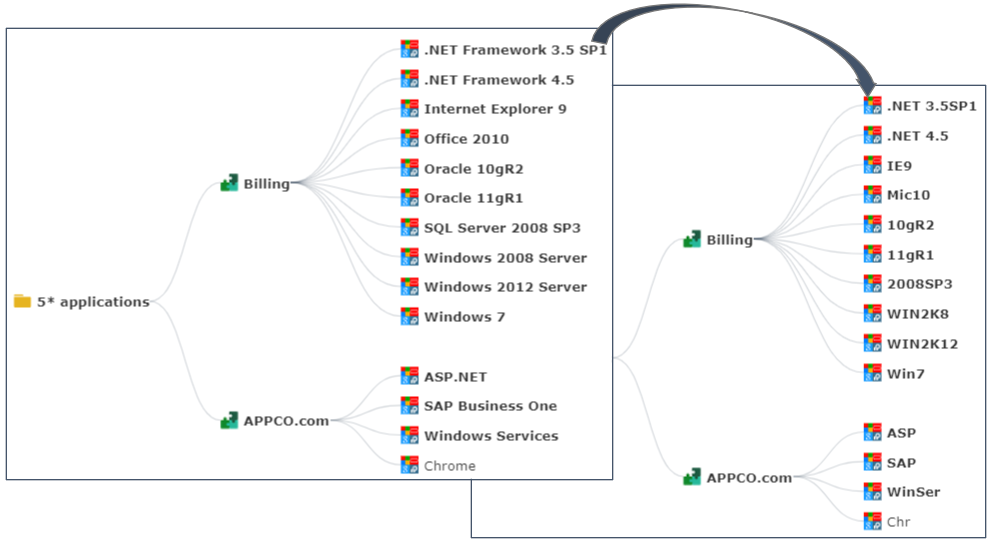
In a dendrogram, you might want to identify the nodes through one of their properties instead of their names.
For example, instead of displaying the Technology names, you can display their codes.
To display a property value instead of the node name:
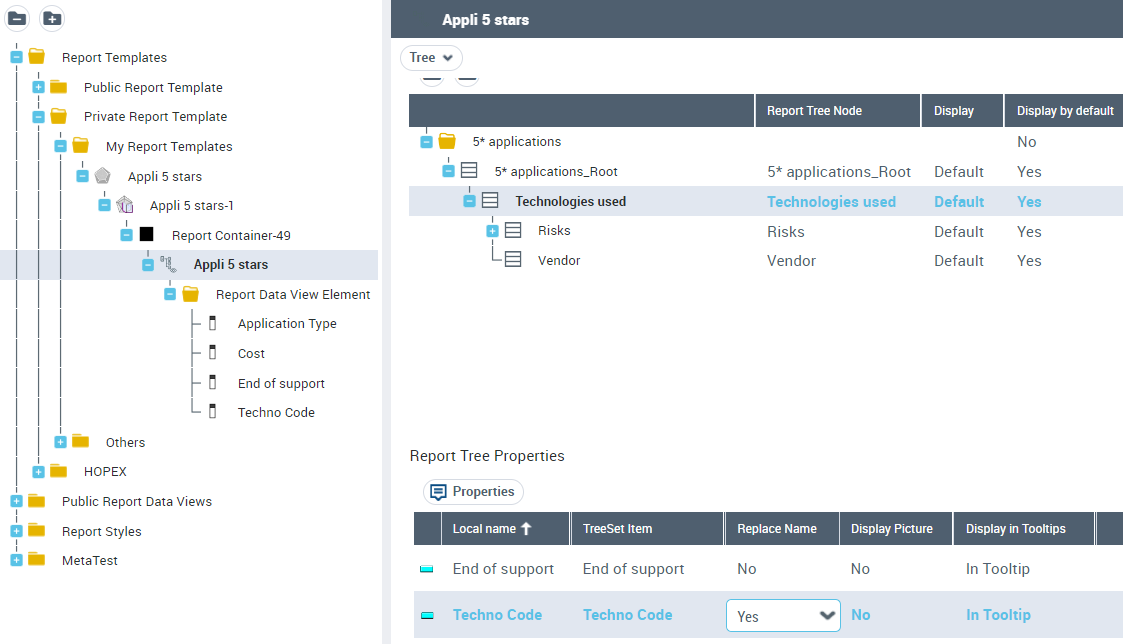
1. Access the Report Tree View.


2. In its Tree page, select the row of the Report Tree Node concerned.
Example: Technologies used.
3. In the Report Tree Properties list, in the row of the property concerned, use the drop-down list to set Replace Name to "Yes".
In the dendrogram, the technologies are identified through their codes.
How to Replace Node Icons by Property Values in a Dendrogram
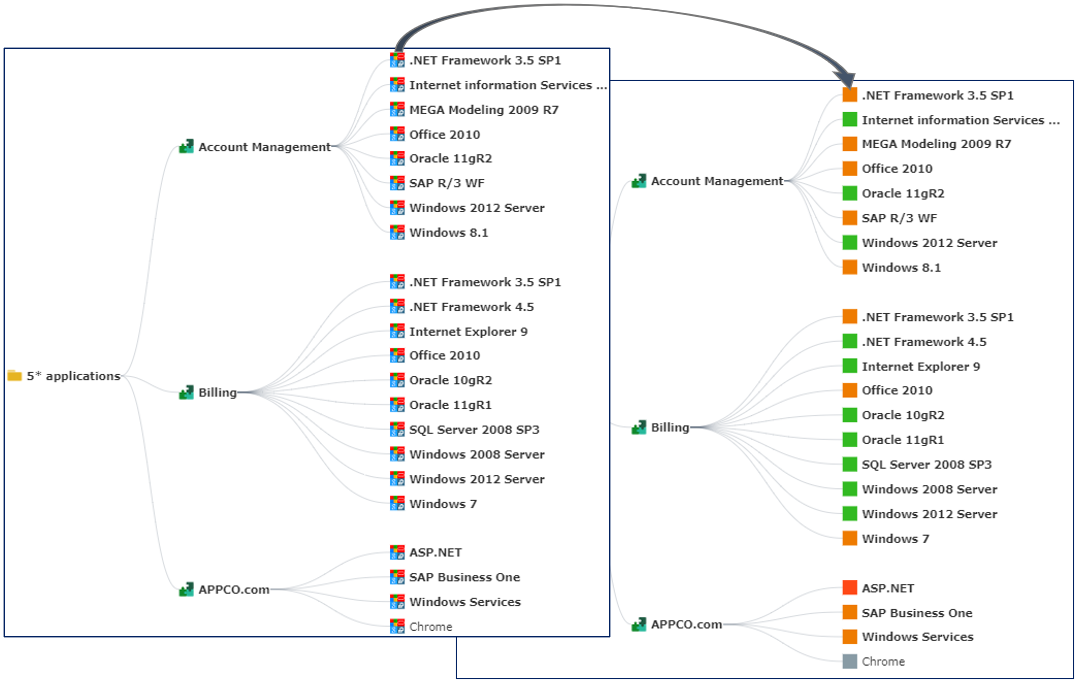
In a dendrogram, you might want to highlight a property of a node and replace its icons by the property values.
For example, for a Technology, instead of displaying the Technology icon, you can display its "Company Standard" value (represented by a color).
To display a property value instead of the node icon:
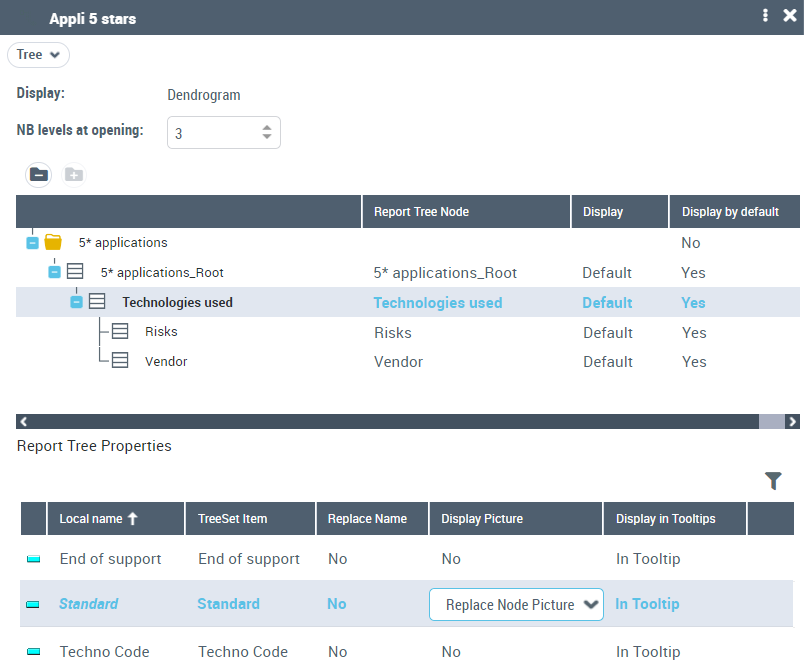
1. Access the Report Tree View.
2. In its Tree page, select the row of the Report Tree Node concerned.
Example: Technologies used.
3. In the Report Tree Properties list, in the row of the property concerned, use the drop-down list to set Display Picture to "Replace Node Picture".
Example: "Standard" property (which stands for "Company Standard" MetaAttribute of "Software Technology" MetaClass).
In the dendrogram, colored squares corresponding to the values of the "Standard" property replace the Technology icons.