Managing a business architecture environment
 A business architecture environment represents the relationships of a business functional area with its partners.
A business architecture environment diagram describes the interactions between the main internal components of the environment described and the external components. It thus describes:
• the internal and external business functional areas,
A Business functional area is a set of business functions and their associated value streams on the conjunction of two main criteria: their need in accomplishing one or more business capabilities and the common skills and functionalities required to accomplish these business capabilities.• the business partners,
A business partner designates a third-party who is in relation with the enterprise within the framework of a given business architecture environment. Examples: private sector client, regulatory organization, supplier.In this example, the business function architecture environment of company is made up of the historical business function architecture and its interactions with external partners: clients and suppliers. You can see in the diagram that delivery is outsourced to a third party deliver partner.
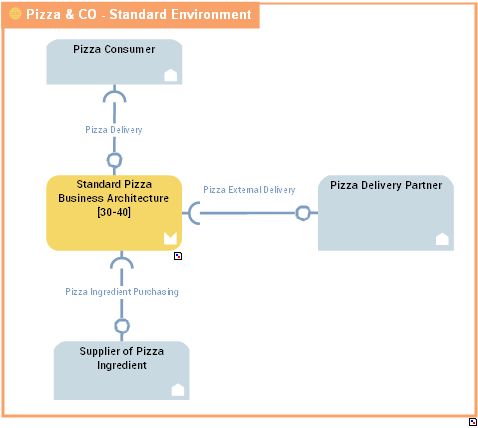
Communications between the objects are represented by interactions that represent requests and service provision.
An interaction represents a contract established in a specific context between autonomous entities that are internal or external to an enterprise. These entities can be enterprise org-units, applications, activities or processes, as well as external org-units. The content of this contract is described by an exchange contract. For more details on interactions between components, see Managing Interactions.
Creating a business architecture environment
To create a business architecture environment:
1. In the Inventories navigation pane, select Business Architecture Environment menu.
The list of business architecture environments appears in the edit area.
2. Expand the business architecture environment folder that interests you, as well as its Reference Operating Model folder
The list of business architecture environments appears in the edit area..
3. From the Reference Operating Model folder, click New > business architecture environment.
4. Enter its Name.
The new business architecture environment appears in the list.
The properties of a business architecture environment
The Characteristics properties page of the business architecture environment provides access to:
• its Name,
• its Owner,
• the text of its Description.
• its Owned Realizations
For more details on the realization of business capabilities, see Creating Fulfillment of a Business capability.With HOPEX IT Business Management , a business architecture environment is described by the following property pages:
• the Structure page which provides access to the list of components of the business architecture environment.
For more details on the components of the business architecture environment, see Creating a business architecture environment diagram.• the Implementation page, which provides access to the list of resource architecture environments, applications, application system or logical application system that implement the business architecture environment.
Creating a business architecture environment diagram
To create a business architecture environment diagram:
1. Right click the Business Architecture Environment and click New > Diagram.
2. Select Business Architecture Environment Diagram.
The diagram opens in the edit area.
You can construct this diagram in tabular input mode.
Tabular input is available with the HOPEX Web Front-End module. For more details on the use of tabular input, see Building a diagram in tabular entry mode.Creating an internal or external business functional architecture area
To define that a functional area is used in the context of a business architecture environment, you can:
1. Create a Business functional Area Use component that is part of the architecture environment described or a Partner Business functional Area Use type component if it is a business functional area that belongs to another environment.
2. Associating the Business functional Area fulfilled to the Business functional Area Use created.
In our example, the history business function is an internal environment element.
For more details on business partners, see Describing a business functional area.To create a Business Functional Area Use:
1. In the insert toolbar for the business architecture environment diagram, click Business Functional Area Use.
2. Click in the business architecture environment frame described.
A creation dialog box prompts you to Connect Business Functional Area.
3. Select the business functional area that interests you and/or create a new one.
Create, for example, the “Manufacturing" business functional area.
4. Click OK.
The business functional area appears in the diagram.
Proceed in the same way to create an External Partner Business Functional Area Use:Creating a business partner component
To describe a business architecture environment that uses participants internal or external to the environment described, you must:
1. Create a Business Partner Component.
2. Associate the person (or the person group) to the Business Partner Component created.
In the example of the business architecture environment of the manufacturing company, the business partners used are the clients and the service provider who ensures the delivery.
For more details on business partners, see Describing Business Partners.To create a Business Partner Component:
1. In the insert toolbar for the business architecture environment diagram, click Business Partner Component and click in the frame of the diagram.
A creation window prompts you to choose the existing Business Partner or create a new one.
Create for example the "Clients" business partner.
2. Click OK.
The business partner use appears in the diagram.