Describing a business functional area
 A Business functional area is a set of business functions and their associated value streams on the conjunction of two main criteria: their need in accomplishing one or more business capabilities and the common skills and functionalities required to accomplish these business capabilities.
Accessing the business functional area list
To access the business functional area list from the Inventories navigation pane:
 Select Business Functions.
The tree of business functional areas appears.
The properties of a business functional area
The Characteristics properties page of a functional area provides access to:
• its Name,
• its Owner, by default on creation of the business functional area, the current enterprise.
• the text of its Description.
• its Owned Realizations
 For more details on creating a business capability, see Creating Fulfillment of a Business capability.
With HOPEX IT Business Management , a business functional area is described in the following pages:
• the Structure page, which provides access to the list of components of the business functional area.
For more information on the components of a business functional area, see Describing a business functional area.• the Performed Process page, which provides access to the value streams executed in the context of the business functional area.
For more details on value streams, see Describing the outcomes.Describing a business functional area
A business functional area diagram describes the interactions between the main internal components of the architecture described. It thus describes:
• the uses of the business functional area,
A Business functional area is a set of business functions and their associated value streams on the conjunction of two main criteria: their need in accomplishing one or more business capabilities and the common skills and functionalities required to accomplish these business capabilities.In this example, the history functional area is based on the business functional areas for selling, delivering and command.
For more information on the use of a business functional area, see Creating an internal or external business functional architecture area.• the business components.
A business function is a conceptual unit of the division of responsibilities in an enterprise. It is used to structure the management of information processing, energy, and equipment produced or used. Business functions define the skills and the functionalities necessary to the enterprise to fulfill its mission.For more details on business functions, see Describing business functions.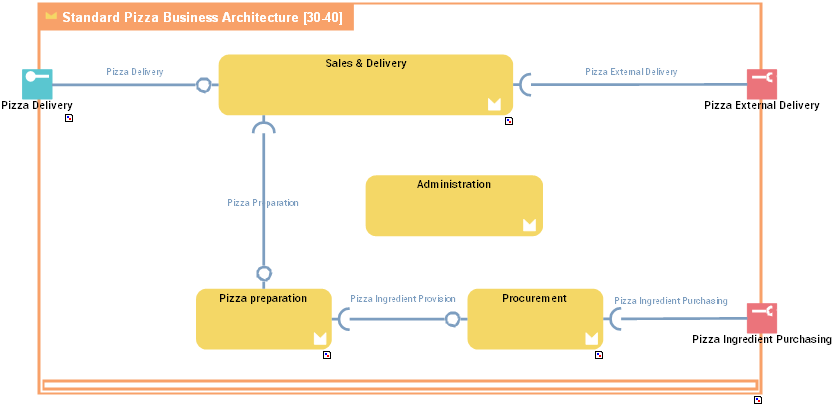
With HOPEX IT Business Management , communications are based on:
• access points: service points and request points.
A service point is a point of exchange by which an agent offers a service to potential customers.A request point is a point of exchange by which an agent requests a service from potential suppliers.For more details on interactions between components, see Managing service points and request points.• interactions
An interaction represents a contract established in a specific context between autonomous entities that are internal or external to an enterprise. These entities can be enterprise org-units, applications, activities or processes, as well as external org-units. The content of this contract is described by an exchange contract.For more details on interactions between components, see Managing Interactions.Managing service points and request points
A business business functional area is created to ensure one or more services. These services are represented by service points. The service is requested according to precise terms defined by an exchange contract assigned to the service point.
A service point is a point of exchange by which an agent offers a service to potential customers.An exchange contract is a model of a contract between organizational entities. This contract is described by exchanges between an initiator role and one or several contributor roles.A request point is used to represent the use of an external service.
A request point is a point of exchange by which an agent requests a service from potential suppliers.The service is requested according to precise terms defined by an exchange contract assigned to the request point.
Components that issue a request are linked to the request point by an interaction.
In the example, the request point that represents the "External delivery" is linked to the "Sales and deliveries" business functional area by an interaction.
Creating a service point or a request point
The process for creating a service point or request point is identical.
To create a service point:
1. In the diagram insert toolbar, click Service Point.
2. Position the object at the edge of the architecture frame.
A creation dialog box opens.
3. Click the arrow to the right of the Exchange Contract field to define the exchange contract enabling activation of this service point, and select, for example, Connect Exchange Contract.
A query window opens.
4. Select the exchange contract associated with this service point.
5. Click Next.
A dialog box opens proposing a list of exchange contract roles that can be associated with the service point.
This second dialog box is not proposed if there is only one candidate role that can be associated with the service point.6. Select the role that interests you and click OK.
The service point appears in the diagram.
To change the service point name:
1. Click the name of the service point and press key F2.
2. Enter the new name used when specifying interaction points.
Managing Interactions
An Interaction represents the exchange of information between architecture components.
An interaction represents a contract established in a specific context between autonomous entities that are internal or external to an enterprise. These entities can be enterprise org-units, applications, activities or processes, as well as external org-units. The content of this contract is described by an exchange contract.Content of an interaction is described by an exchange contract.
An exchange contract is a model of a contract between organizational entities. This contract is described by exchanges between an initiator role and one or several contributor roles.Creating an Interaction
To create an interaction:
1. In the diagram insert toolbar, click Interaction.
2. Draw a link between the two communication entities.
3. In the add interaction dialog box, specify the exchange contract you wish to use.
You can also create a new exchange contract, see Creating an Exchange Contract from an Interaction.4. Click OK.
Creating an Exchange Contract from an Interaction
You can create an exchange contract:
• from a library,
• from an interaction in a diagram.
To create an exchange contract, in a diagram, from an interaction:
1. In the diagram insert toolbar, click Interaction.
2. Draw a link between the two communication entities.
3. In the add interaction dialog box, click the arrow at the right of the Exchange Contract box and select New.
The Creation of Exchange Contract dialog box opens.
4. Enter the name of the exchange contract in the Name box.
5. Click OK.
The interaction and exchange contract are created.