Building the Business Capability Map
A business capability map is used to represent the main business capabilities that interact with an enterprise.
Creating a business capability map
To create a business capability map:
1. From the Business Architecture navigation pane, select Capability Trees.
The tree of business capability appears in the edit area.
2. Click New.
A creation dialog box opens.
3. Specify the Name and click OK.
The new business capability map appears in the list.
The properties of a business capability map
The Characteristics property page of the business capability map provides access to:
• its Owner, by default on creation of the business capability map, the current enterprise.
• its Name,
• the text of its Description.
With HOPEX IT Business Management , a business capability map is described by the following pages:
• the Structure page is used to specify on the one hand the list of business capability components that constitute the business capability map described, and on the other hand, the dependencies between these components,
 For more details on business capacity structure, see Using the capability compositions and Defining business capability dependencies.
• The Business Capability Map Breakdown page, used to access the dedicated report, see Breakdown Report of Business Capabilities.
Creating a business capability decomposition tree
The Business Capability Decomposition Tree is a diagram that describes the tree structure of a business capability or a business capability map. Focusing on a particular business capability, this type of diagram enables summary representation of business capability breakdown into sub-business capabilities.
To create a business capability map diagram:
1. Right-click the business capability map that interests you and select New > Diagram.
2. Select Business Capability Decomposition Tree.
The diagram opens in the edit area. The frame of the business capability map described appears in the diagram.
You can build a hierarchical view of the business capabilities that interest you.
Creating a business capability map diagram
To create a business capability map diagram:
1. Right-click the business capability map that interests you and select New > Diagram.
2. Select Business Capability Map Diagram.
The diagram opens in the edit area. The frame of the business capability map described appears in the diagram.
You can construct this diagram in tabular input mode.
Tabular input is available with the HOPEX Web Front-End module. For more details on the use of tabular input, see Building a diagram in tabular entry mode. Using the capability compositions
The components represented in a business capability map diagram are Capability Compositions. Each capability composition is associated with a business capability.
 A Business capability component is the involvement of a business capability in the context of a business capability map (one and only one) linked to an enterprise.
To add a business capability composition to a business capability map diagram:
1. In the diagram insert toolbar, click Capability Composition.
2. Click in the frame of the business capability map.
The creation window for a capability composition opens.
3. Click on the arrow associated with the Name field and select the business capability that interests you.
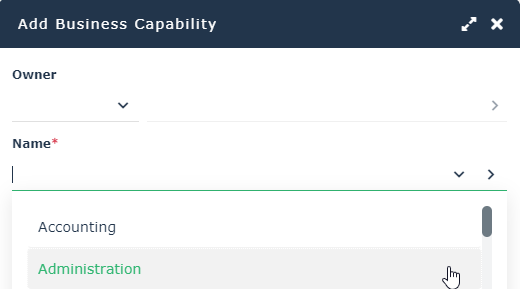
4. Click OK.
The capability composition appears in the diagram.
If the business capability is associated with functionalities, they also appear. For more details on the capabilities and functionalities associated with business capabilities, see Defining the business skills and functionalities associated with business capabilities.Defining business capability dependencies
A dependency link between one capability composition and another is used to specify the elements on which this dependency is based.
For example, “Billing” uses “Order Management”. Note that the expected result (business effect) of "Billing" is an "Invoice" and the expected result (business effect) of "Order Management" is a "Order to be delivered".
Dependent Business Effect and Desired Business Effect are the business capability results.
For more details on the results of business capabilities, see Describing the outcomes.A single capability composition can have more than one dependency within a single diagram.To create dependency links between two capability compositions:
1. In the insert toolbar, click Business Capability Dependency.
2. Click the user component, and keeping the left mouse button pressed, move the cursor to the assembly used.
3. Release the mouse button.
The capability composition appears in the diagram.
To enter the results concerned by a dependency between two business capability components:
1. Open the Characteristics properties dialog box.
2. Enter the user component result in the Dependent Business Effect field.
For example, “Invoice”.
3. Enter the user assembly result in the Desired Business Effect field.
For example, “Order to be delivered”.