Using the Excel Import Wizard
Excel import enables creation of new objects and modification of existing objects through an Excel file.
You can import:
• Either a Predefined Template File so as to use its structure for import or export specific needs.
 A Predefined Template file is an export file template supplied as standard with HOPEX.
 For more details on predefined template files, see Creating Predefined Excel Template Files(Windows Front-End).
• Or an Excel file which has been previously exported using HOPEX.
Launching the Excel Import Wizard
To import Excel data in HOPEX:
1. Check your import options. See Checking the Excel import/export usage options.
2. On the HOPEX desktop, click Main menu > Import > Excel.
On the Administration desktop: in the Tools pane, select the Excel > Import sub-folder.The import wizard opens. See Importing Excel data in HOPEX.
3. (Option) Uncheck the Keep History box if you don't need to keep the history of modifications made during the import.
Importing a Predefined Template File
To import a Predefined Template File using the import wizard:
1. Run the import wizard. See Launching the Excel Import Wizard.
2. In the Import Template section, click the template that interests you.
An empty xlsx file is generated in the selected format.
For more details on predefined template files, see Creating Predefined Excel Template Files(Windows Front-End).Importing Excel data in HOPEX
To import Excel data in HOPEX using the import wizard:
1. Run the import wizard. See Launching the Excel Import Wizard.
2. In the Excel Import File section, on the right of the Excel Import File field, click Browse .
.
.3. Indicate the file type and file to be imported.
For more information on the creation of the Excel file to be imported, see Export Wizard.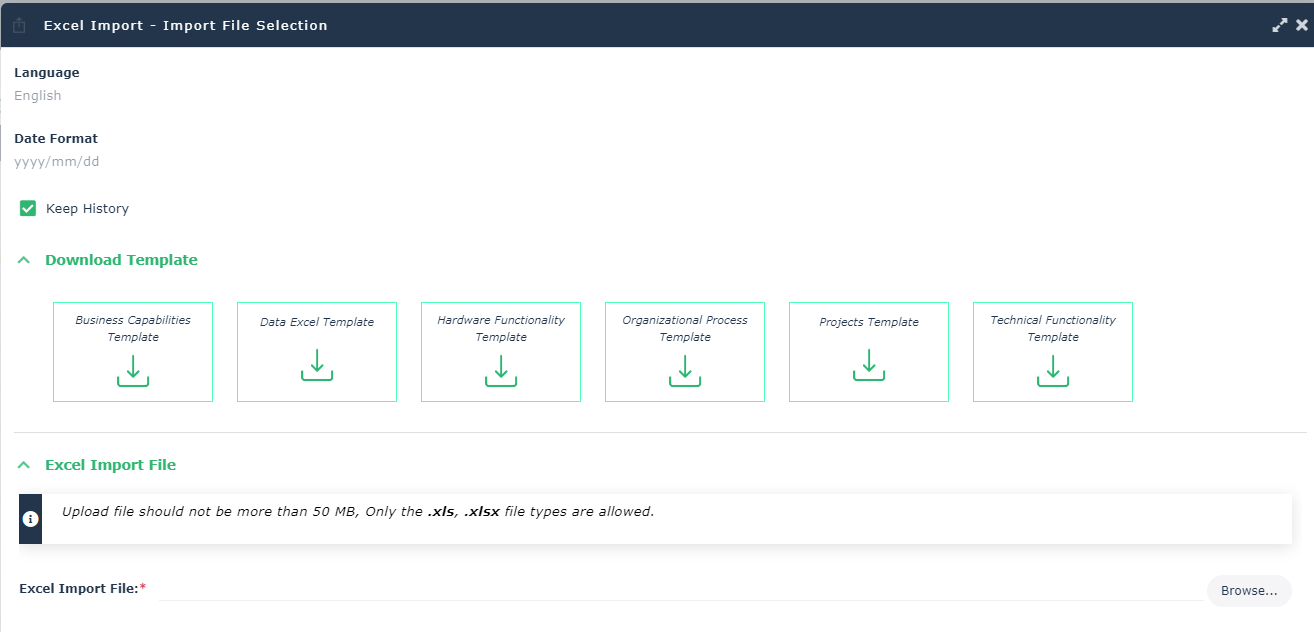
4. Click Import.
The wizard provides a report of import results.
If you have checked the Tools > Data Exchange > Import > Tools /Tools/Third Party Formats > Excel : activates advanced import functions option, the assistant allows you to view the imported file parameters. For more details on parameters presentation, see Defining Excel Export File Parameters.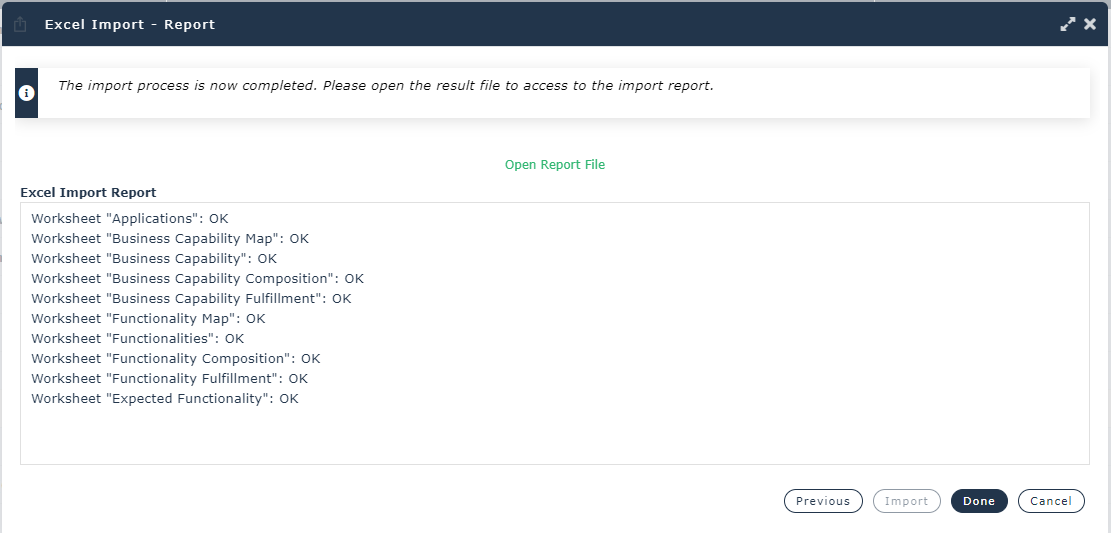
5. To obtain a detailed report of import errors, click the Open Report button.
The .xls (or .xlsx) generated file opens indicating in color red the problem data. See Import error file.
6. Click:
• Import anyway to import data without error in HOPEX.
• Previous to modify import parameters.
• Cancel to discard the report.
Import error file
The imported file automatically generated opens indicating in color red the problem data. In the following example, the file has identified an application that exists in HOPEX but of which the identifier has been modified in the import file.
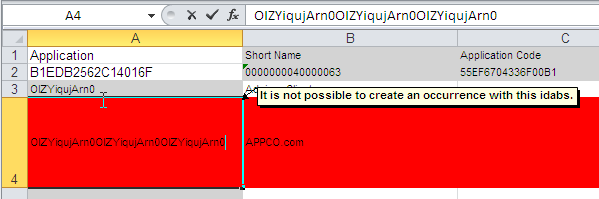
 The first two lines of an Excel worksheet are reserved for file configuration. Ensure that the first two lines of the imported file remain identical to those obtained after an export.
Technical limitation of the import
When you want to import Enumeration type attribute values (values available in a drop-down list), you must ensure that the data language in HOPEX and the language of the Excel file are identical.
If for example your Excel file is in French and the data language in HOPEX is English, on import you receive a message of the type: “value_name outside table”.
The data language and the interface language are two different concepts.