Defining Excel Export File Parameters
Excel file configuration example
An Excel sheet can be of two types:
• MetaClass (object list + characteristics)
• MetaAssociationEnd (links + link characteristics).
In the following example, the file contains three worksheets:
• the first worksheet contains applications
• the second worksheet contains links of "Defined Service" type between applications and services
• the third worksheet contains application services
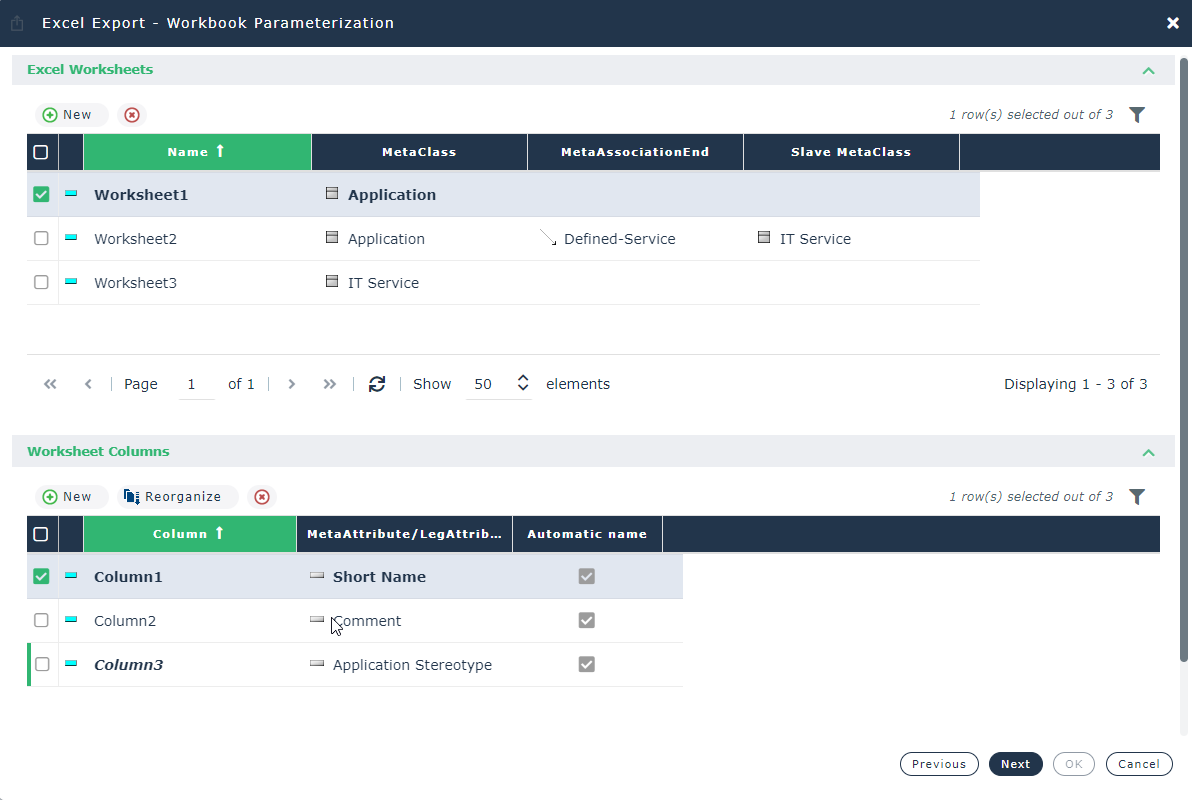
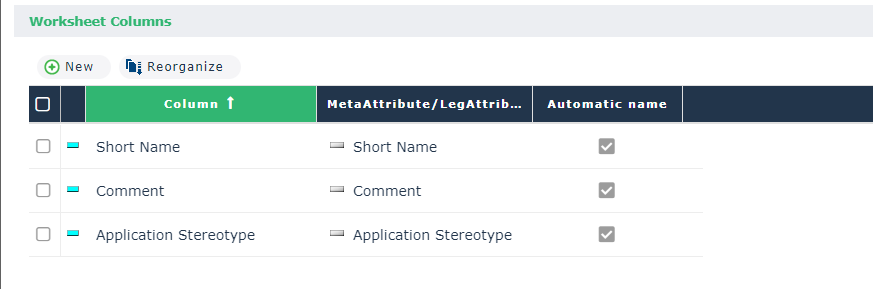
 If you select a worksheet, the list of imported fields appears in the Worksheet Columns section. For each application, the name, code, comment and type are displayed.
At this stage you can click the wizard Finish button. You obtain an export model which you can then complete.
Creating an Excel worksheet
To create a worksheet (for example “Application”):
If a template file has been specified, the list of the template file sheets appear.
2. In the Excel Worksheet section of the Excel Export wizard, click New  .
.
.A worksheet appears.
3. Modify the name of the worksheet if necessary.
4. Indicate the type of data associated to the sheet (for example “Application”). See Worksheet datatypes.
Worksheet datatypes
In a worksheet you can define:
• a MetaClass, or
• a link type
To specify a MetaClass (for example “Application”):
1. Select the worksheet in question.
2. Click in the MetaClass column, then click on the arrow and select List MetaClasses.
The query dialog box appears.
3. Select the MetaClass and click OK.
Example: “Application”.
To specify a link type:
1. Select the worksheet in question.
2. In the MetaClass column, select the master MetaClass.
Ex. "Application".
3. In the MetaAssociationEnd column, select the MetaAssociationEnd.
Example: "Service defined".
4. In the Slave MetaClass column, select the slave MetaClass.
Example: “IT service”
When the link sends to a concrete MetaClass, the column of the slave MetaClass is completed automatically. When it sends to an abstract MetaClass, the list of concrete MetaClasses is proposed.Creating worksheet columns
Columns of an Excel worksheet specify attributes of the object selected in the Excel worksheet.
To create a column:
1. Select the Excel worksheet for which you wish to create a column.
2. In the Worksheet Column area, click the New button.
3. The column appears. Modify its name if required.
4. To indicate the attribute to be displayed in the column, click in the MetaAttribute/LegAttribute/Macro column and select List MetaAttribute/LegAttribute/Macro.
A dialog box lists MetaAttributes, LegAttributes and Macros available on the object type specified in the Excel worksheet. If the worksheet object type is a link, the dialog box lists the link attributes.
For more details on macros, see Using Macros in Excel Import/Export Files.5. Select a MetaAttribute and click OK.
Automatic name
When selected, the Automatic Name check box indicates that the file column takes the name of the MetaAttribute (for example "Short name"). If you clear this, the column takes the name indicated under Column ("Column 1").