Defining Where to Display the Search Results
 To see or modify the window where the search results are displayed, see Changing the place of display of your search result.
Depending on your needs, you can modify the window where the search results are displayed:
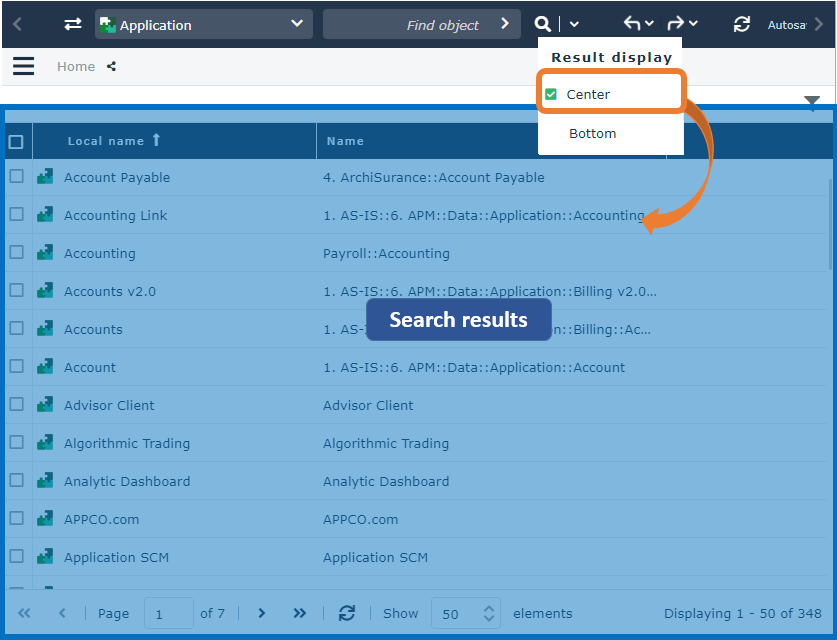
• Center (by default)
In that case, the search is rather a primary action.
Search results are displayed in the edit area.
It enables, for example, to find the object with which you need to work (e.g.: modification of its properties, creation of a diagram, access to Collaboration features).
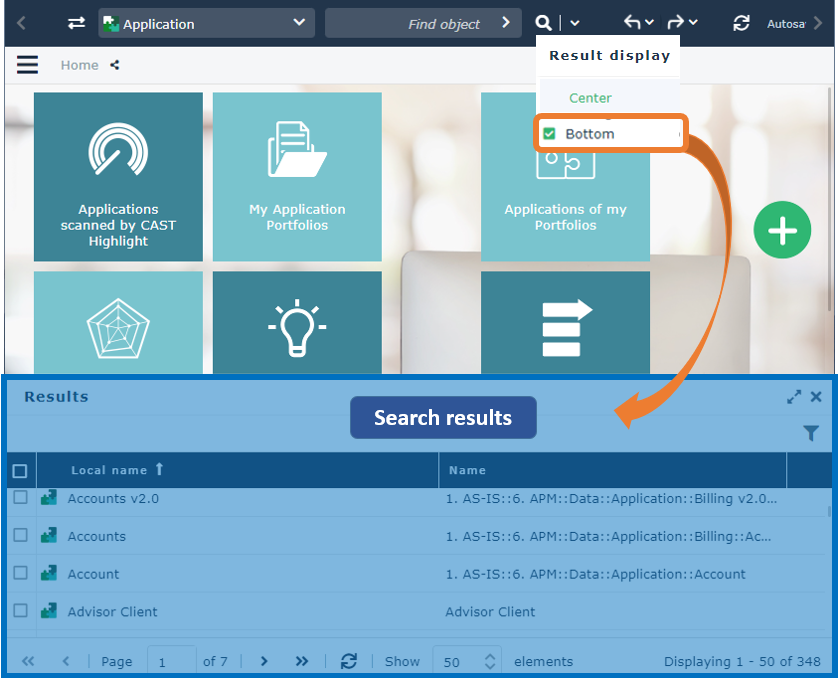
• Bottom
In that case, the search is rather a secondary action.
Search results are displayed in a new window (Results) below the edit area.
It enables, for example, to find the object you want to add in another window and particularly in a diagram.
Result display in the Results window
With the Bottom result display, your search results are displayed in the Results window. You can:
• drag and drop an object, from the Results window into another window.
Example: when you are creating or updating a diagram, you can drag and drop objects from the Results window into the diagram.

• display an object properties in the edit area (click an object)

• access its pop-up menu actions (right-click an object)
Diagram containing object displays the diagram in a pop-up window.
Diagram describing the object displays the diagram in the edit area (in edit mode).
You can also:
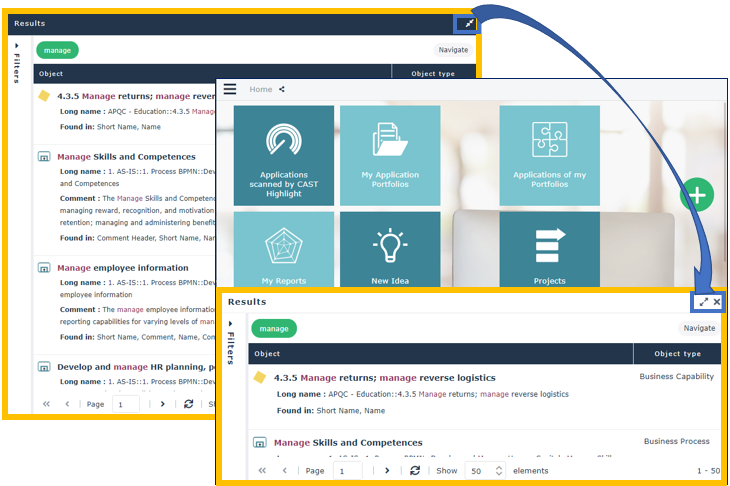
• display the Results window in full page for a better readability and ease the filtering if needed: in the Results window bar, click Maximize  .
.
.To leave the full page display of the Results window, click Reduce  .
.
.
• close the Results window: in the Results window bar, click Close window  .
.
.• (Full text search) display results as a list, in full page, in the edit area, and thus benefit from all the features available on a list:
E.g: instant report creation on the list.
• (If needed) Use the Filters pane to filter objects before displaying them in the list.
• Click Browse.
The result list is displayed in full page.

• (Search by object type) generate instant reports or perform Excel export on objects selected in the list.

Result display in the edit area
By default, your search results are displayed in the edit area. You can:
• display an object properties (replacing the search result): click the object.
• access actions available in an object pop-up menu: right-click the object.
• (Search by object type) perform one of the actions available on an object list.
E.g.: Excel format export, instant report creation, diagram creation.
• (Full text search) benefits from the actions available on an object list:
• (If needed) Use the Filters pane to filter objects before displaying them in the list.
E.g.: search for “manage” with a filtering on the System process and Software Technology object types.
• Click Browse.
Results are displayed as a list.
E.g.: the list displays the System processes and the Software technologies including “manage” in their name, comment, tag, etc.
