Managing Objects
You can perform actions from objects contained in different type pages of HOPEX Explorer, for example from an object in a tree, a list, a diagram, a search result or a Properties page.
Accessing Objects
In HOPEX Explorer, you can for example access an object from:
• a search result
 See Quick Search.
• a diagram
See Using Diagrams.• a property page
• a tree
See for example the tree of your favorites, Accessing your favorites.• a list
For example, in your desktop home page, click a tile that displays a list of objects.Accessing Object Properties pages
To consult or modify characteristics of an object, you must display the object Properties pages.
To access Properties pages of an object:
1. Access the object, see Accessing Objects.
2. Click the object.
The object properties appear in the navigation area.
By default, the Characteristics page appears. It displays the local name of the object and its owner. Properties vary according to the object.
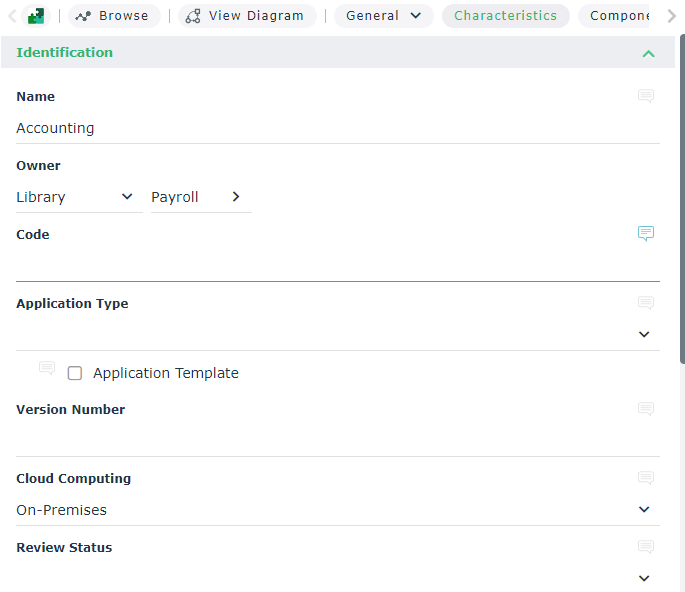
From the object Properties page, you can:
• consult the object properties
• add review notes
• (Contribution type profile) modify the object properties
• (Contribution type profile) perform actions on this object
Review note specificity
In HOPEX Explorer, in an object property pages, the icon:
•  indicates that you can display or create a review note on the object attribute alongside.
indicates that you can display or create a review note on the object attribute alongside.•  indicates the object attribute concerned by the review note.
indicates the object attribute concerned by the review note.Modifying Object Properties (Contribution type profile)
In HOPEX Explorer, with a contribution type profile you can modify object properties.
To modify an object properties:
1. Access the Properties pages of the object.
See Accessing Objects.2. Click Edit  to switch to edit mode.
to switch to edit mode.Fields are editable.
3. Modify the object properties.
4. If necessary, display other Properties pages of the object to modify its properties.
As long as you remain in the object Properties pages, you remain in edit mode. To navigate to another object, use the breadcrumb trail; see Breadcrumb.
Managing Objects
In HOPEX Explorer, the functionalities available on objects depends on your HOPEX Explorer connection profile type.
Managing objects from a diagram
To manage an object from a diagram, see Handling a Diagram.
Managing an object from its property pages (contribution profile type )
You can perform different actions from the menu bar of an object Properties pages. Certain actions are specific to the object, others are generic, for example:
• Diagrams Containing Object to access the diagrams containing the object.
• History to consult the history of actions performed on the object.
• Documentation > Report Discovery or New Report (MS Word) to find a report or create a Report (MS Word) on the object.
• Copy to copy the object.
• Add to Favorites to add the object to your favorites list.
• Remove to delete the object from the repository.
• Explorer to explore the object.
• Manage for example to duplicate, add to home page, compare and align, merge, send a request for change.
To manage an object from the menu bar of its Properties pages:
1. Access the Properties pages of the object.
See Accessing Objects.2. Click Edit to switch to edit mode.
to switch to edit mode.Fields are editable.
3. From the Properties page menu bar, click the object icon and select the action you want to perform.
Actions that are available depend on the object. Actions not available on the object are grayed. Managing an object from a list
You can manage an object from a list.
To manage an object from a list:
1. Display a list.
For example, in your home page click a tile that displays a list of objects.2. In the list, select the check box alongside the object you want to manage.
You can select several objects.Select the box in the Local Name header to select all objects in the list.3. In the menu bar of the list, click the action you want to perform.
Click More  to access hidden actions.