Managing Favorites in HOPEX Explorer
In HOPEX Explorer, managing favorites is available irrespective of your connection profile type.
Adding Favorites
You can add an object to your favorites from:
• a list of objects
• (contribution type profile) the object properties pages
 Once an object is added to your favorites, you cannot remove it from your Favorites folder.
Adding an object to your favorites
Irrespective of your connection profile type, you can add an object to a list of your favorites.
To add an object to your favorites from a list:
1. Connect to HOPEX Explorer
2. Display the list of objects.
Example: In your home page click a tile that displays a list of objects.
3. Select the object that you want to add to your favorites.
 You can only add a single object to your favorites at a time.
4. Roll the mouth over the object row.
5. In the Local Name cell of the object, click Plus  and select Add to Favorites
  .
.
and select Add to Favorites .The selected object is added to your favorites folder.
To consult your favorites, see Accessing your favorites.You cannot remove the object from your favorites.Adding an object to your favorites (contribution type profile)
With a contribution type profile, you can also add an object to your favorites using the Properties pages.
To add an object to your favorites (contribution type profile):
1. Connect to HOPEX Explorer with a contribution type profile.
2. Access the Properties pages of the object.
See Accessing Objects.3. Click Edit  to switch to edit mode.
to switch to edit mode.4. In the properties pages toolbar of the object, click the object icon and select Add to Favorites.
The object is added to your favorites.
To consult your favorites, see Accessing your favorites.Accessing your favorites
In HOPEX Explorer, all the navigation tabs (except the Home page and the Dashboard) provide direct access to your favorites.
You can display your favorites in the form of:
• a tree
You can manage and classify your favorites in sub-folders.
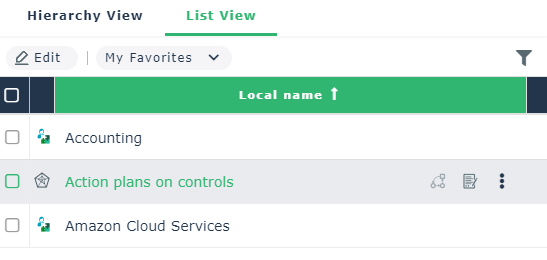
• a list
You benefit from functionalities available for an object in a list (e.g.: diagram creation, property access).
To access your favorites:
1. In your HOPEX Explorer desktop, click the drop-down menu of a navigation tab and select Favorites.
The favorite page appears.
2. Click Hierarchy View, and expand My Favorites folder to access your favorites.
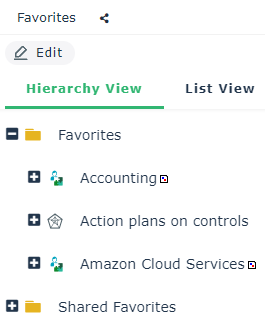
3. Click the favorite you want to view.
The Properties page of the favorite is displayed in the navigation area.
To return to the tree of your favorites, in the breadcrumb click Favorites.4. To access the pop-up menu for an object, click Edit, then right-click the object.
5. To access to objects linked to the favorite, expand the favorite and click the object concerned. The object properties are displayed in the navigation area.
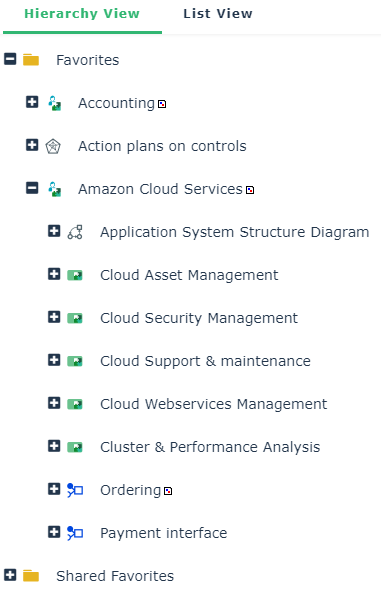
6. To benefit from the functionalities available for an object in a list, click the List View tab.