Creating Users
 Person represents a physical person or a system.
  Instead of creating users one by one, you can import a list of persons. This list can for example come from an LDAP server (see Importing persons from an LDAP server).
A user depends on an environment. To create a user, you must connect to the environment to which the user will be attached.
A user is a person with a login. To create a user, you must create a person with its login, or create the login of a person already created.
For detailed information on characteristics of a person, see Person Properties.For detailed information on characteristics of a login, see Person Login Properties.To import users from an LDAP directory, see Configuring LDAP Authentication.Once the user is created, he/she automatically receives an e-mail to define his/her connection password.
This e-mail is sent only when HOPEX SMTP settings are configured (see Specifying SMTP configuration). Otherwise, the Password field is available at user creation. You must then define this temporary password, that the user has to change at first connection.E-mail of the user:
• If the e-mail of the user is entered after the user creation: initialize the user Web account, so that the user receive the email to define his/her password.
• If the user does not have an email, see Defining a Temporary Password to a User.
You can create the person as follows:
• not predefined
• predefined with one of the following criteria:
• the group to which the person belongs
• a profile
• a writing access area
• a reading access area (if reading access management is activated)
To create a user:
1. Access the User Management pages.
2. You can create:
• either a non-predefined person:
Select the Persons sub-folder then in the edit area go to step 4.
• or a person predefined with a characteristic:
Select the sub-folder:
Persons by group to create a person automatically connected to the group that you are going to select.
Persons by profile to create a person and automatically assign this person the profile that you are going to select.
Persons by writing access area (available if several writing access areas are available) to create a person automatically connected to the writing access area that you are going to select.
Persons by reading access area (available if reading access management is activated) to create a person automatically connected to the reading access area that you are going to select.
3. In the edit area, select the group, the profile, the writing access area or the reading access area that you want to connect to the person.
4. Click New  .
.
.The Creation of Person - Characteristics dialog box opens.
5. In the Name field, enter the name of the person.
E.g.: WOODS William
Remember to use the same format for all persons.6. In the E-mail field, enter the e-mail address of the person.
The e-mail address is required, for example, to initialize the Web user password, for distributing documents, receiving notifications and questionnaires, or when a Web user lost his/her password.7. In the Login field, enter a login.
If you do not enter the Login, it will automatically take the value entered in the Name field.A Login is unique and can be assigned to only one Person or Person Group.A Person can have only one Login.E.g.: WWS
8. (If available) In the Password field, enter a temporary password for the user.
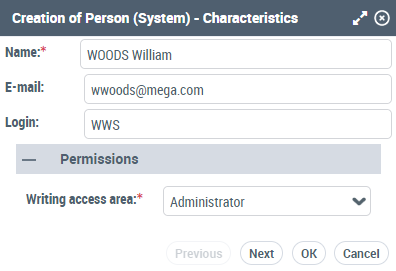
9. (With the HOPEX Power Supervisor technical module) Using the drop-down menu in the Writing Access Area field, select the value of the writing access area of the user.
The Writing Access Area field appears only if there are several writing access areas. By default at creation, the user is connected to the maximum writing access area. "Administrator".10. (If required, with the HOPEX Power Supervisor technical module) Using the drop-down menu in the Reading Access Area field, select the value of the reading access area of the user.
By default at creation, the user is connected to "Standard" reading access area. This field only appears if reading access management has been activated.11. Click Next.
The Creation of Person - profiles dialog box opens.
If necessary, you can assign profiles to the user at a later time, see (or Assigning a profile to a person). Go directly to step 14.12. In the Repository field, select the repository in which you want to assign the profile to the person.
13. Select the profile you want to assign to the person.
You can assign more than one profile to the person.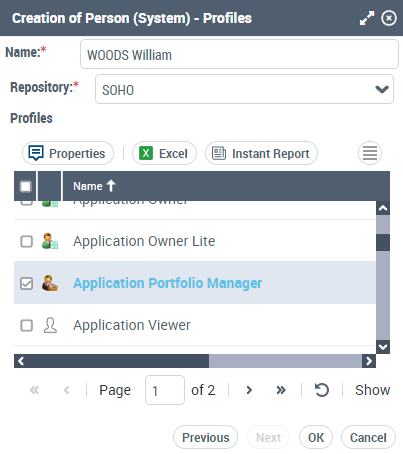
14. Click OK.
The user is created and added to the list of persons.
The user receives an email to define his/her password.
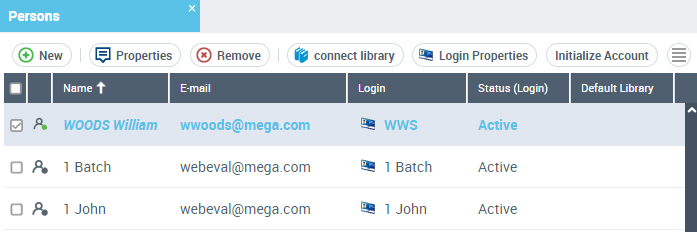 To define the characteristics of the user, see Defining a Person.You must configure the login of the user, see Defining the Login of a Person.To check the configuration of the user, see Checking the Configuration of Persons.