Managing Date Format
In HOPEX, the date format depends on the data language.
This format is defined for each language in the Windows parameters of HOPEX installation server.
If needed you can change this format in HOPEX.
 This customization might be lost at HOPEX update.
To change the date format for a language:
1. Connect to HOPEX.
Check that you are in "Expert" metamodel access and that you are allowed to modify HOPEX data (Options > Repository).2. Access the advanced search (Main menu > Advanced search).
3. In the search wizard toolbar, click Display  .
.
.4. Select View all the object types.
5. In the search by object type tool, in the first field, select Languages.
6. Click Find  .
.
.7. In the result list, roll the mouse over the Name column of the language concerned and click Properties.
8. Display the Characteristics - Characteristics, tab,.
9. In the _LanguageCharacteristics pane, add the date format you want to be customized:
[DateFormat]
date=<date format>
You can use separating characters like: "/", ",", "-", or " ".
Examples:
date=yyyy/MM/dd displays 2018/04/24
date=d-MM-yy displays 4-03-18
date=dd MMMM yy displays 04 july 18
date= dddd, MMMM d, yyyy displays Tuesday, June 5, 2018
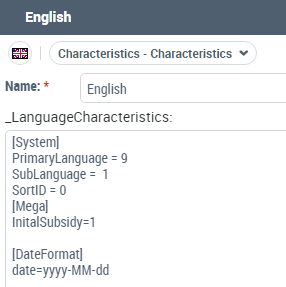
The date format is automatically taken into account.
 This modification uncompile the technical data.
10. Compile the technical data.
Date Format | Description |
|---|---|
d | The day of the month with one or two digits 1...9, 10, 11,..31 |
dd | The day of the month with two digits 01...09, 10, 11,..31. |
ddd | The abbreviated name of the day of the week |
dddd | The full name of the day of the month |
M | The numeric format month with one or two digits 1...9, 10, 11, 12 |
MM | The numeric format month with two digits 01...09, 10, 11, 12 |
MMM | The abbreviated name of the month |
MMMM | The full name of the month |
y | The year with one or two digits 9,18 |
yy | The year with two digits 09, 18 |
yyyy | The year with four digits 2018 |