Compiling an Environment
The metamodel and technical data must be compiled after migration or customization. This is to check configuration of the environment concerned. When compilation has been completed, processing for all users of this environment is speeded up.
HOPEX can operate in "interpreted" (not compiled) mode but with reduced performance.
In the HOPEX Administration navigation tree, an asterisk after the environment name indicates that the metamodel or/and technical data (excluding permissions) of this environment is/are in "interpreted" (not compiled) mode.

Metamodel compilation includes in parallel translation in the current language. You can also translate the metamodel into another language.
Prerequisite:
1. Ask HOPEX users to exit their application:
• mandatory for Web Front-End users
• recommended for Windows Front-End users.
2. Start the HOPEXMega Server Supervisor tool.
3. In the identification area of your workstation, right-click HOPEX Server Supervisor  and select System > Stop HOPEX Processes Services and Web Application.
and select System > Stop HOPEX Processes Services and Web Application.To translate and compile the metamodel and/or compile technical data:
1. Connect to HOPEX Administration and select the environment concerned.
2. In the navigation tree, right-click the desired environment and select Metamodel > Translate and Compile.
The Translate and compile environment dialog box opens.
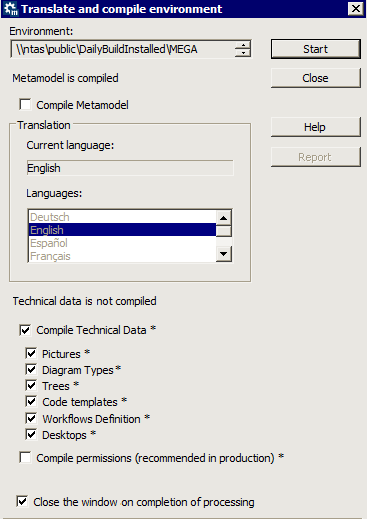
* : the asterisk indicates interpreted (not compiled) mode.
In the Translation frame, the Current Language field indicates the current language of the system repository.
3. If the metamodel is not compiled, keep Compile Metamodel* selected.
4. (If Compile Metamodel* is selected) In the Translation frame, in the Languages list of the system repository, select the target translation language.
Example: "English"
5. If technical data is not compiled, keep Compile Technical Data* selected.
 If technical data and metamodel are not both compiled, you must also keep Compile Metamodel* selected.
By default, all technical data (images, diagram types, trees, code templates, workflow definitions, desktops) is selected.
6. If you are in a production environment, keep the Compile Permissions* option selected; otherwise, you can clear the selection.
This compilation improves HOPEX loading times.
 Compilation of permissions can take some time (more than an hour) and is recommended only in a production environment. The fact of not compiling permissions (permissions interpreted mode) has no impact on correct operation of HOPEX.
7. Keep Close the window on completion of processing option selected.
This option enables automatic closing of the Translate and Compile Environment window when compilation is completed, allowing HOPEX (Windows Front-End) users to resume their work. 8. Click Start to run compilation and translation.
If HOPEX (Windows Front-End) users have remained connected, they are blocked during processing.Metamodel and/or technical data compilation (excluding permissions) takes several minutes.
If you selected metamodel compilation with a different target language, after execution the system repository is available in the new language.
9. When compilation processing is completed, HOPEX (Windows Front-End) users can resume their work.
If at step 7 the Close the window on completion of processing option was not selected, click Close to close the Translate and Compile Environment window and allow HOPEX (Windows Front-End) users to resume their work.10. In the identification area of your workstation, right-click HOPEX Server Supervisor  and select System > Restart HOPEX Processes Services and Web Application.
and select System > Restart HOPEX Processes Services and Web Application.HOPEX (Web Front-End) users can connect to Web applications.