Exiting HOPEX
Before exiting HOPEX, remember to save your data, see:
To exit HOPEX, see Quitting the application.
Saving Your Data
Your data is preserved in the repositories.
You should regularly perform backups of your repository to avoid loss of your data due to unforeseen circumstances such as hard disk failure.
You should keep these backups in a safe location, on a different site from that containing the data.
Backup frequency will vary depending on how quickly the data changes. Weekly backups are generally sufficient when one user is involved. Backups should be more frequent when multiple users are working every day. You should back up your repository before and after important modifications are made to it.
For more details on repository backup, see Managing Repositories.
 You can also export the log of your private workspace if required.
 For more details, see Managing workspaces.
 Remember to regularly back up your data and to keep several backups.
Exporting Your Private Workspace Log
You can create an export file and save it in your work folder.
The export file can be exported in format:
• logfile text (.mgl).
Name format of the exported file is "LOGmmdd.mgl", where "mmdd" represents logfile export date month and day.
• XML MEGA (.xmg)
The exported file is in the form of an XML file containing commands or data (objects and links).
To export the work done in the current private workspace in the form of a command file:
1. In the menu bar, select Tools > Manage > Export Updates Logfile.
The Export Repository Private Workspace Log window opens.
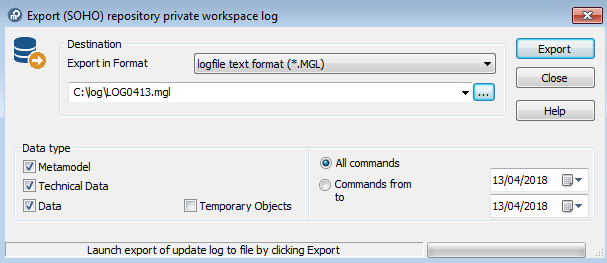
2. Select export format.
3. (Optional) If necessary, modify the data export file name and save folder proposed as default. The Browse button  allows you to browse the folder tree and select the folder in which the file will be placed.
allows you to browse the folder tree and select the folder in which the file will be placed.4. In the Data Type frame, select the type of exported modifications:
• Metamodel if you want to extract the metamodel from the system repository. This is useful if the standard metamodel has been modified.
• Technical Data if you want to include in your file the changes made to data such as descriptors and queries.
• Data if you only want to export changes made to repository data, particularly the workspace.
• Temporary Objects - these objects are created when you execute requests, when you consult objects (stored in the history), etc. Generally you will not need to export these objects.
5. (Optional) If you want to export only those commands that correspond with a defined period, select Commands from / to and specify the dates.
6. Click Export.
The Execution Report appears.
7. Click OK.
The file is exported and saved in the specified folder.
The user can subsequently import this logfile, for example into a new private workspace.
Quitting the application
If one does not already exist, a private workspace is created when a user requests repository access: HOPEX saves a view of the state of the repository at the moment the user connected.
The user can add his/her own modifications without being disturbed by any concurrent modifications of other users: in the case of a network installation, each HOPEX user has his/her own view of the repository.
To save your latest modifications at any time, in the HOPEX toolbar, click Save All  or in the menu bar select File > Save All.
or in the menu bar select File > Save All.To exit your work session from a collaborative workspace, see Exiting a session from a collaborative workspace.To exit your work session:
1. In the menu bar, select File > Exit.
The HOPEX exit dialog box appears.
If HOPEX is installed on a network, a dialog box will ask you if you want to dispatch the modifications you made.
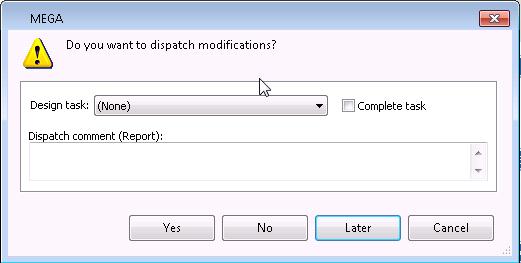
2. (Optional) In the Dispatch comment (Report) frame, enter a comment to remind you of modifications made in your private workspace.
3. (Optional) Select a design task and select Complete task if necessary.
4. Click:
• Yes
Modifications you have made in your private workspace are saved in the repository.
 In order to work effectively as a team, it is recommended that you dispatch frequently and regularly. Other users can update their own private workspace without dispatching their work (menu File > Refresh).This exit mode also allows the user to select a different repository the next time he/she logs in.
• No
All modifications you made since your last dispatch will be lost. You can use this option if you want to view data quickly and exit without impacting the repository.
Modifications to your desktop are also lost.• Later
This option allows you to keep your changes without impacting the repository. You can open your session later and continue working but other users are not yet seeing the changes you have made.
Click Cancel to not exit your private workspace.