Using Diagrams
In HOPEX Explorer, you can view the diagrams that contain or describe an object.
Opening a Diagram
You can open a diagram:
• in the navigation area
• (Contribution type profile) in a floating window
Opening a diagram in the navigation area (any profile type)
For example, you can open a diagram in the navigation area from:
• an object search result (click the result)
• the tree of your favorites (click the link alongside the  icon)
icon)
icon)• a list of objects (Local Name column)
The diagram name and type are indicated at the bottom of the page.
To open a diagram concerning an object:
1. In HOPEX Explorer, display an object list.
2. Select the object concerned.
3. Roll the mouse over the object row concerned.
The icons are displayed in the Local Name cell.
4. In the object Local Name cell, click:
 If needed, click More
  to access the button.
• Open/Preview the diagram to open the diagram describing the object. Several diagrams can describe the object.
to open the diagram describing the object. Several diagrams can describe the object.The diagrams describing the object are displayed in the navigation area.
• Diagrams Containing Object  to open the diagram including the object. Several diagrams can include the object.
to open the diagram including the object. Several diagrams can include the object.The diagrams including the object are displayed in the navigation area.
See Handling a Diagram.Opening a diagram in a floating window (contribution type profile)
From an object Properties pages, you can open the diagrams containing the object, in a floating window.
To open a diagram in a floating window (contribution type profile):
1. Access the Properties pages of the object concerned.
2. Click Edit  to switch to edit mode.
to switch to edit mode.3. In the object Properties page menu bar, click the object icon and in the drop down list select Diagrams Containing Object  .
.
.A window appears with all the diagrams that include the selected object.
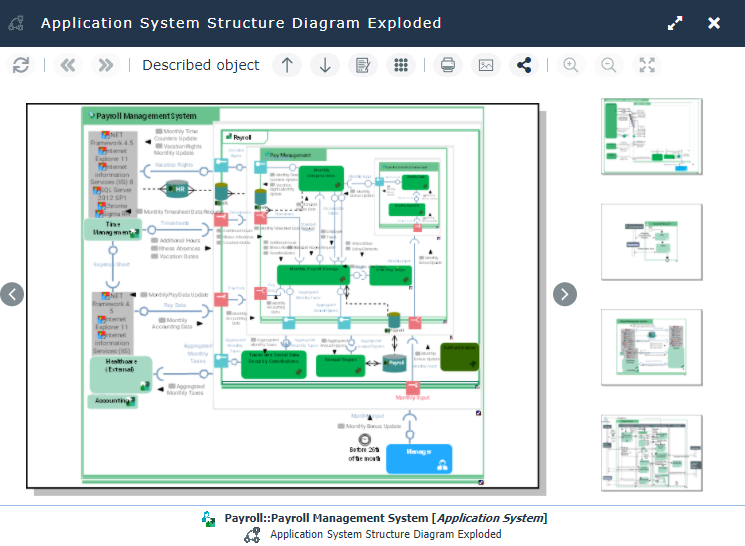
4. Click the diagram you want to access.
The diagram is displayed.
Handling a Diagram
You can perform actions on the diagram or on an object described in the diagram:
• from the toolbar specific to the diagram
• from the pie menu that appears when you select an object.
Handling a diagram from the diagram toolbar
To handle diagrams, in the diagram toolbar click:
• Back  / Forward
  to navigate between diagrams that are open.
/ Forward to navigate between diagrams that are open.• Previous  / Next
  to navigate between diagrams containing or describing the object.
/ Next to navigate between diagrams containing or describing the object.The mouse wheel also enables navigation between diagrams.
• Zoom in  to enlarge the image.
to enlarge the image.• Zoom out  to reduce the image.
to reduce the image.• Show all  to return to the original size of the image.
to return to the original size of the image.You can also zoom in and out using the mouse wheel or using keyboard scroll keys (previous page and next page).
• Diagrams containing described object  to access diagrams containing the described object.
to access diagrams containing the described object.The object blinks when it appears in another diagram.
• Diagrams describing described object  to access diagrams describing the object selected in the diagram.
to access diagrams describing the object selected in the diagram.• Properties of described object  to open the properties page of the object selected in the diagram.
to open the properties page of the object selected in the diagram.• Menu  to access the pop-up menus of the object described by the diagram.
to access the pop-up menus of the object described by the diagram.• Print this diagram  to save the diagram in PDF format.
to save the diagram in PDF format.• Save the picture as  to save the diagram in image format (png, svg, emf, jpeg).
to save the diagram in image format (png, svg, emf, jpeg).Unavailable options are grayed.Handling an object from its pie menu
To handle a diagram object from its pie menu:
1. Select an object in the diagram.
A pie menu appears over the object.

Available options are are dark grey.
The selected option is blue.
Non available options are light grey.
2. Click the part that represents the action you want to perform:
• access object properties 
• create a report on the object 
• open other diagrams containing the object 
• open other diagrams describing the object  .
.
.Adjusting position of diagram in the window
You can adjust position of diagram in the window. This can be useful for instance when you zoom and want to view a particular part of the diagram.
To move the image on the page:
1. Click in an empty part of the diagram.
2. Hold the mouse button down and move the pointer.
3. Release the mouse button where you want to place the diagram.
Navigating between diagrams
When several diagrams are available for the same object, they are all displayed in the same window.
To navigate between diagrams:
1. Open the diagram.
See Opening a Diagram.This window provides an overview of all the diagrams describing the object.
2. Navigate between diagrams using the mouse wheel.
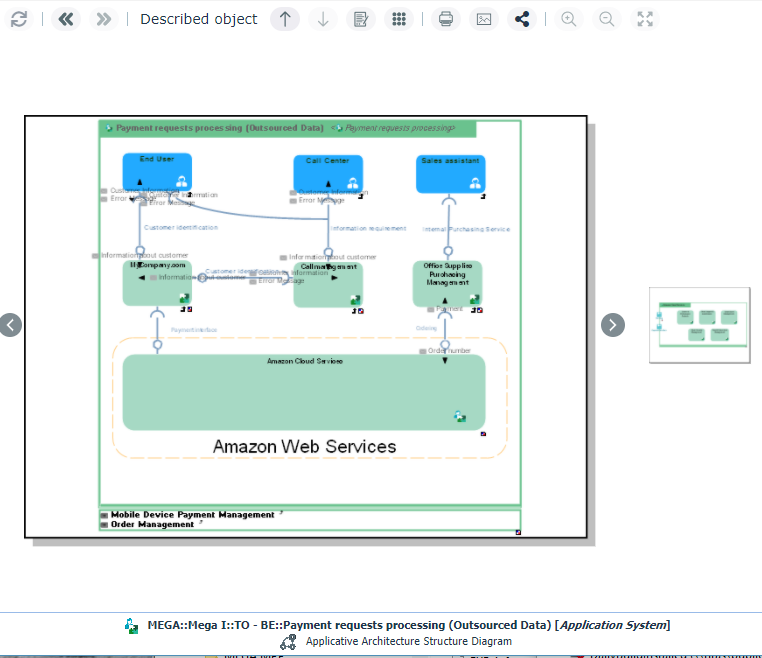
3. Click the diagram you want to display full size.