Using strategy assessments
Creating a strategy assessment
To create a strategy assessment:
1. From the Vision navigation pane, select Motivation > Strategy Assessment.
The current enterprise appears. It is connected to a Strategy Assessment folder.
2. Right-click the Strategy Assessment folder and select New > Strategy Assessment.
The strategy assessment creation window opens.
3. Specify the Name of the strategy assessment.
4. Specify the Begin Date and the End Date of the assessment.
5. Click OK.
The strategy assessment appears in the list of assessments associated with the enterprise.
The properties of a strategy assessment
The Characteristics properties page of the strategy assessment provides access to:
• its Name;
• its Enterprise, the enterprise from which the assessment was created;
• the Begin Date and the End Date of the assessment.
• the text of its Description.
With HOPEX Business Architecture, a strategy assessment is described in the following pages:
• the Structure page is used to access all drivers linked to the strategy assessment,
 For more details on drivers, see Connecting a driver to a strategy assessment.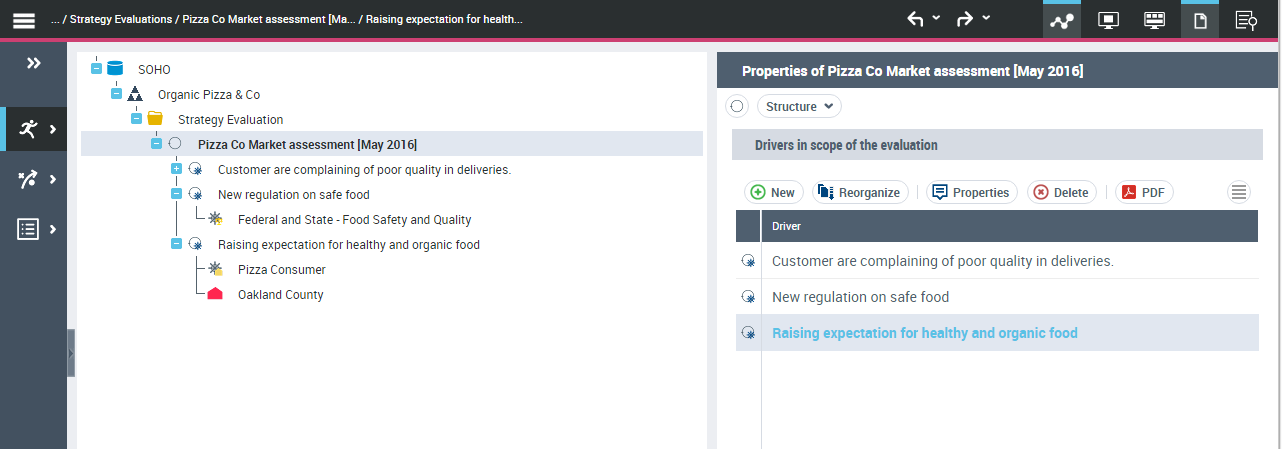
• the Assessment tab is used to create assessments.
For more details on assessing strategies, see Using strategy assessments.Connecting a driver to a strategy assessment
The drivers are linked to the current enterprise.
To link a driver to a strategy assessment
1. Open the Structure properties page of the strategy assessment that interests you.
The list of drivers associated with the assessment appears.
2. Click the New button.
A strategy evaluation driver creation window opens.
3. Select the Reusing a Regulatory Driver or Business Driver or Architectural Driver check box.
4. Select, for example, the Connect a Regulatory Driver check box.
5. Click Display scope.
6. Select the driver that interests you.
7. Click OK.
The driver appears in the list of drivers linked to the strategy assessment.
Creating an assessment for a transformation strategy
You can create new assessments with the aim of globally assessing each driver connected to a strategy assessment.
To create a strategy assessment:
1. Open the Structure properties page of the strategy assessment that interests you.
The list of drivers associated with the assessment appears.
2. Click the Perform Assessment button.
The list of drivers associated with the strategy assessment appears.
3. For each driver, specify the SWOT Quadrant by selecting:
• Strength or Weakness for an internal driver,
• Opportunity or Threat for an external driver.
4. For each driver, fill in the SWOT Quadrant Level column by selecting High, Medium, or Low to specify the relative important of each driver from the same quadrant.
5. Click the Validate Assessment button.
A validation window opens.
6. Specify the assessment date and click OK.
The SWOT dial at the bottom of the page is updated. See also: Consulting the answers of a driver assessment.Consulting the answers of a driver assessment
The SWOT quadrant (Strengths, Weaknesses, Opportunities, Threats) is presented on the priorities page of the strategy assessment.
The top line of the quadrant presents the distribution of the internal drivers.
• the Positive influence section draws up the list of internal drivers assessed as Strengths.
• the Negative influence section draws up the list of internal drivers assessed as Weaknesses.
The lower line of the quadrant presents the distribution of external drivers.
• the Positive Influence section draws up the list of external drivers assessed as Opportunities.
• the Negative Influence section draws up the list of external drivers assessed as Threats.
For more details on establishing this report, see Creating an assessment for a transformation strategy.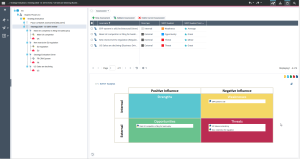
To access the SWOT quadrants for the strategy assessments that you have created from the Vision navigation pane:
 Select Inventories > My SWOT Analysis Reports .For more details on establishing this report, see "SWOT analysis", page 110.