Troubleshooting
Check that the Site Service Provider is running
If you have the following message, and environments are accessible using Administration.Exe and Mega.exe:

You should first check that the “HOPEX Site Service Provider”, and the “HOPEX Service Watchdog”, are running using the Services administration tool:
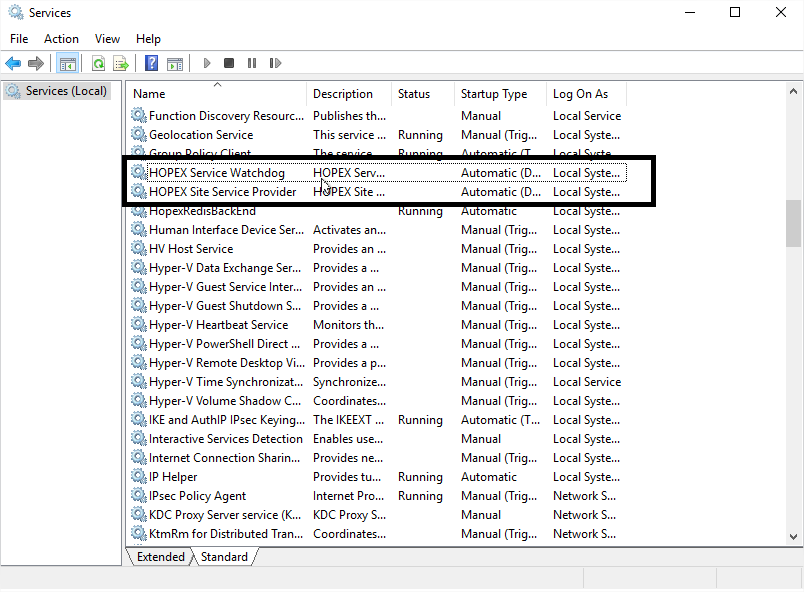
If those are not running, check that its startup is « Automatic » and Start the services.
If it is running, restart the service.
Then restart IIS (see below).
Restarting Internet Information Services
If errors occur, the first step is to try to restart the Web Server.
In the “Internet Information Services (IIS) Manager”, select the server name and click “Restart” in the Actions panel

Referencing a New Environment
So that a new environment is fully accessible in MEGA HOPEX, do not forget to give the “Windows user for MEGA HOPEX” full access rights to the environment folder.
If you have a multi-server deployment, you should reference it and check the rights on every server (except for pure web servers).
Disabling Data Execution Prevention
In rare cases, it might be necessary to disable “Data Execution Prevention (DEP)” for MEGA programs.
If you are able to run the Administration.exe and/or the Hopex.exe rich clients from the web server, then the following procedure is unnecessary.
To access the DEP settings:
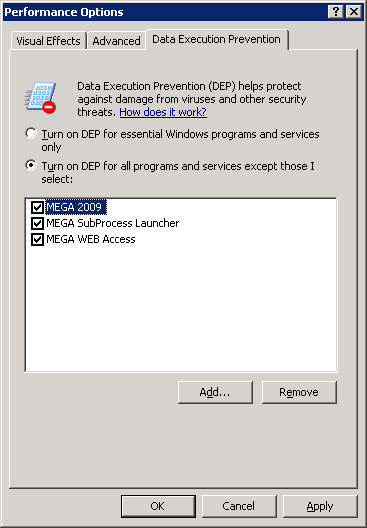
In the “Start” menu, right-click “Computer” and select “Properties”. In the next screen, click “Advanced System Settings”. Go to the “Advanced” tab, click “Settings” in the “Performance” group and select the “Data Execution Prevention” tab.
You can either turn on DEP only for essential Windows programs and services, or add exceptions for the following Mega programs (default installation locations):
• C:\Program Files (x86)\MEGA\HOPEX V4\System\mgwspro.exe
• C:\Program Files (x86)\MEGA\HOPEX V4\System\mgwmapp.exe
• C:\Program Files (x86)\MEGA\HOPEX V4\System\mgwmwas.exe
Loosening Internet Explorer Security Settings
Although default browser security settings on client machines are sufficient for using the MEGA Web Application, some computers, especially servers, might have stricter security policies. For instance, they might prevent the execution of JavaScript, on which the MEGA Web Application relies.
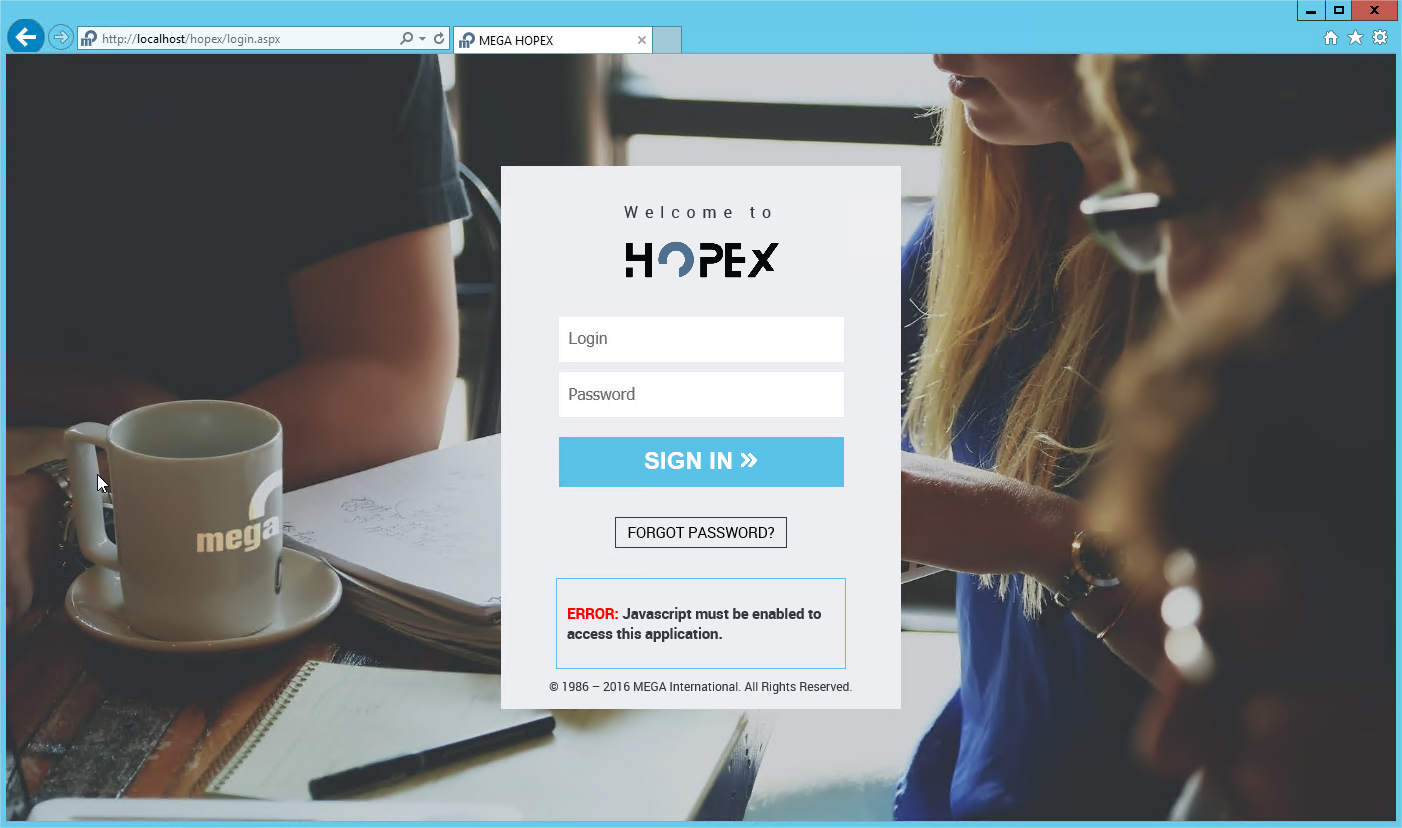
To fix this issue, follow the steps below:
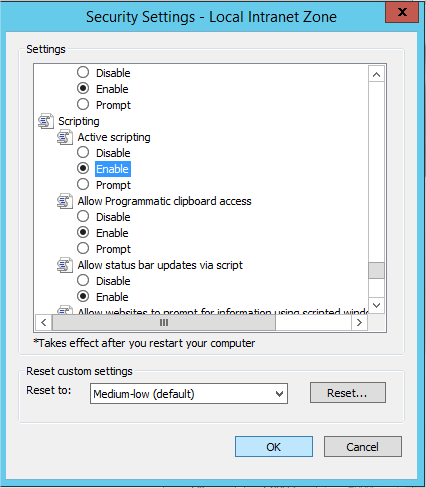
Step 1: Enable Active Scripting on the trusted sites zone
1. Go to the “Tools\Internet Options…” menu
2. Select the “Security” tab
3. Click on “Trusted Sites” then “Custom Level”

4. Enable “Active Scripting”
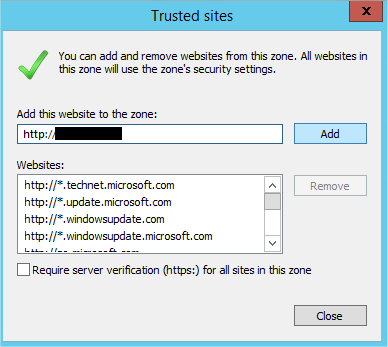
Step 2: Add MEGA Web Application to the trusted Web sites list
1. Go to the “Tools\Internet Options…” menu.
2. Select the “Security” tab.
3. Click “Trusted sites” then “Sites”.
4. Enter the Address of your Web site, click “Add”.
5. Validate.
Manage http 503 error
If, when trying to access the /hopex of your web application, you end up on this kind of error page:
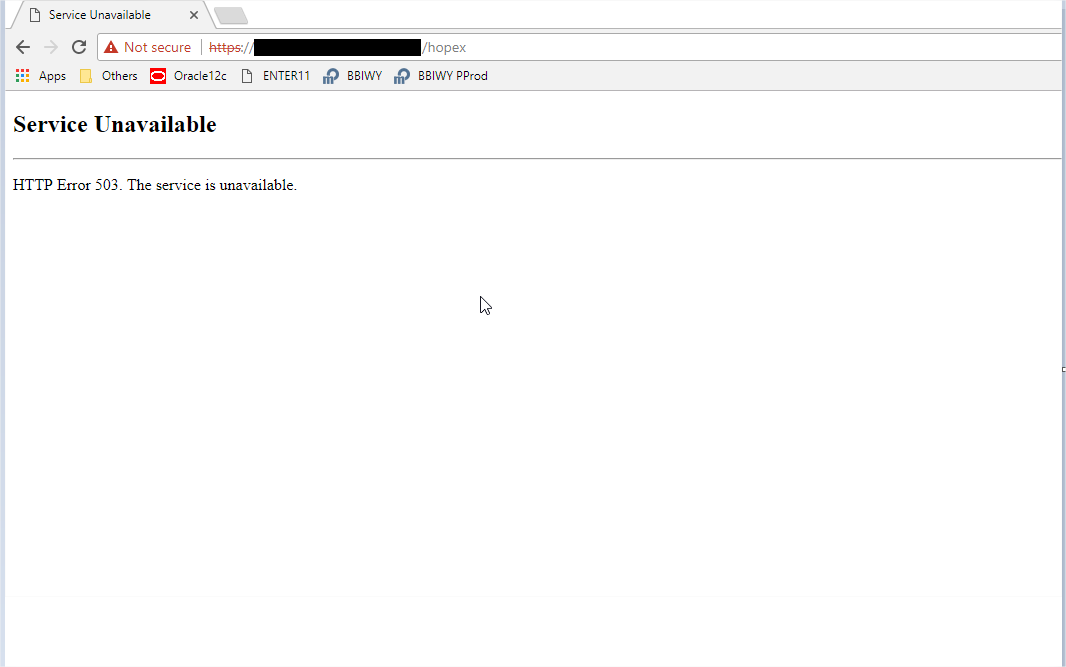
If this is the case, you may want to check IIS Manager, and more precisely the status of the application pool called “HOPEX”.
As you can see, it is in “Stopped” status:

You can try to start it again, and refresh your browser. If you continue to have this error message, you can go back to IIS Manager, refresh the view of the application pools, and see if it is stopped again.
If it is still the case, you most likely have a policy issue on that account.
To check the local policies, execute the following command from the “Run” menu of your application server:
gpedit.msc
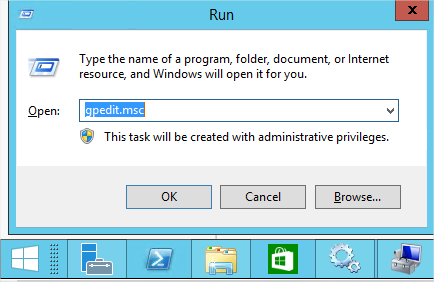
In that tool, browse to “Computer Configuration -> Windows Settings -> Security Settings -> Local Policies -> User Rights Management”, and locate the rules :
- Log on as a batch job
- Impersonate a user after authentication
If you open the Properties of those rules, you need to check if the groups containing the Windows user you set up during the installation are part of the list of granted resources.
Here, we see that the IIS_IUSRS local group is missing:
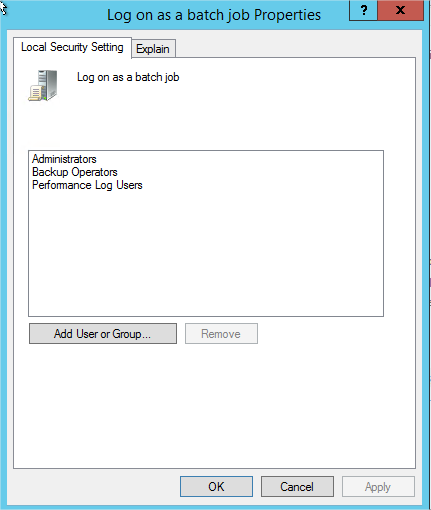
It most likely means that, at a higher level, group policies (or GPOs) are set to remove that group, which is normally granted that right.
If you can modify it yourself, click on “Add User or Group…”, and add the “IIS_IUSRS” local group:
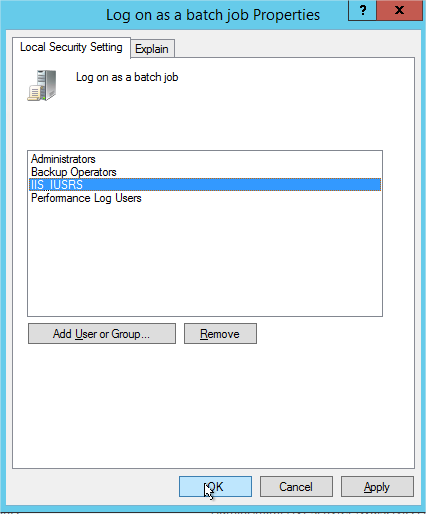
Do it for both policies. And restart the application, and IIS. Make sure that the “HOPEX” application pool is started. And test again. If this update was successful, you will see the login page:

If editing those policies is not permitted (grayed out in the interface), you need to explain this to the people in charge of setting up GPOs for the servers, so that they make this modification.