MEGA HOPEX Setup
Choosing your setup type
HOPEX offers two ways to install the Web Front-End:
- Standalone Setup: automatically installs the Web Front-End and its dependencies (SSP,…) on a single standalone server without SSL/TLS.
- Advanced Setup: allows more complex installation scenarios. Use it for any multi-server installation (scale out or scale up), or if you require SSL/TLS.
Important Notice
The Master installation folder HOPEX V4 (MSI) must be stored on the network and kept saved and accessible as long as Hopex V4 is installed and running. When applying CPs on the Hopex V4 installation, the Master installation folder (MSI) path is used during the CPs installations.
Web Front-End Standalone Setup
1. Double-click Setup to launch the Setup program.
2. If prompted, answer “Yes” to “Do you want to allow the following program to make changes to this computer?”
3. Go through each of the following screens:


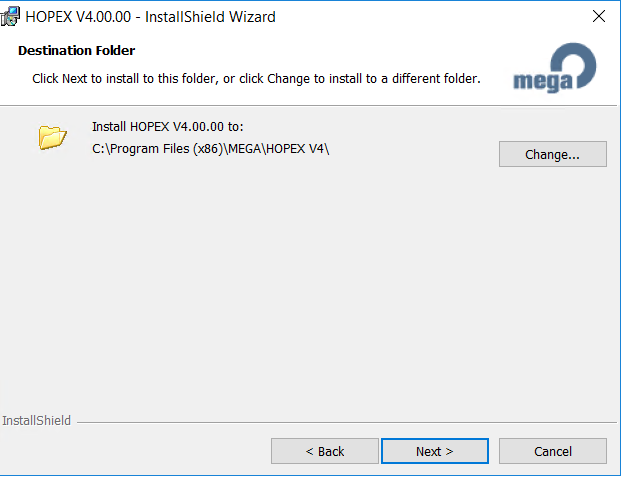
4. If needed, click Change to modify the installation folder for the Mega Software, else keep the default one.
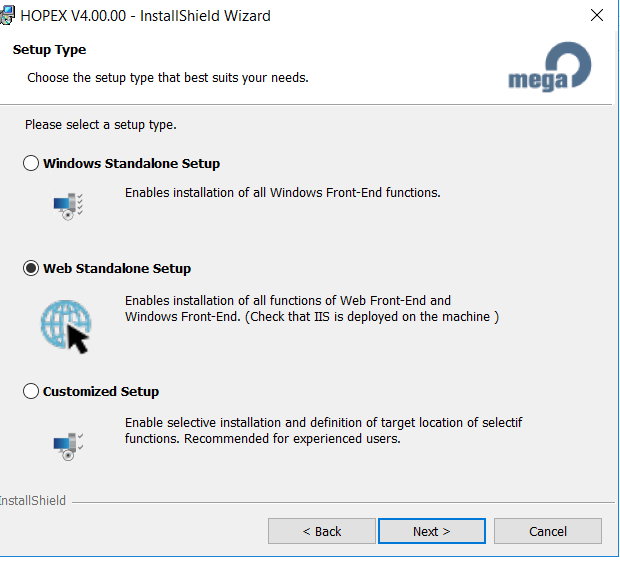
5. Select Web Standalone Setup.
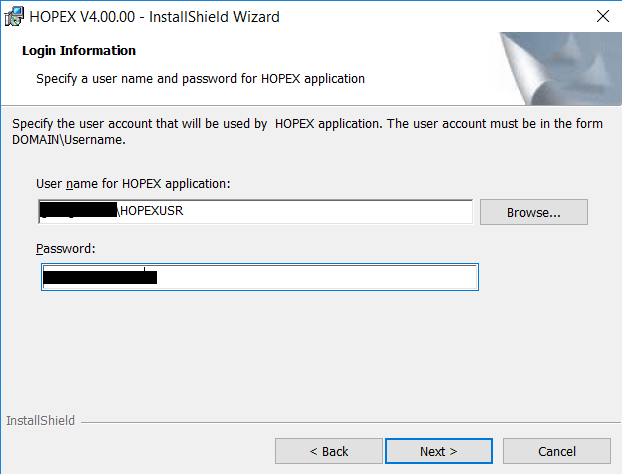
6. Enter the username and password of the Windows User for Mega Hopex you have chosen in the previous section of this document. It will be used for impersonation of the Web application:
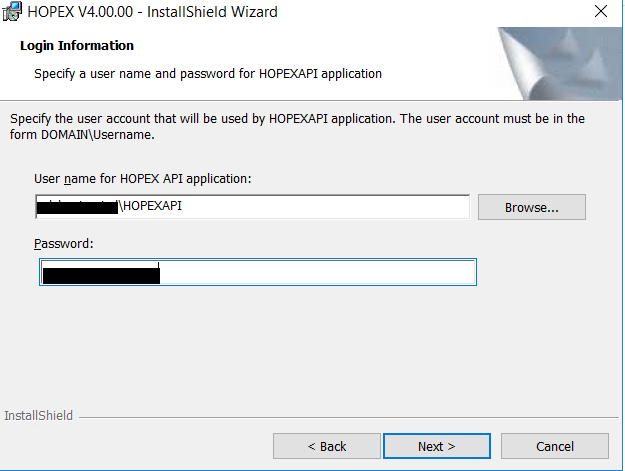
7. Enter the username and password of the Windows User for Mega HOPEXAPI, the second account that needs to be used in case you deploy the web services part:
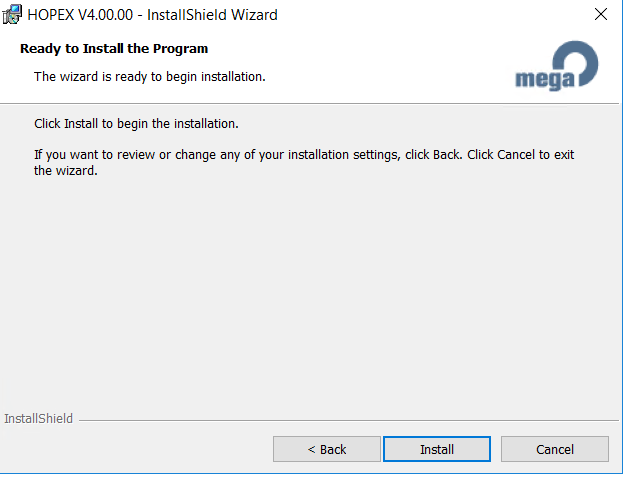
8. You are now ready to launch the installation by clicking Install :

Advanced Setup
Advanced Setup is similar to the standalone setup, except for the initial choice screens and extra parameter choices.
Remark: if you plan to install the web components in a different location than “C:\inetpub\wwwroot”, you need to first configure the root directory of the website where you will install it. Here, an example for the “Default Web Site”:
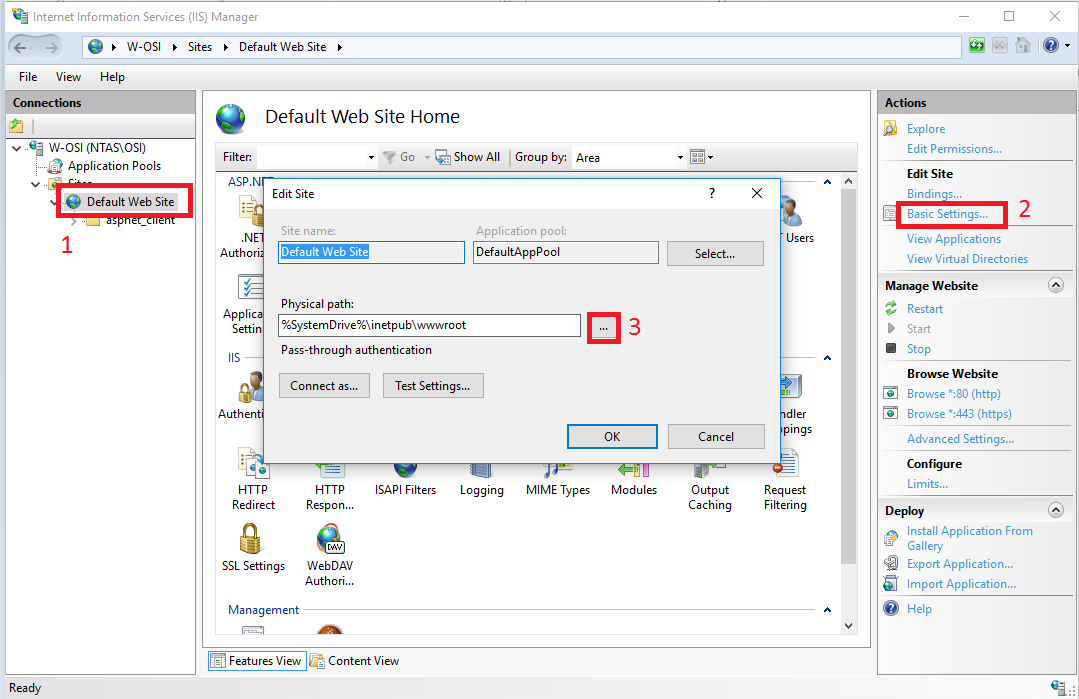
Browse to the folder where you want to install, and validate:

Do not forget that you will need to grant the same permissions for the same users on that folder, following the steps of “Define “Windows User for MEGA HOPEX” files Access Rights” in a later section of this document.
Choice Screen
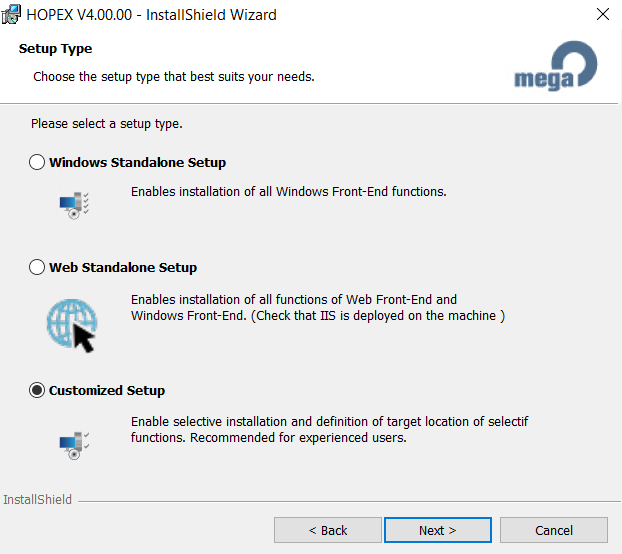
1. Choose Customized Setup:
2. Choose the features that you want to install. Depending on how many servers you have, and the type of deployment you choose (see the “Web Front-end Architecture Overview” document), you need at least :
o HOPEX FrontEnd and its subfeatures
o HOPEX BackEnd, wih at least:
“Hopex Web Access” -> “Mega Web Access for Hopex”
Hopex Site Service Provider
o The “Mega Software” suite, already activated by default
In this example we install all features on a single server, including the web services:
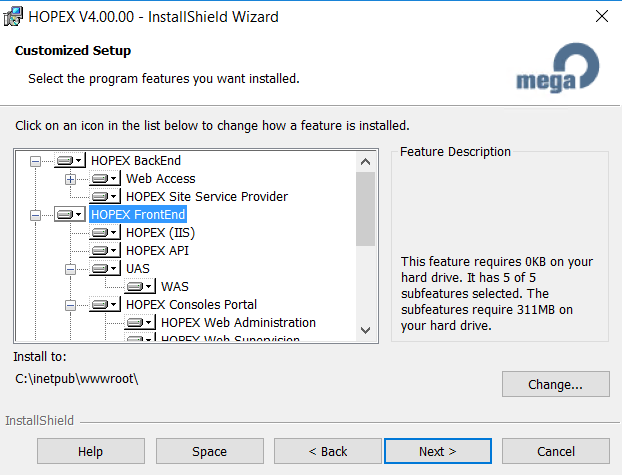
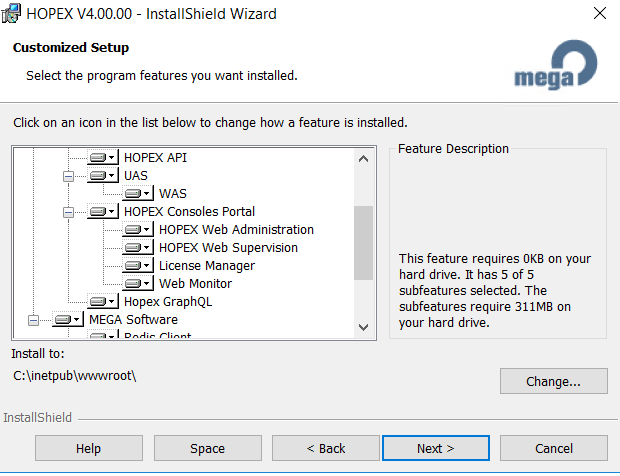
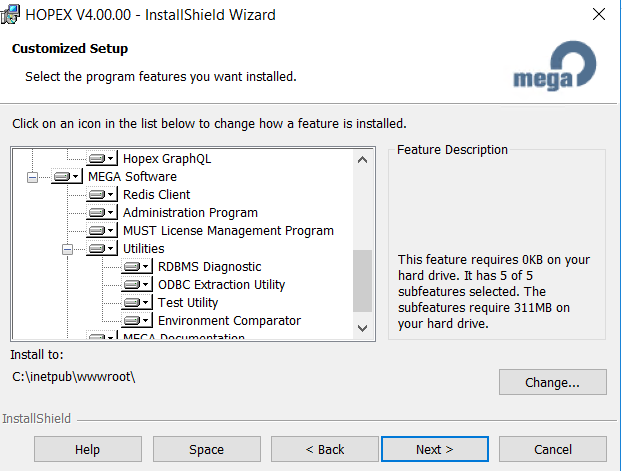
Note that by selecting each item, you can click Change to modify the installation
location of the files that are linked to a specific feature.
3. The “HOPEX API” feature, above, is needed when you have to add web services on the platform. It requires another Windows user, different from the one used by the “Mega Web Access for Hopex” feature. You will also need to activate the “Mega Web Access for Hopen API” ni the “HOPEX BackEnd” section.
4. Choose to activate use of SSL/TLS or not. SSL/TLS is highly recommended; however, it requires some prior configuration of IIS (see Prerequisites section). Moreover, do not choose “Yes” unless the certificate is deployed in IIS. Otherwise, the installation will roll back.
In this example, we do not have HTTPS activated on our website:

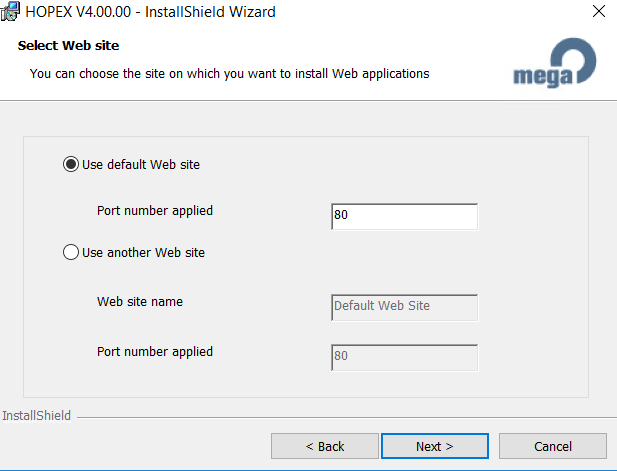
5. Choose the IIS web-site where you want to install the Hopex Web Front-End. Please note that the installer will check that there is a website running on the chosen port, and will install in the first site using that port that is available. So make sure to properly manage your websites and their ports before choosing one for the Hopex deployment. If you choose a port that is bound to no site, and that isn't listening during the installation, the setup will roll back :
6. Enter the username and password of the Windows User for Mega Hopex you have chosen in the previous section of this document. It will be used for impersonation of the Web application:
7. Enter the username and password of the Windows User for Mega HOPEXAPI, the second account that needs to be used in case you deploy the web services part:
Advanced Parameters
Parameters depend of the components you have chosen to install. Here is the list of parameters that are not proposed in the standalone setup.
Mega Site Provider (SSP) URL
On a standalone deployment, this will contain the local name of the server. It has to be an address that can be accessed from within the server itself:

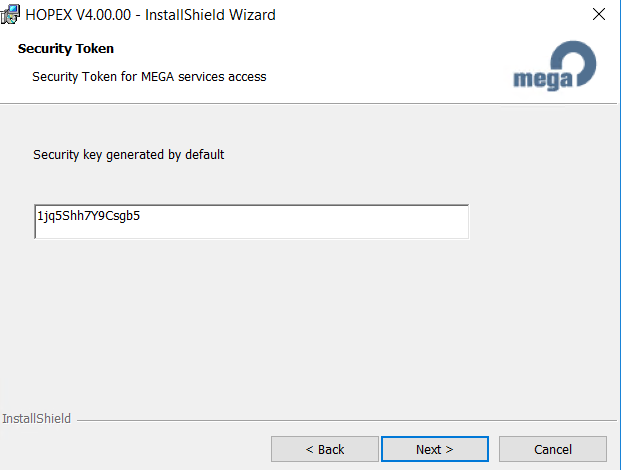
Security Token
It should be identical on all Hopex installs (Web, Windows, SSP,..) that work together in a scale up or scale out scenario
Control Portal access limit
You provide the credentials of the user that can access the new Web Consoles Portal, if activated. If more than one user needs to access it, you will need to make additional IIS configuration:

URL of HOPEX MWAS Web Site
Defined on a web server to indicate the application server

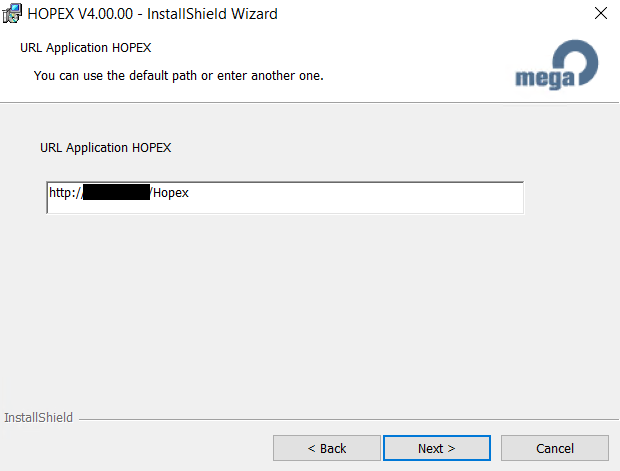
URL of HOPEX Web Site
Defined on an/the application server to target the web server:
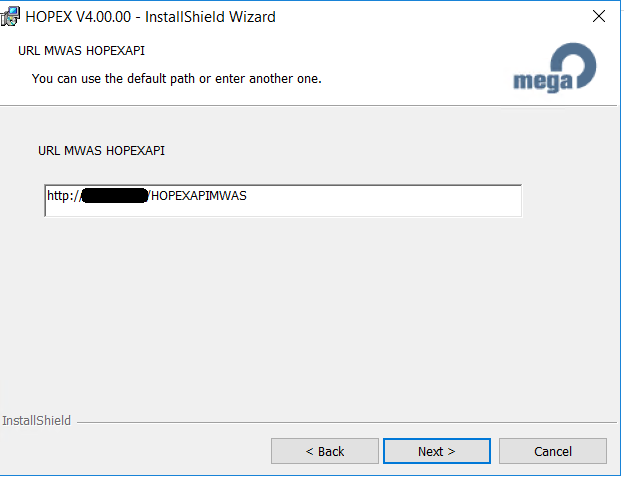
URL of HOPEXAPI MWAS Web Site
Defined on a web server to indicate the application server containing the HOPEXAPI features:
URL of HOPEXAPI Web Site
Defined on an/the application server to target the web server containing the web application of the HOPEXAPI feature:

UAS Certificate Management
The Master installer HOPEX V4 installs by default a UAS certificate valid until 25/05/2023.
The CPs and Hot Fixes do not install or update the UAS certificate. A manual installation is required in this case.
Refer to the community for further information about UAS certificate installation and download:
HOPEX Web Application GraphQL
The Master installer HOPEX V4 includes the last version of GraphQL.
The CPs and Hot Fixes do not install or update the GraphQL web application.
The last version of GraphQL is available for download from the HOPEX Store: