Installation procedures
The following procedures apply to all front-ends. They enable to install the Must licence and protect a HOPEX installation with this licence.
Communicating with MEGA Sales Administration
There are times where you will need a new Must licence:
• When you purchase a new HOPEX product or solution.
• When you purchase additional licences or users of HOPEX products or solutions.
• When you relocate Must licence folder.
To obtain or update your licence, contact your sales representative.
• A UNC will be requested.
• A .must licence file will be sent with installation instructions.
If a problem occurs during licence installation, see the 'FAQs and troubleshooting' section of this document. For additional assistance, contact the appropriate Support Center.
Must licence installation consists in:
• Installing the Must licence file.
• Configuring the licence folder in the HOPEX installation.
Must licence update consists in:
• Verifying that no user is connected to the former licence.
• Removing the former licence.
• Resetting the configuration files
• Installing the updated licence.
Choosing a machine to host the Must licence folder
List of requirements:
• No specific hardware requirements (CPU, Ram). However, the machine hosting the Must licence must be an efficient file server.
• The machine hosting the Must licence must be available for all users running the HOPEX Kernel.
List of recommendations:
• The machine must be an efficient file server:
o Select top quality components for disks and disk controller cards.
o During installation and configuration, choose all options that favor file service performance.
• Choose an NTFS disk.
• Choose a DFS-based folder for the licence folder
Creating a Must licence folder
If you do not have the technical skills or the authorization required for this step, contact your system administrator.
Steps:
• Choose a machine to host the Must licences.
See above.
• Create a shared folder on this machine.
This will be the licence folder. See requirements below.
• Configure this share folder.
See requirements below.
Folder sharing requirements:
• The licence folder must be accessible as a UNC address, meaning a shared folder with one unique address on the network.
• Examples of authorized sharing:
\\Server001\Apps\Licences
\\Domain01\Applications\HOPEX\Licences (DFS)
\\Server001.Domain01.com\Licences (FQDN)
• Examples of unauthorized sharing:
\\Server002\c$\ HOPEX\Licences (administrative share)
M:\Licences (network letter)
Licence folder requirements:
• The licence folder must be accessible as a UNC with full control to all Windows users that are allowed:
o To configure a Must licence.
o To run HOPEX Kernel programs with a Must licence.
• If you want to configure smarter permissions, consult the 'FAQs and troubleshooting' section of this document.
Sending the UNC address of the licence folder
Prerequisite:
• Create a licence folder.
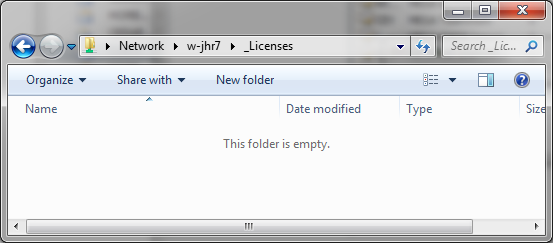
No specific utility is provided for this step: you can use Windows explorer.
Example:
• Navigate to the licence folder.
• Select the folder path in the address bar.
• Copy the folder path and send it to MEGA Sales Administration when requested.
Installing a Must licence file
Prerequisites:
• Get a Must licence file.
• Identify the licence folder. This folder must match the UNC on which the HOPEX licence file is locked.
• Verify that this folder exists and is shared (Windows permissions) for every Windows user that can run HOPEX Kernel though a Front-end.
Procedure:
1. With Windows explorer, select the folder matching the UNC.
2. Copy the .must file send by MEGA Sales Administration to this folder.
Results:
• The Must licence is installed.
Configuring licence folder in the HOPEX installation (direct reference)
Prerequisites:
• A Must licence is installed in the licence folder.
• A target HOPEX installation is available.
Procedure:
1. Run the Must licence utility.
2. In the menu, select File > ‘Update config'.
3. Click the 'Browse' button.
4. Select the 'CFG' folder of the HOPEX installation.
Results:
• The Megasite.ini configuration file is updated. A section [Must licence] is created or updated. Example:
[Must licence]
Path=\\server001\Apps\Licences
• It is possible to run the HOPEX installation on behalf of this Must licence.
Configuring licence folder in the shared configuration folder (indirect reference)
Prerequisites:
• A Must licence is installed in the licence folder.
• A shared configuration folder contains a file Megasite.ini.
• A HOPEX installation is part of a cluster.
Procedure:
1. Browse the shared configuration folder.
2. Edit the file Megasite.ini.
3. Add a section [Must licence] and a variable 'Path'. Example:
[Must licence]
Path=\\server001\Apps\Licences
Results:
• In the shared configuration folder, the Megasite.ini configuration file is updated. A section [Must licence] is created or updated.
• It is possible that each workstation of the cluster shares the same licence.
Uninstalling the Must licence
Prerequisites:
• Identify the Must licence file to be uninstalled.
• Identify the licence folder. This folder must match the UNC on which the HOPEX licence file is locked.
• Verify with the Must licence utility that no user is currently logged on to the licence to be uninstalled.
Procedure:
1. With Windows explorer, select the folder matching the UNC.
2. Remove the .must file from this folder.
Results:
• The Must licence is uninstalled.
Resetting the configuration files
When replacing a Must licence with a licence having the same name and UNC, it is recommended to reset the Must licence configuration.
Otherwise, the licence may not run correctly in particular if the number of token has become lower for a product. A consequence it will be necessary to specify again the list of possible users.
Otherwise, the licence may not run correctly in particular if the number of token has become lower for a product. A consequence it will be necessary to specify again the list of possible users.
Prerequisites:
• Identify the Must licence file to be uninstalled.
• Decided whether you reset the configuration
• Verify with the Must licence utility that no user is currently logged on to the licence to be uninstalled.
Procedure:
1. Run the licensing.exe utility as Administrator.
2. Select the server path where the licence is saved.
3. Select the licence in the left tree.
4. Right-click > Reset Licence configuration.
5. Confirm reset.
This will:
• Delete the possible user configuration.
• Delete the token files.
• Delete the file Router.ini
Converting licence
When upgrading from HOPEX V1R2-V1R3 CP8.0 or lower CP, it is required to convert the file Router.ini to a new format. Otherwise, various issues can occur.
Pre-requisites:
• Stop all activity regarding HOPEX Windows Front-End and HOPEX Web Front-End.
Procedure:
1. Run the licensing.exe utility as Administrator.
2. Click on the menu Administration > Convert.
3. Click the button Refresh All.
This will:
• Archive the file configuration file 'Router.ini as 'Router.bak'.
• Update the file 'Router.ini' to the new format:
o A version tag is added (section [Router], version=x).
o The reference to the domain (ex: @Domain01) is removed.
o Duplicate line are removed.
• Technical files are renamed.
o The reference to the domain (ex: @Domain01) is removed.
Example:
|
Router.ini (before conversion)
|
Router.ini (after conversion)
|
|
[User/Licence]
U001@Domain01=Licence-T0001
U001@Domain02=Licence-T0002
U002@Domain01=Licence-T0001
|
[User/Licence]
U001=Licence-T0001
U002=Licence-T0001
[Router]
Version=2
|
Configure file permissions
At runtime, files will be created dynamically in a hidden subfolder in the licence folder.
It is necessary to configure file permissions so that execution is correct.
It is recommended to grant the permission 'Modify' for the licence folder (ex: \\Server001\Apps\Licences and its subfolders).
The list of windows users varies with the front-end:
|
Front-end
|
Users to be configured
|
|
Web Front-end
|
Only the service account for the HOPEX (IIS) web application should be configured (ex: D01\hopex). Contact the person in charge of installing HOPEX Web Front-end
|
|
Windows Front-end
|
Each end-user can be configured (D01\u0001, D01\u0002…). It is therefore recommended that a group is created for users of the Windows Front-end.
|