Establishing an SSL connection
UAS must establish an SSL connection to communicate with SAML2 or OPENID Provider.
To establish an SSL connection:
|
|
Action
|
See
|
|
1
|
Create a certificate request
|
|
|
2
|
Complete the certificate request
|
|
|
3
|
Bind IIS with SSL certificate
|
|
|
4
|
Export the certificate to the local disk
|
Creating a certificate request from IIS
To create a certificate request from IIS:
1. Open IIS.
2. In IIS section, double-click Server certificates.
3. In the Actions pane, click Create certificate request.
4. In the Common name field, enter the server name (Fully Qualified domain name).
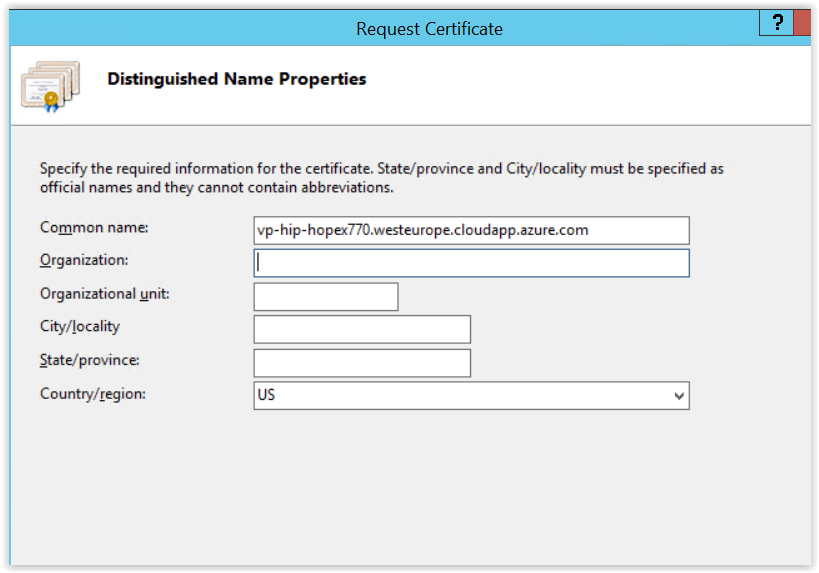
5. Enter all the requested fields.
6. Click Next.
The Cryptographic Service Provider Properties window appears.
7. In the Cryptographic Service Provider field, select “Microsoft RSA Channel Cryptographic Provider”.
8. In the Bit length field, select “2048”.
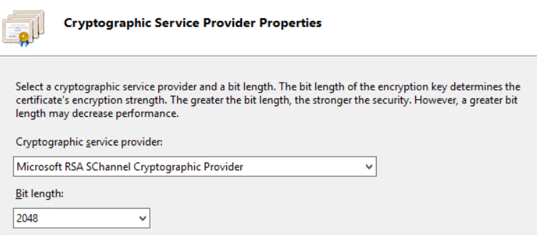
9. Click Next.
10. Enter the name and saving location for the output request file
11. Click Finish.
12. Send this request to your CA Authority.
When you receive the certificate, complete the certificate request, see Completing the certificate request.
Completing the certificate request
To complete the certificate request:
1. Access IIS > Server Certificates.
2. In the Actions pane, click Complete certificate request.
3. In the Friendly name field, enter any name.
4. In the Select a certificate store for the new certificate, select “Personal”.
5. Click OK.
Binding IIS with SSL certificate
To bind IIS with SSL certificate:
1. In IIS, Connections pane, expand Sites folder and select Default Web Site.
2. In the Actions pane, click Binding.
3. Click Add.
4. In the Type field, select “https”.
5. In the SSL certificate field, select the certificate previously imported.
6. Click OK.
Exporting certificate to the local disk
To export the certificate to the local disk:
1. Open Manage certificate computer.
2. Expand Personal > Certificates folders.
3. Right-click your previously imported certificate and click All Task > Export.
4. Select “Yes, export the private key”.
5. Check Export all extended properties.
6. Select Password.
7. Enter and confirm your password.
8. Select your file location to export the certificate.
9. Copy this exported certificate file to the SAML2/ADFS server.