Annex
The log files
By default, all logs are located in “C:\ProgramData\Mega\Logs”, except the supervision log:
- MWAS log (thin client, to trace connection of users): MWASLOG*.TXT files.
- Rich client log: megaerr*.txt files.
- SSP error log (errors and traces when connected to the web client and working in it): SSPERR*.TXT files.
- SSP log (when launching the “Hopex Site Service Provider” and when SSP triggers actions): SSPLOG*.TXT files.
- Watchdog log (starting the service or contacting the SSP): SWDLOG*.TXT files.
- Supervision log: SSPSPRVS*.TXT files stored in the share « \\V-CLUST-SQL\MegaSite\Supervision » because we centralized the MegaSite.ini file.
- UAS logs
Restart the web application
Automatic restart with a Mega tool
On each server hosting the Mega binaries, you can find a tool that allows you to restart the application, and open the daily logs (as well as other features).
It can be found in the “Utilities\Hopex Server Supervisor” of the install folder of Mega:
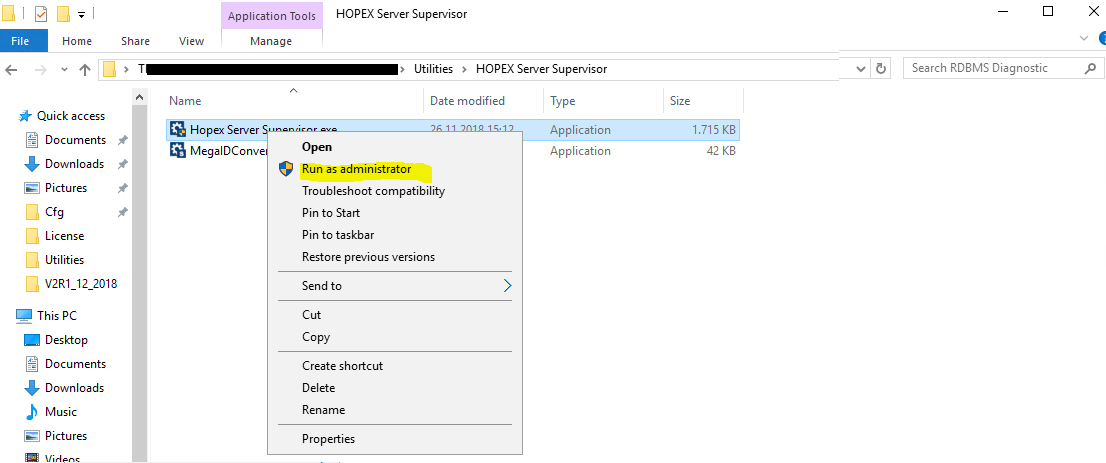
If you do a right-click the executable, and choose “Run as Administrator”, it will launch
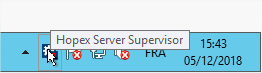
the process, and an icon will appear in the taskbar next to the clock:
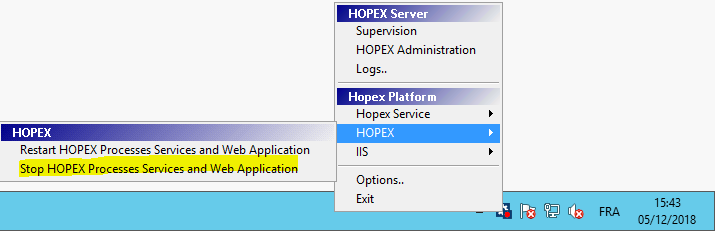
If you do a right-click the icon, you will get some options.
In the “System” section, you can restart the application (first entry), or stop the application (second entry):
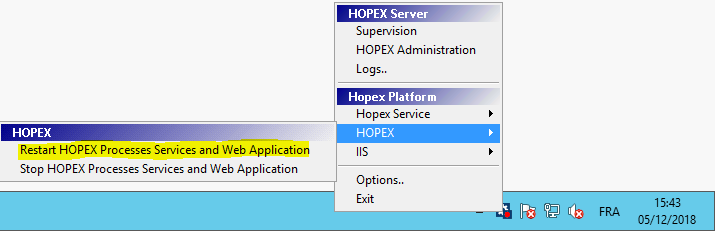
Second one will stop it, in case a maintenance is needed :
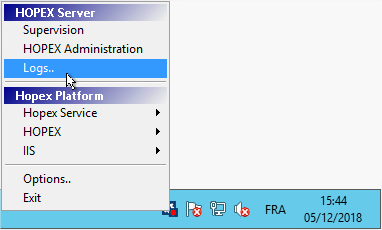
In the “Logs…” section, you can open a wizard to access the application logs:
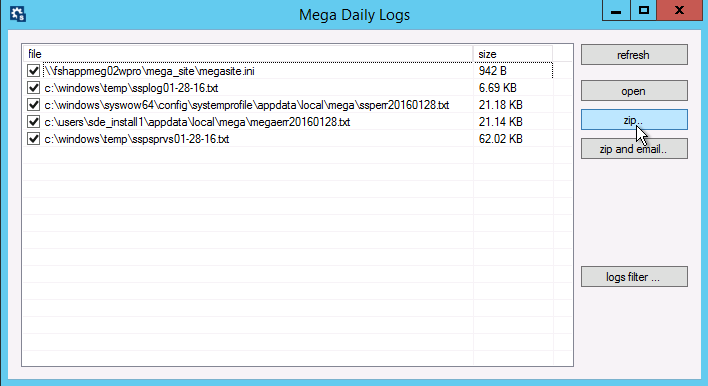
You see by default the logs the day. You can click either “Open” to open them locally, or “Zip”, to create an archive file with all those logs.:
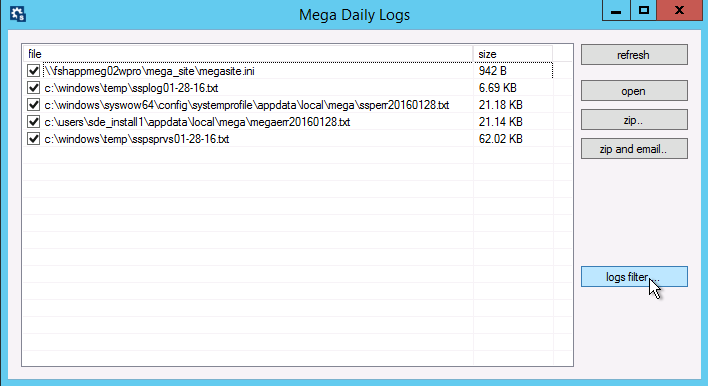
You can also choose « Log filter… », that will bring you another window that allows you to change to a number of days of logs, or to retrieve all logs located on the server:
Tip : if you do a left-click the icon, it will show you the health and if it is started or not on the Application server.
It will tell you if the SSP is started (if you are on the server where the SSP is hosted), how many Mega processes are running, and if IIS is started or not.
Configure SMTP
SMTP is configured as a global option.
In the Administration tool, open:
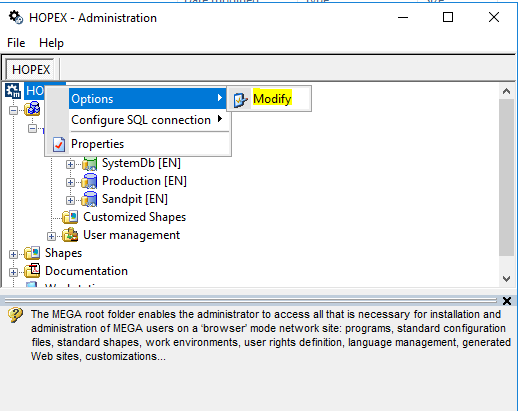
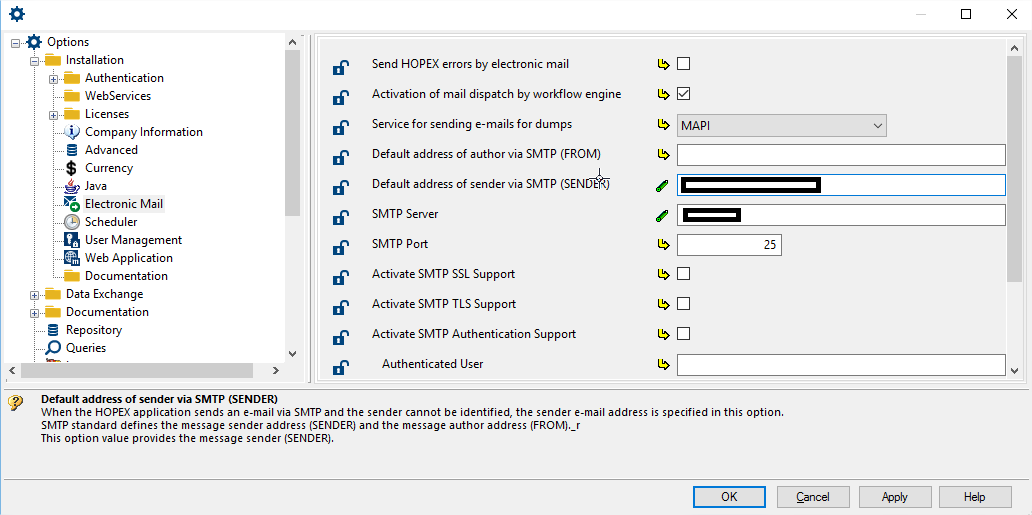
Go to « Installation-> Electronic Mail », and put the proper information for default sender, SMTP server, and communication port :
- Default sender: hopex-noreply@yourorganization.com
- SMTP server: server_name
- Port: 25 (by default)
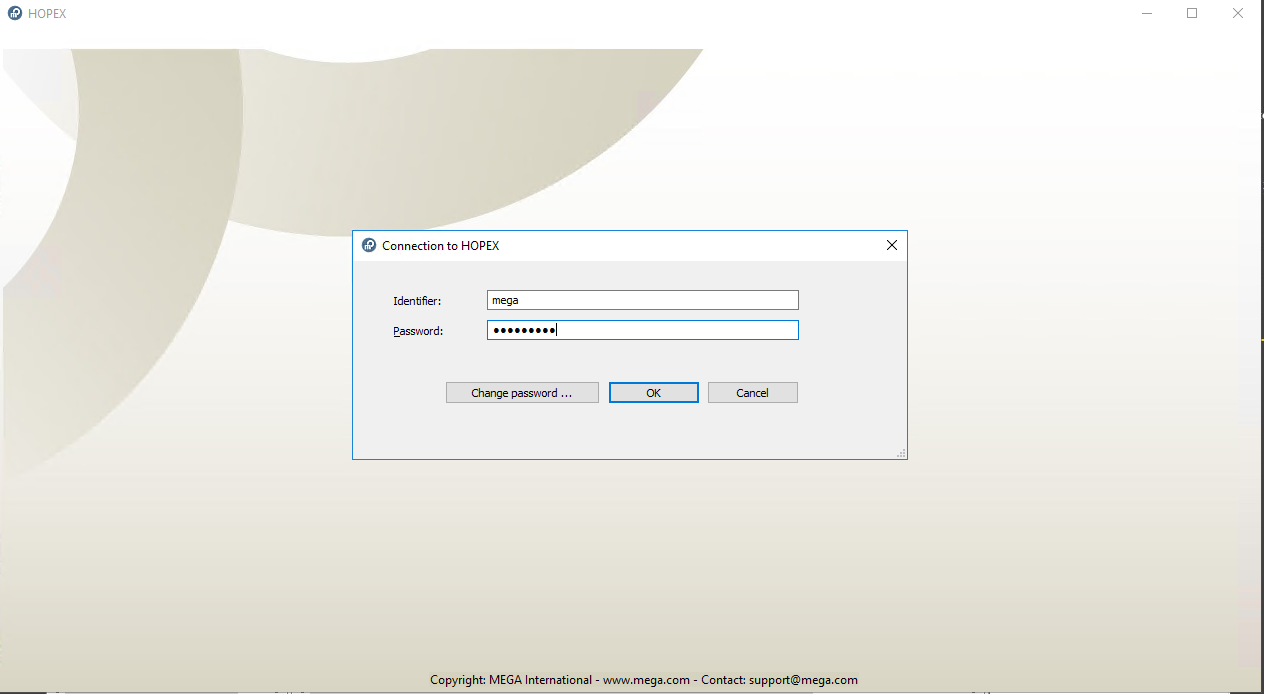
To test that the mails are working, we can use the Mega windows client (“Hopex.exe” at the root of the binaries) and we connect with the “mega” user:
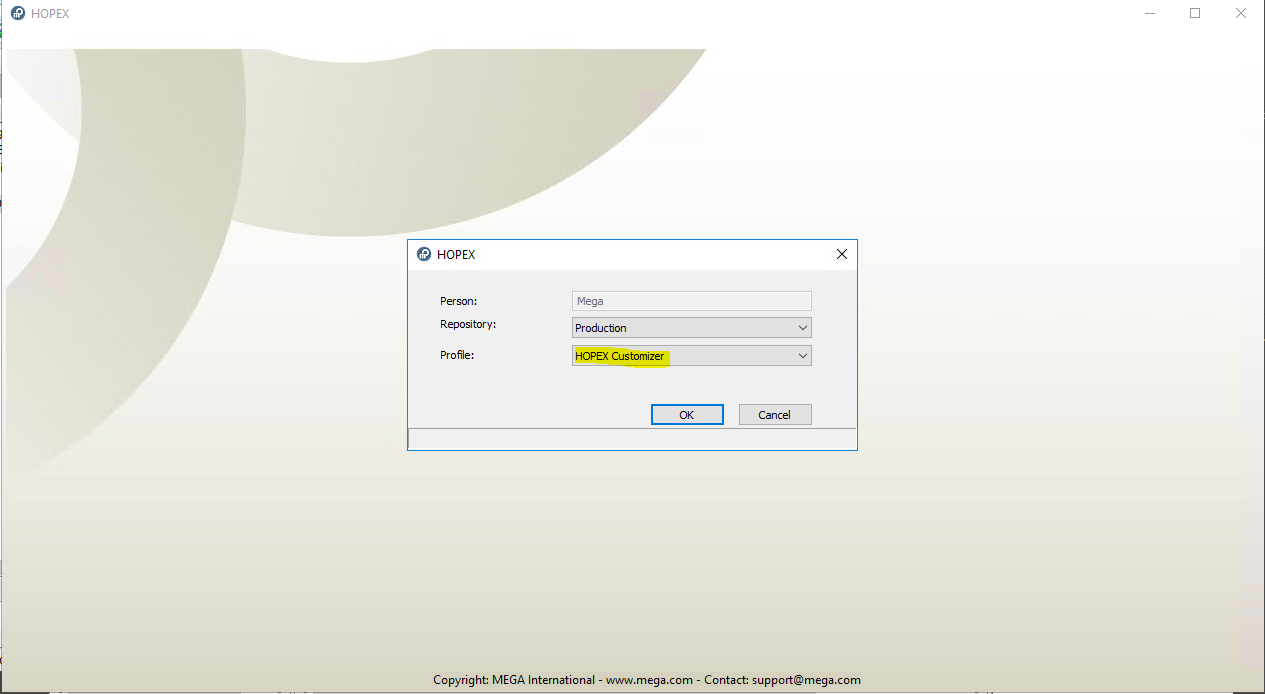
Connect to any repository but with the “HOPEX Customizer” profile (you need specific tokens in your license to be able to make that test):
Then go to the script editor in the options:
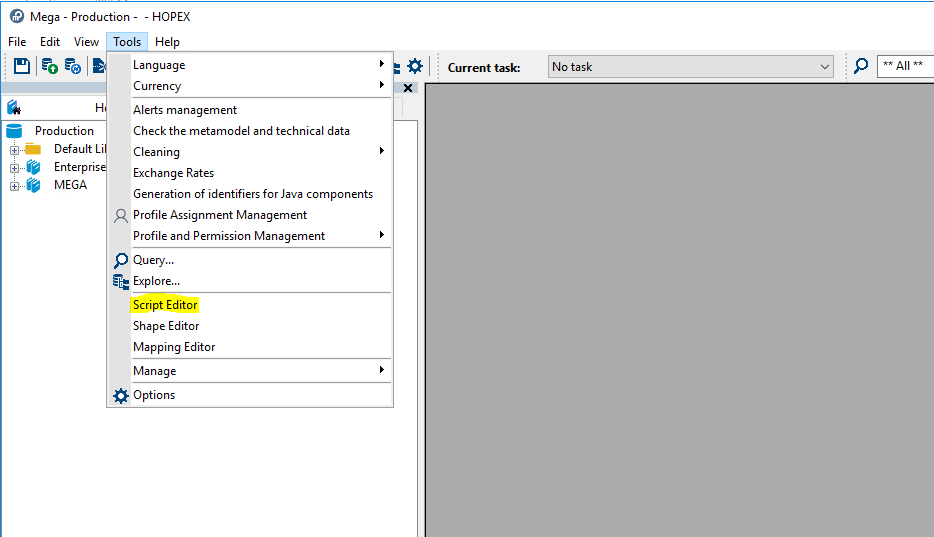
And put this kind of text:
Set mailer = CurrentEnvironment.Toolkit.MegaMailSender
mailer.Subject = "Test of mail sending"
mailer.Sender = "hopex-noreply@yourorganization.com"
mailer.Body = "Hello, this is a test of mail sending."
mailer.Recipients.Insert "your_target@yourorganization.com"
print mailer.SmtpSend
Click “Execute”:
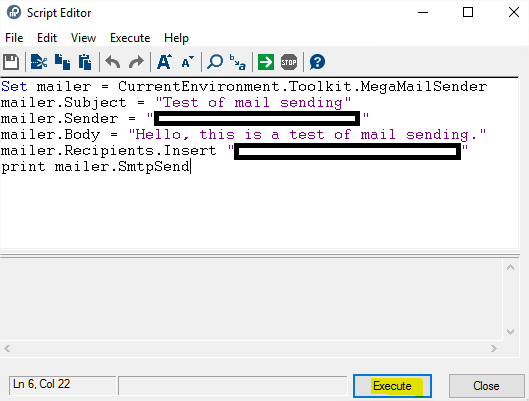
It takes a small amount of time to execute.
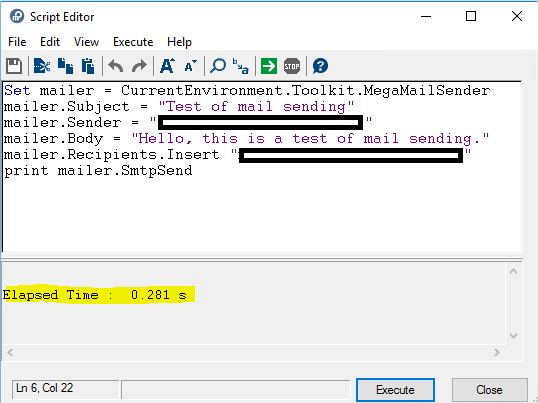
Check that the recipient received the test email to validate that the SMTP configuration is valid. In case of error, check the message in the popup window, and if the message is too long, check the megaerr*.* file in the logs folder to have the full message.
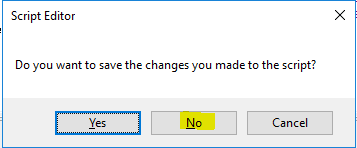
You can click “Close”, and then on “No”, then close the “Hopex.exe” Windows client: