Managing Locks on Objects
The lock management page of the Administration desktop provides access to:
• the Locks page, which details for each lock:
• the Name of the object concerned
• the Type of object concerned
• the User who owns the lock
• the date and time (GMT0) of the Lock, and, if applicable, Unlock.
• the Status of the lock (locked or otherwise)

• the Immutable Locks page, which details the following for each immutable lock:
• the Name of the object concerned
• the Type of object concerned
• the User who owns the lock
• its Lock date and time (GMT0).
• the Status of the lock (locked or otherwise)
For each locked object, you can:
• view its properties 
For each object locked with an immutable lock, you can:
• view its properties 
• unlock the object  to remove its immutability
to remove its immutability• unlock the object and propagate  to remove its immutability and that of its child locks.
to remove its immutability and that of its child locks.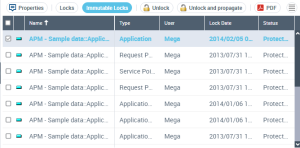
Viewing locks on objects
To view locks from the Administration desktop:
1. Connect to the Administration desktop.
2. In the Repository Management pane, click the Lock Management sub-folder.
The Lock Management page appears and lists the locks.
3. (Optional) To sort locks according to column, click the column header.
 You can also arrange columns in the order you want. To do this, click the header of the column to be moved and, holding down the mouse button, move it to the required position.
4. Select a lock and click Properties  to view the details of the lock.
to view the details of the lock.To consult the history of object modifications, select General >History
Managing immutable locks on objects
To manage immutable locks from the Administration desktop:
1. Connect to the Administration desktop.
2. In the Repository Management pane, click the Lock Management sub-folder.
3. Click Immutable Locks.
The page displays the list of immutable locks.
4. (Optional) To sort immutable locks according to column, click the column header.
You can also arrange columns in the order you want. To do this, click the header of the column to be moved and, holding down the mouse button, move it to the required position.5. Select the immutable lock (you can select more than one) and:
• click Unlock  to remove its immutability.
to remove its immutability.• click Unlock and Propagate  to remove its immutability and that of its child locks.
to remove its immutability and that of its child locks.The immutable lock is deleted.
You, and the person who set the lock receive a notification e-mail.