Managing UI Access
 To modify UI access on an object for a given profile, you must have modification authorization rights on this profile.
 For information on management of accesses to user interface workflows, see the HOPEX Power Studio - Workflows guide.
For a new profile, access permissions on an object of this profile are by default:
• inherited from the Default profile, if the profile is not an aggregation of profiles (in profile parameters, the profile does not contain sub-profiles, see "Customizing an Existing Profile / Creating a Profile from an Existing Profile", page 46).
• inherited from permissions defined on owned profiles, if the profile is an aggregation of profiles (in profile parameters, the profile contains one or several profiles, see "Customizing an Existing Profile / Creating a Profile from an Existing Profile", page 46).
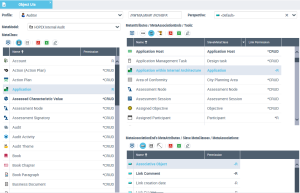
In the Object UIs tab:
• the Profile field enables definition of the profile for which you want to define access permissions.
• the MetaModel field enables filtering of MetaClasses displayed in the MetaClass frame according to the selected MetaModel.
• "All” value lists all existing MetaClasses.
• <Extensions> value lists all MetaClasses that are not stored in standard MetaModels (HOPEX products)
To define access permissions on objects, see:
Modifying access permissions on occurrences of a MetaClass for a profile
To modify access permissions on occurrences of a MetaClass for a profile:
1. Access the UI access management window and select the Object UIs tab.
2. In the Profile field, select the profile using the drop-down menu.
The <Default> profile defines default access permissions of each MetaClass, MetaAttribute, MetaAssociationEnd and tool.3. In the MetaModel field, select the MetaModel concerned.
In the MetaClass frame, the listed MetaClasses are filtered according to the selected MetaModel.
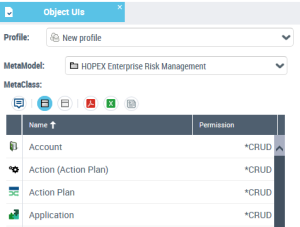
4. In the MetaClass frame, select the MetaClass for which you want to modify configuration of access permissions.
By default, its configuration is that inherited from the <Default> profile.5. In the Permission field, enter the new value.
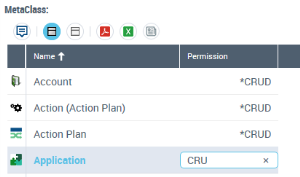
6. Press "Enter".
The value of the MetaClass permission is modified.
In the MetaAttributes/MetaAssociationEnds/Tools frame, the values of permissions of elements of the MetaClass are also modified.
To return to the default value of the permission on the MetaClass, enter the character *. To obtain information on inheritance of the value, enter the character ?.
You can also modify the MetaAttributes/MetaAssociationEnds/Tools of a MetaClass, see:
Modifying access permissions of MetaAttributes of a MetaClass for a profile
To modify access permissions of MetaAttributes of a MetaClass for a profile:
1. Access the UI access management window and select the Object UIs tab.
2. In the Profile field, select the profile using the drop-down menu.
The <Default> profile defines default access permissions of each MetaClass, MetaAttribute, MetaAssociationEnd and tool.3. In the MetaModel field, select the MetaModel concerned.
In the MetaClass frame, the listed MetaClasses are filtered according to the selected MetaModel.
4. In the MetaClass frame, select the MetaClass concerned.
5. In the toolbar of the MetaAttributes/MetaAssociationEnds/Tools frame, click MetaAttribute  .
.
.The MetaAttributes of the MetaClass are listed.
6. Select the MetaAttribute for which you want to modify permissions.
7. In the Permission field, enter the new value.

8. Press "Enter".
The value of the MetaAttribute permission is modified.
To return to the default value, enter the character *.To obtain information on origin of an inherited value, enter the character ?.Modifying access permissions to tools of a MetaClass for a profile
A tool can be available or not.
To modify access permissions to tools of a MetaClass for a profile:
1. Access the UI access management window and select the Object UIs tab.
2. In the Profile field, select the profile using the drop-down menu.
The <Default> profile defines default permissions of each MetaClass, MetaAttribute, MetaAssociationEnd and tool.3. In the MetaModel field, select the MetaModel concerned.
In the MetaClass frame, the listed MetaClasses are filtered according to the selected MetaModel.
4. In the MetaClass frame, select the MetaClass concerned.
5. In the toolbar of the MetaAttributes/MetaAssociationEnds/Tools frame, click Tools  .
.
.6. Select the tool for which you want to modify access permissions.
7. In the Permission field, enter the new value.

8. Press "Enter".
The value of the tool access permission is modified.
To return to the default value, enter the character *.To obtain information on inheritance of the value, enter the character ?.Modifying access permissions of a link around a MetaClass for a profile
To modify access permissions of a link around a MetaClass for a profile:
1. Access the UI access management dialog box and select the Object UIs tab.
2. In the Profile field, select the profile using the drop-down menu.
The <Default> profile defines default permissions of each MetaClass, MetaAttribute, MetaAssociationEnd and tool.3. In the MetaModel field, select the MetaModel concerned.
In the MetaClass frame, the listed MetaClasses are filtered according to the selected MetaModel.
4. In the MetaClass frame, select the MetaClass concerned.
5. In the toolbar of the MetaAttributes/MetaAssociationEnds/Tools frame, click MetaAssociationEnd  .
.
.6. Select the MetaAssociationEnd for which you want to modify link access permissions.
7. In the Permission field, enter the new value.
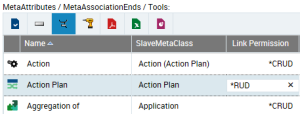
8. Press "Enter".
The value of the link access permission is modified.
To return to the default value, enter the character *.To obtain information on inheritance of the value, enter the character ?.Modifying access permissions on links around a MetaClass for a profile
You can modify access permissions on:
• the link according to the MetaClass accessed via the link
• one of the MetaAttributes of the link
• one of the MetaClasses accessed via the link
Example: You can grant rights to connect (but not to create) an IT Service to an Application via this same link.
To modify access permissions on links around a MetaClass for a profile:
1. Select the MetaAssociationEnd.
2. In the menu bar of the MetaAttributes of MetaAssociationEnds/Slave MetaClasses/MetaAssociations, click MetaAttribute , MetaClass  , or MetaAssociation
  .
.
, MetaClass , or MetaAssociation .3. In the list, select the MetaAttribute, MetaClass or MetaAssociation concerned.
4. In the Permission field, enter the new value.
5. Press "Enter".
The value of the access permission is modified.
To return to the default value, enter the character *.To obtain information on origin of an inherited value, enter the character ?.Rules on permissions at profile aggregation
When a profile aggregates several sub-profiles, its permissions are defined by the addition of permissions defined on its sub-profiles.
Example:
Profile 1 is the aggregation of sub-profiles 1.1 and 1.2.
If the permission on an object A of sub-profile 1.1 has value CR, and that of sub-profile 1.2 has value RUD, then the value of this permission on object A for profile 1 is CRUD.
Attention to default values
A permission value with * means that this value is the default permission value and that it has not been specifically defined. Only those values specifically defined are taken into account in aggregation.
Example:
Profile 1 is the aggregation of sub-profiles 1.1 and 1.2.
If the permission on an object A of sub-profile 1.1 has value *CRUD, and that of sub-profile 1.2 has value R, then the value of this permission on object A for profile 1 is R.