Presentation Tools
To enrich the presentation of your questionnaires, HOPEX enables you to use presentation tools. They enable enhancement of questionnaire content and presentation, for example to include images, diagrams or text.
The objective is to customize a questionnaire.
The presentation tool can be associated with the following object types:
• questionnaire template
• question
 For more details, see Questions and Answer Types.
• question group
For more details, see Creating Question Groups.• presentation tool
You can nest presentation tools.Positioning the presentation tool
To specify the position of the presentation tool with respect to its associated object (for example, question or group of questions):
1. In the question properties page, expand the Presentation Tool section and click New.
2. In the Location field, specify the value in question:
• "Top": to display the presentation tool before the title
• "Bottom": to display the presentation tool after the answer
• "Middle": to display the presentation tool between the title and answer
Presentation Type
Presentation tools can be of different types.
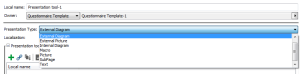
External diagram
Enables display of one or several diagrams in a tab outside the questionnaire itself.
To recover the list of diagrams:
1. In the properties of the presentation tool, select the Texts tab, then _Parameterization in the drop-down list.
2. Specify the macro "Assess Object Diagram Implementation".
The following is an example enabling listing of diagrams for objects of "Process" type.
[AssessmentQuestionnaire]
Query1=~Dpxvsf(pIHMH[Presentation Tool - Diagram for Process],~w)UB063C99h0[BPMN Process]
Internal diagram
Enables display of one or several diagrams within the questionnaire.
For more details on this configuration, see External diagram.Image
Enables insertion of the image specified in the MetaPicture field.
External image
Inserts a button in the questionnaire enabling display of the image in a specific window.
Macro
Enables specification of a presentation tool from the VBScript macro specified in the Macro field.
The macro should implement the GetTemplate() function, which returns a properties page template. The root object of this template is an assessment node. The function includes three parameters:
• the presentation element
• the parent object of this presentation element
• a context.
A script is generated at initialization of the macro.
Example:
Function GetTemplate(mgobjPresentationTool, mgobjPresentationToolParent, oPresentationToolContext)
Dim sTemplate
sTemplate = ""
' ----
Dim sFrom, sGroup, sCondtion
sFrom = oPresentationToolContext.getProp("~hIRFg9qfIjl6[Presentation Tool From]")
sFrom = "DatabaseMap"
sGroup = oPresentationToolContext.getProp("~gJRF1AqfI9o6[Presentation Tool Group]")
sTemplate = "DatabaseMap=Map(~qLTKQPbNJXOP[Database from node])" & VbCrLf
sTemplate = sTemplate & "MyItem_1=Item(~Yt9ZXpesiO40[Sgbd-Cible]),From(" & sFrom & "),In(" & sGroup & ")"
GetTemplate = sTemplate
End Function
Sub-Page
Enables display of the properties page of a questionnaire object. In the questionnaire, when you click an assessment node, the properties of the object object concerned are displayed.
Enables display of the properties page of an object:
 Specify the MetaPropertyPage field.
Text
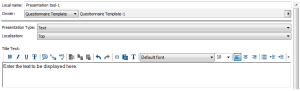
Enables insertion of text in the questionnaire.
To enter text displayed in the questionnaire:
Specify the Title Text field.